How to Cancel an Order or Individual IP-Blocks
This guide helps Customers cancel their subscription — either entirely or partially — by selecting IP-Blocks from the active order. For concepts (billing, full vs partial cancellation, date logic), see Order Cancellation in the glossary.
There are two ways to submit a cancellation request:
- From a single contract — open the contract details and use the Contract Cancellation section (Steps 1–8 below).
- In bulk, across several contracts — use the Bulk cancellation button on the IP-Blocks page to cancel blocks from different contracts in one request (see Step 9).
1. Access Your Active Subscriptions
Go to:
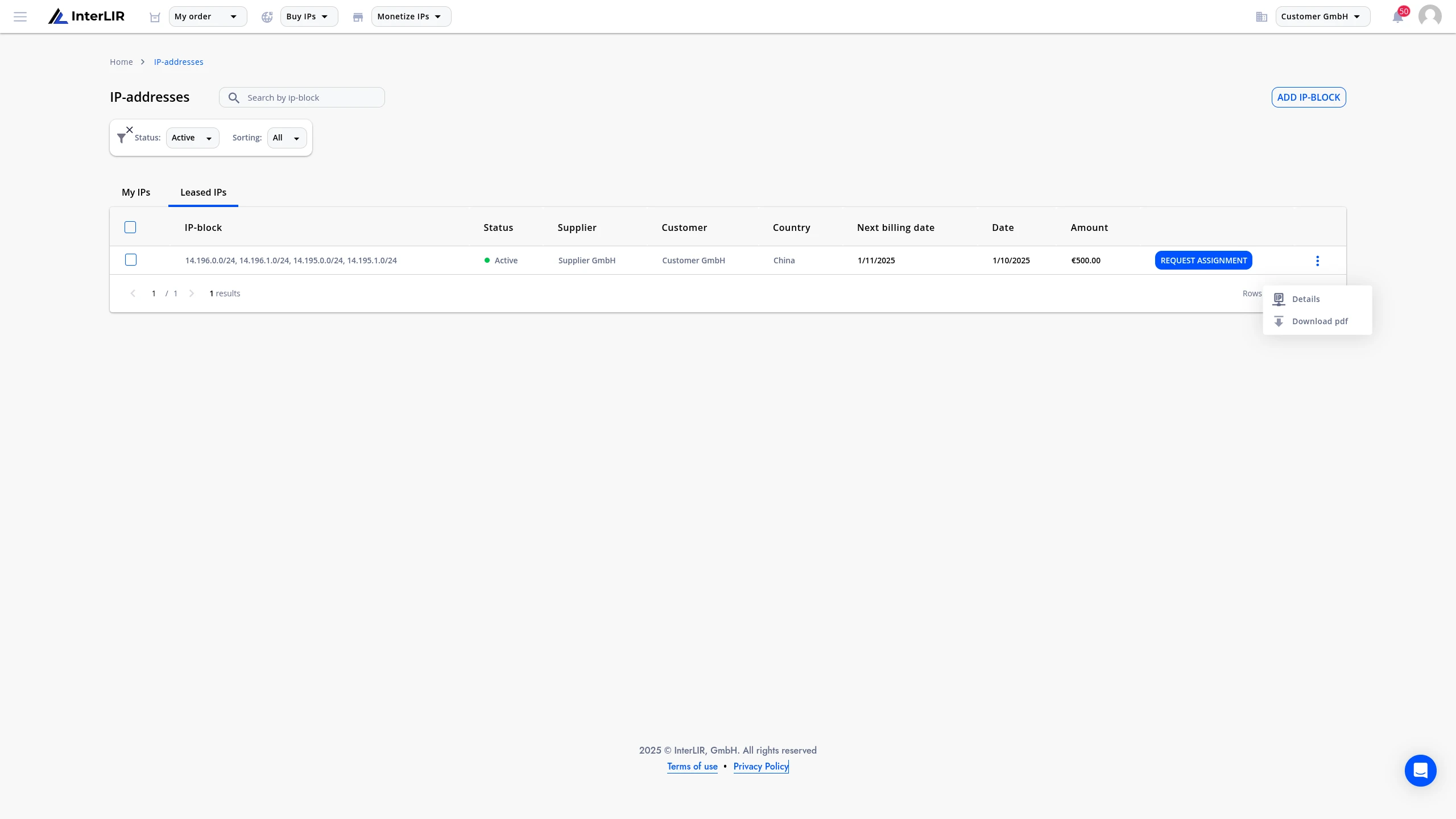
📍 IPv4 Resources → IP-Blocks → Clients
🔗 https://portal.interlir.com/inetnums
🛈 If needed, switch to the Leased IPs tab to view the page with your lease contracts.
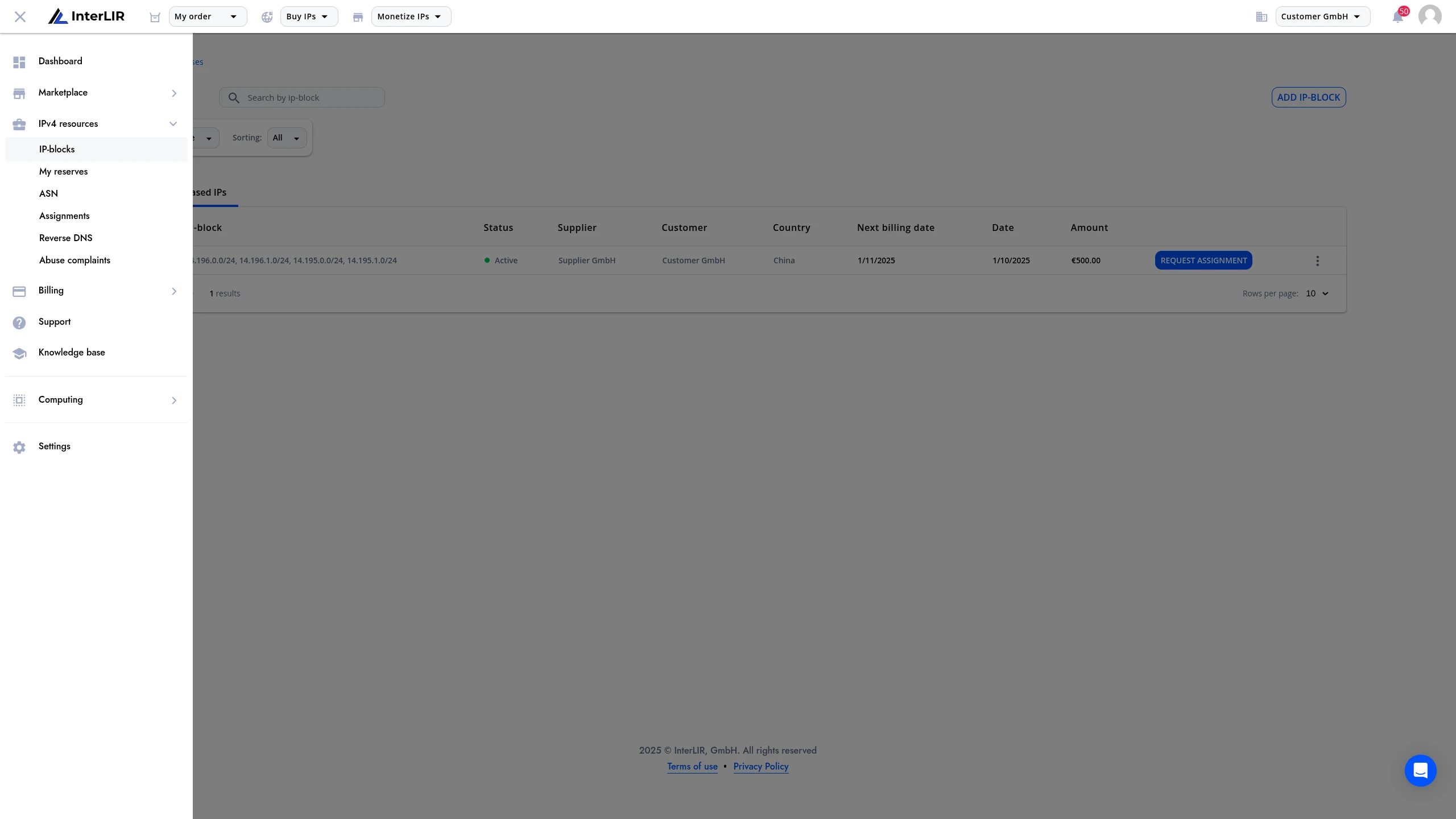 From the context menu of the lease contract, click Details.
2. Open the Contract Cancellation Section
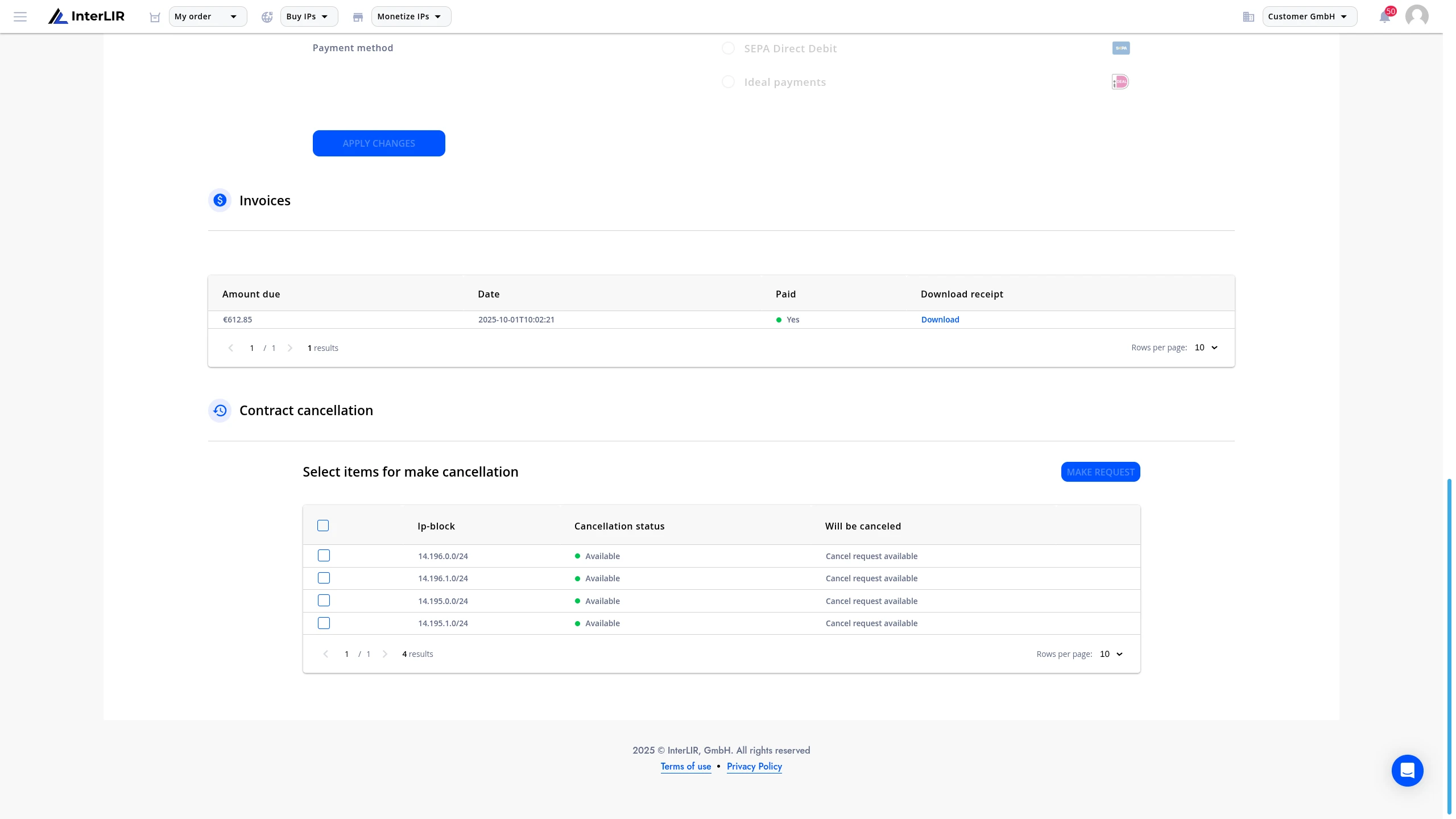
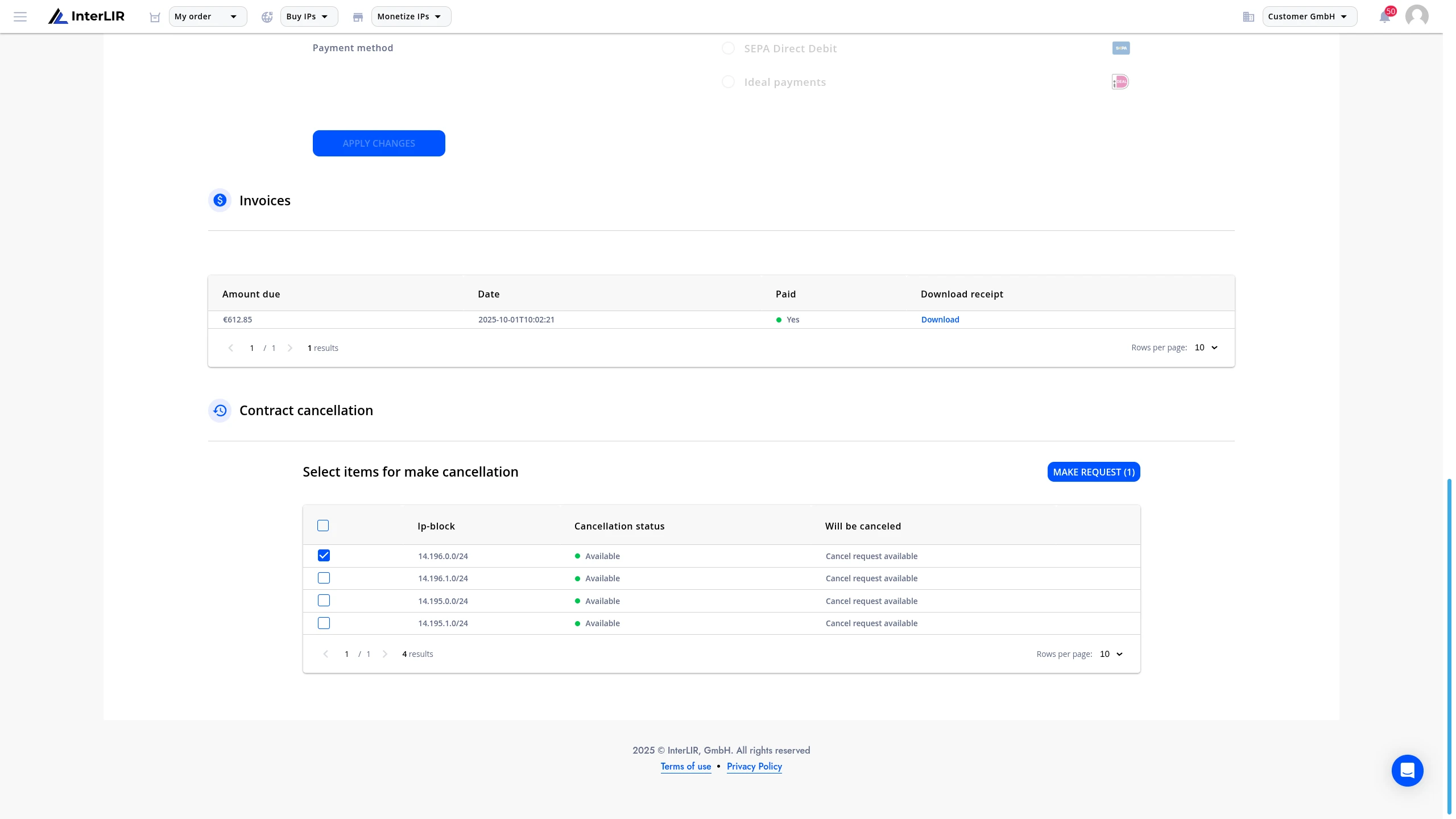
Scroll to the bottom of the contract details page until you see the Contract Cancellation section.
Here, you can choose which IP-Blocks you want to cancel:
- ✅ All blocks from the order (full cancellation)
- ✅ One or more blocks from the order (partial cancellation)
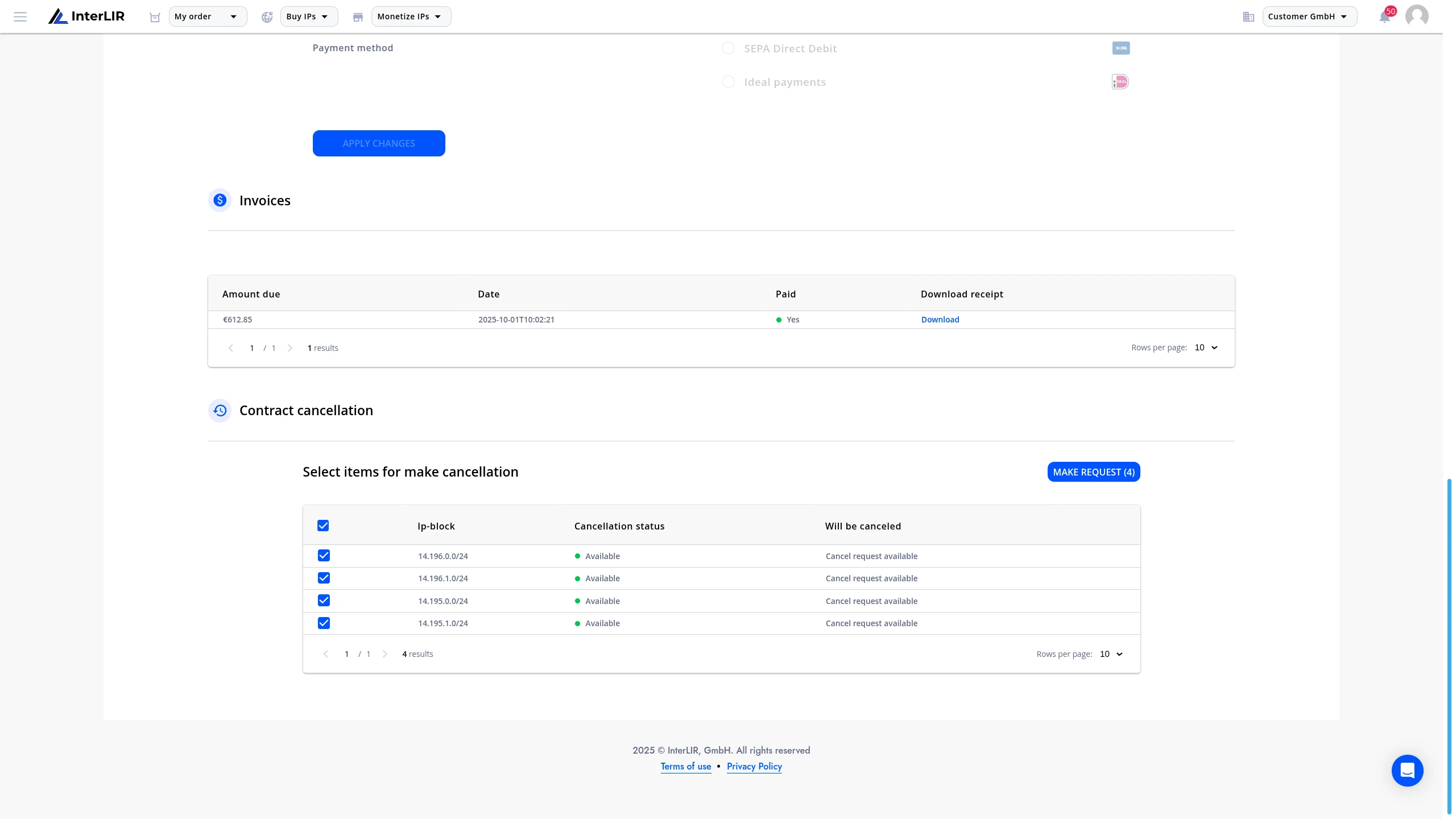
Use the checkboxes to select blocks for cancellation.
3. Submit a Cancellation Request
After selecting the blocks, click Make request to open the cancellation form.
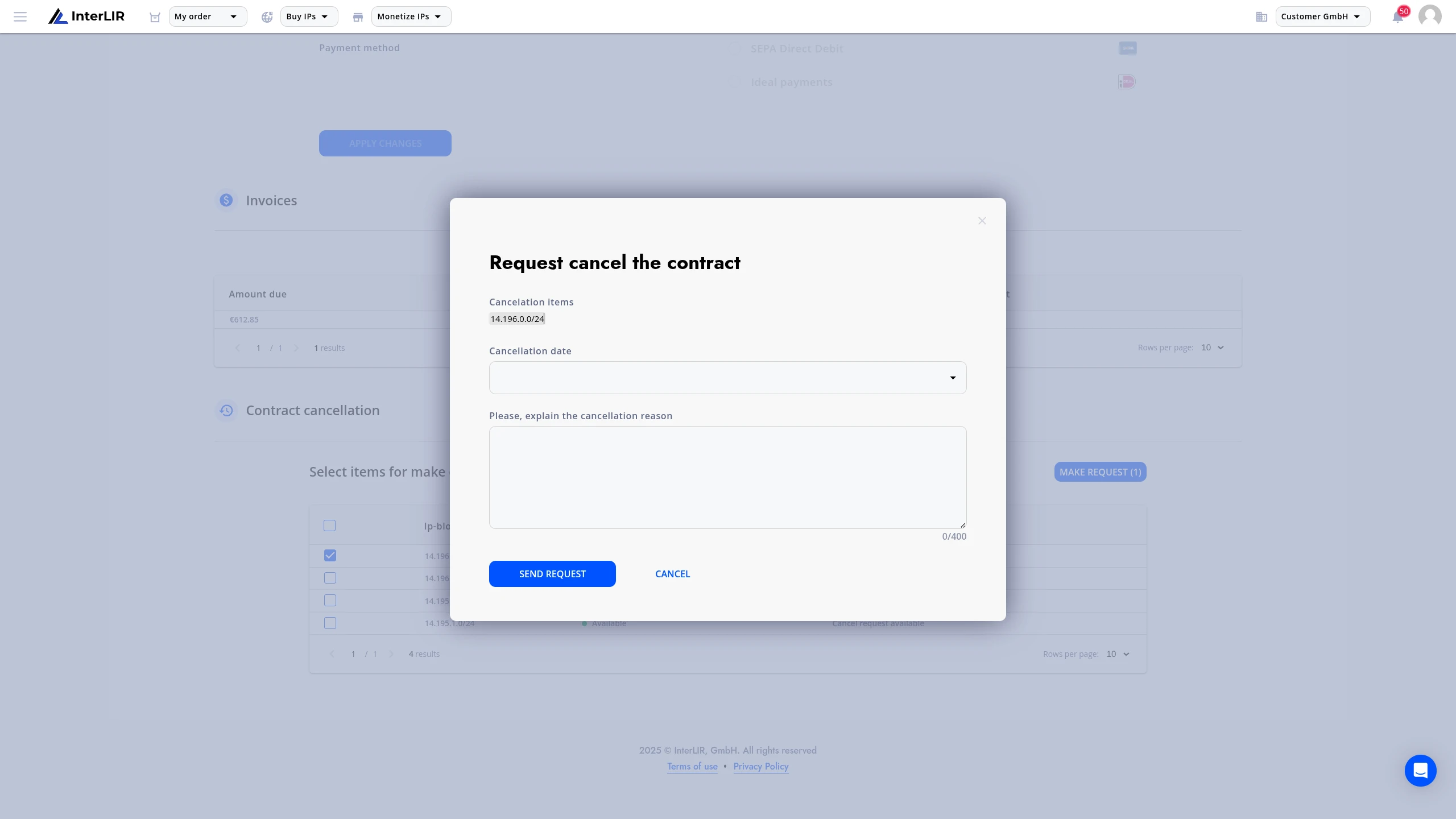
In the form:
- Select a cancellation date (required)
- Add a comment (optional)
🛈 Available cancellation dates depend on the Minimal Order Period of the lease contract.
🛈 Example 1: If the minimal order period is 3 months, the earliest cancellation date will be 3 months from the contract start date. This rule applies starting from the moment the order is placed and remains in effect until the end of the Minimal Lease Period.
🛈 Example 2: If 3+ months have already passed, the next available cancellation date will align with the next billing cycle (typically monthly).
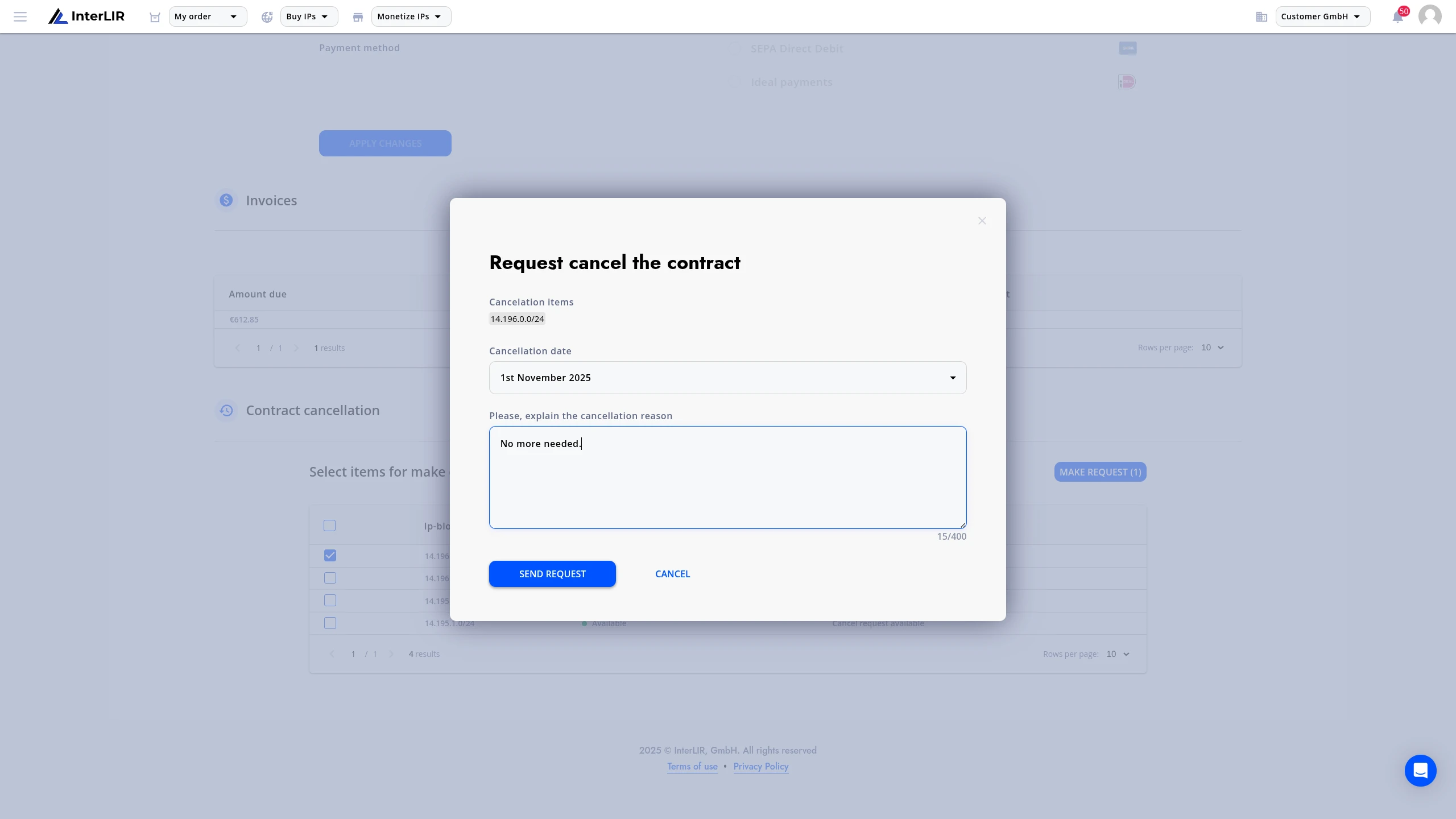
Click Send request to proceed.
4. Confirm via Email Code
You will be prompted to enter a 6-digit code sent to your email to confirm the cancellation.
5. Cancellation Approval Process
Once submitted, your request will be reviewed by InterLIR staff. Status will be Cancellation approval while pending.
- Upon approval, status becomes
Approved, and cancellation will take effect on the selected date.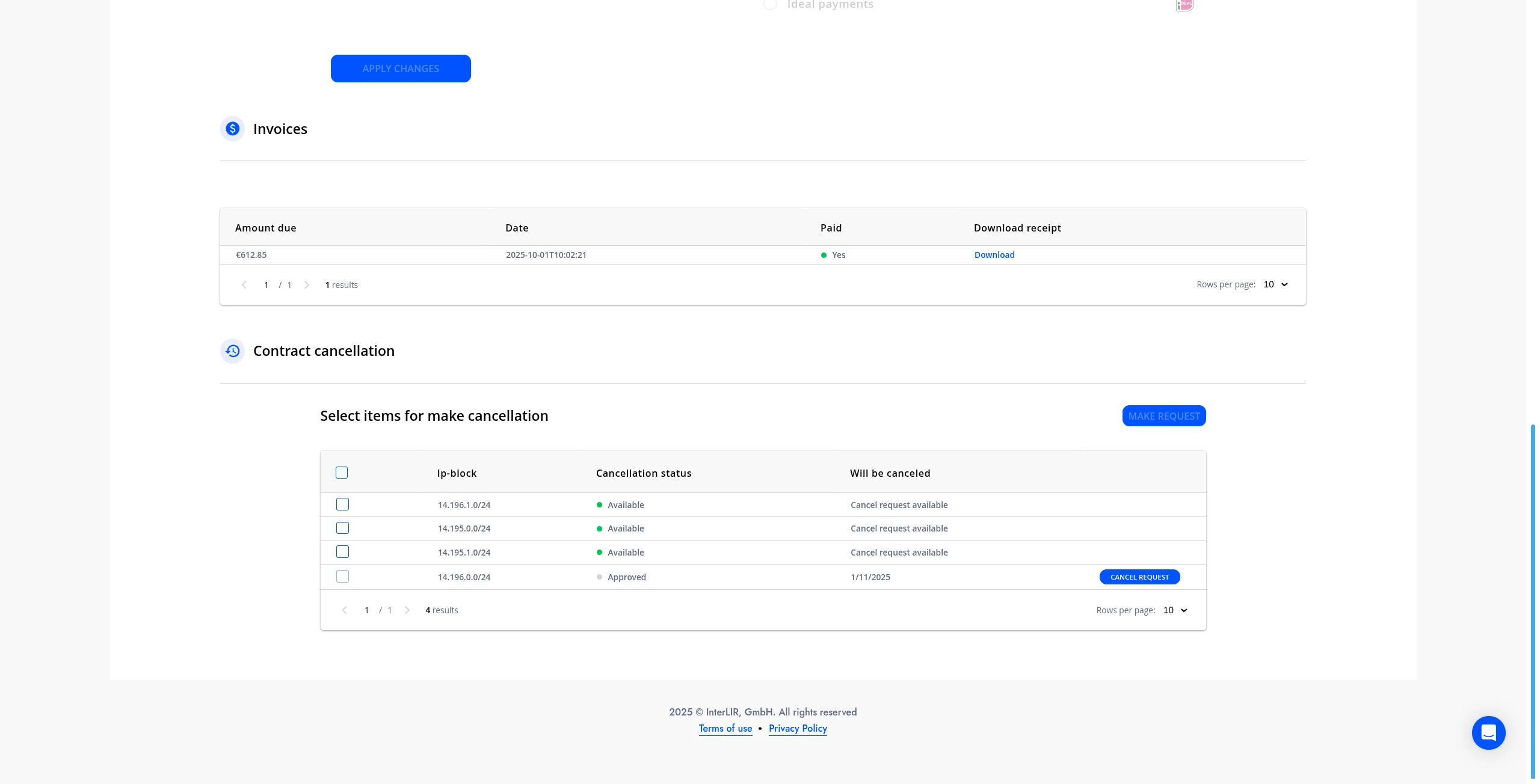
- When the selected cancellation date arrives, the block’s cancellation status changes to
Canceled.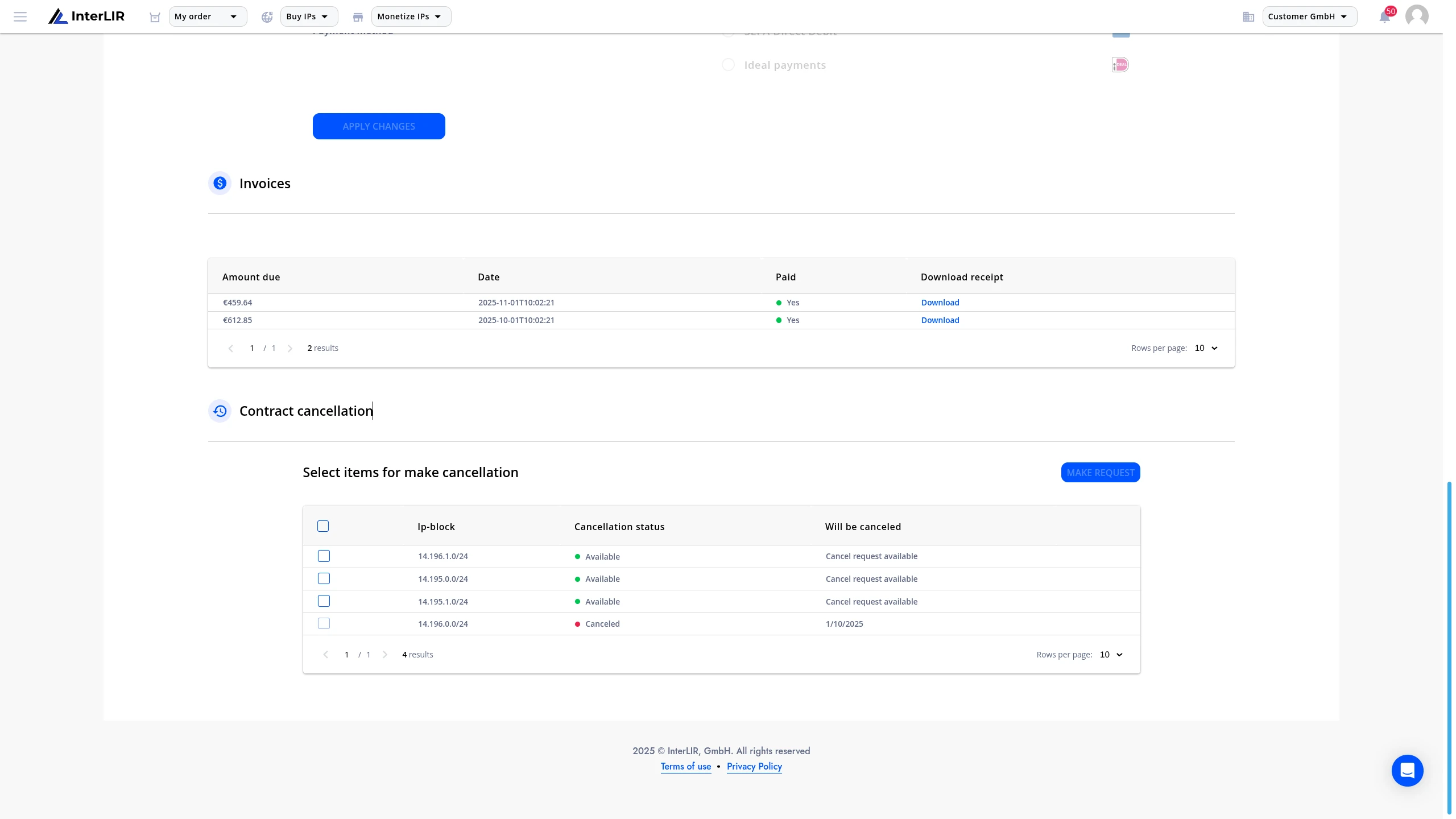
6. Canceling the Cancellation
You may revoke your cancellation request anytime before it takes effect.
Use the Cancel request button to do this.
7. Contract Status
- As long as at least one block remains active in the lease contract, the overall status remains
Active. - When all blocks are canceled, the lease contract will be marked as
Canceled. - The same rules apply to blocks cancelled via Bulk cancellation.
8. Associated objects
After the block, multiple blocks, or the entire order is canceled, the removal process for associated objects — such as Assignment and rDNS — will begin.
9. Bulk Cancellation (Multiple Contracts at Once)
If you need to cancel many IP-Blocks — possibly belonging to different lease contracts — you don't have to open each contract separately. Use Bulk cancellation to select the blocks, choose a cancellation date for each of them, and send everything as one request.
9.1. Open the Bulk cancellation window
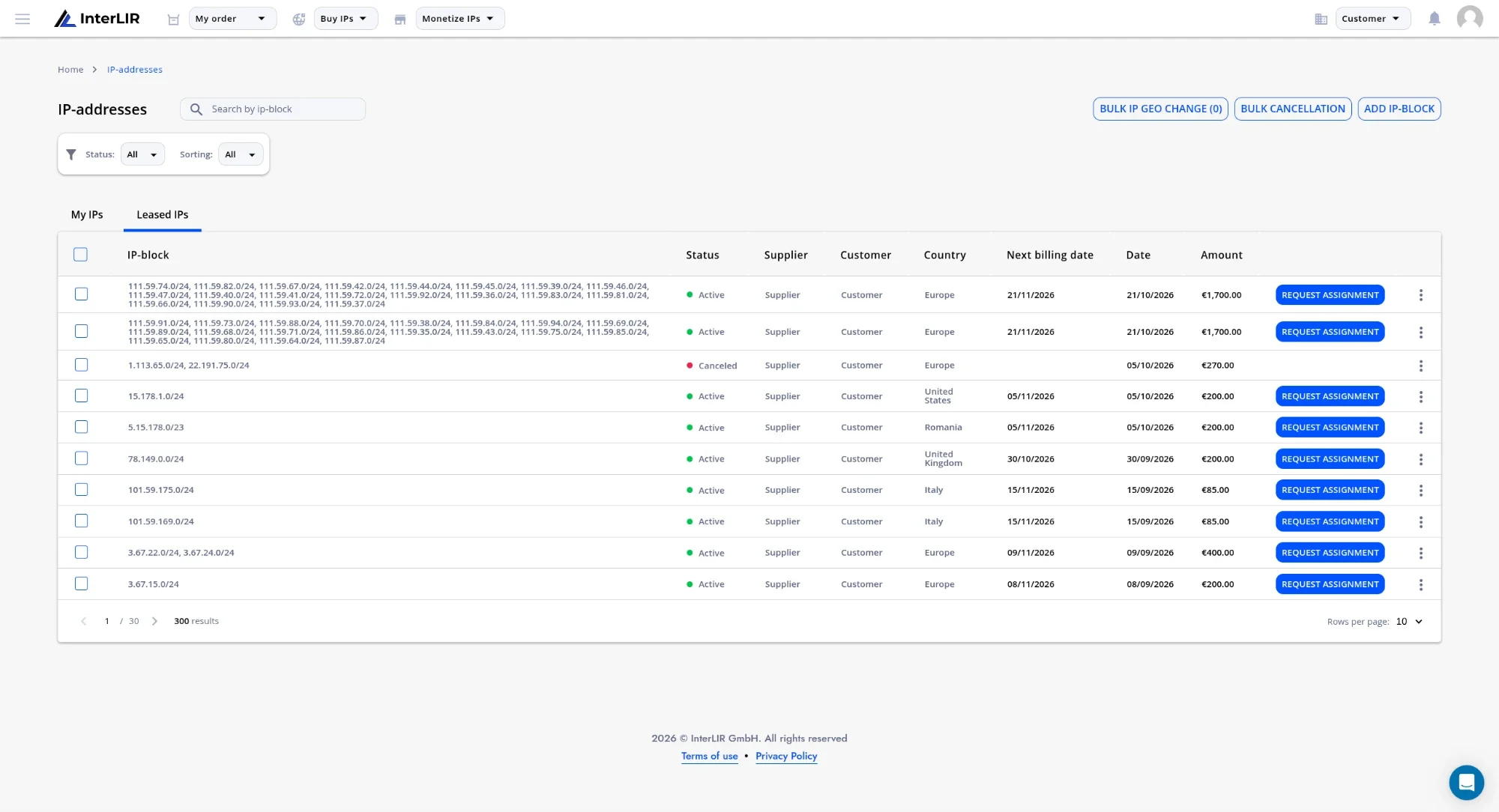
Go to:
📍 IPv4 Resources → IP-Blocks → Leased IPs
🔗 https://portal.interlir.com/inetnums
Above the table, click the Bulk cancellation button.
9.2. Select IP-blocks and cancellation dates
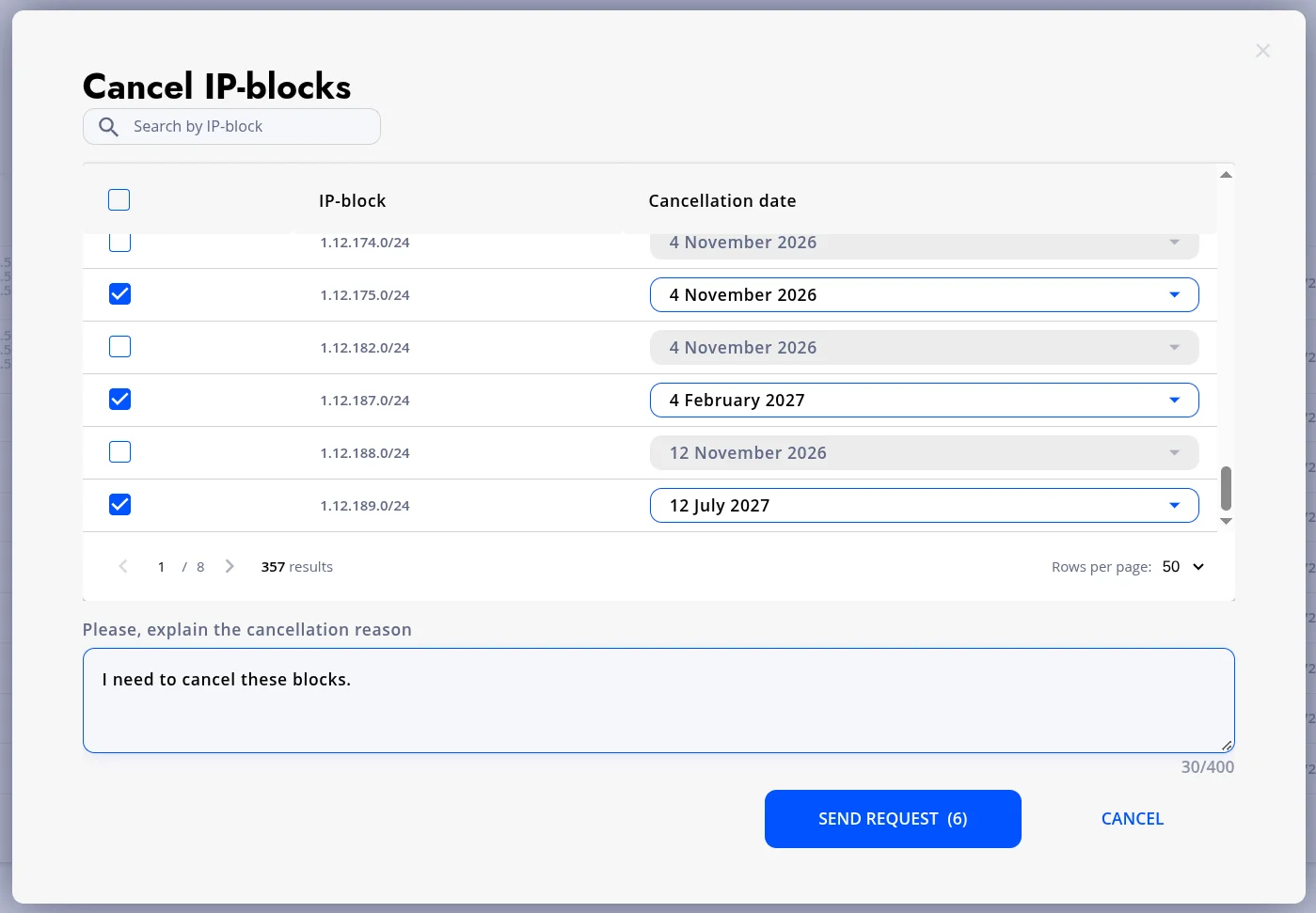
The Cancel IP-blocks window lists all your leased IP-blocks. You can find a specific block with Search by IP-block and change the number of rows with Rows per page.
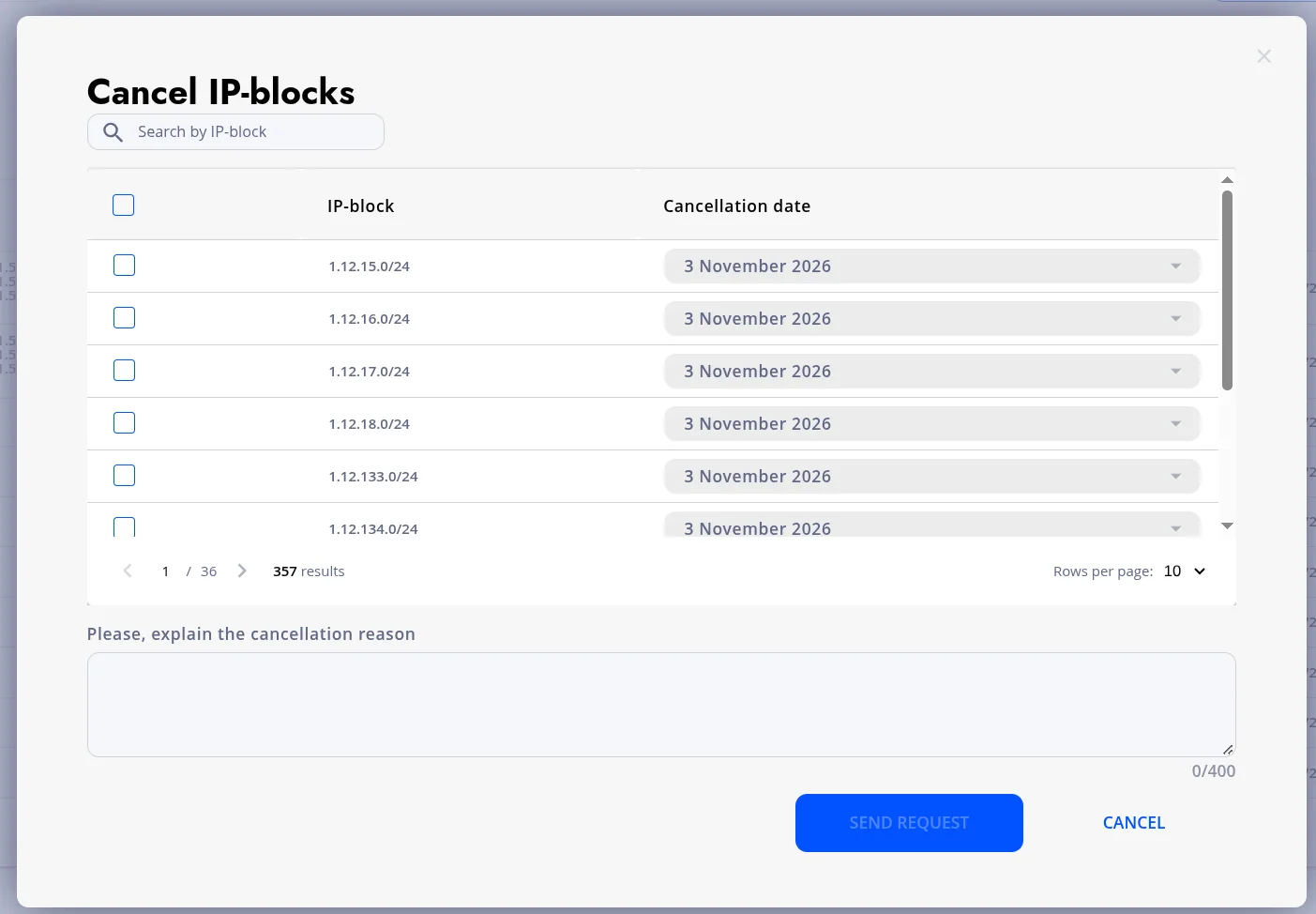
An IP-block is available for selection only if both conditions are met:
- its subscription is active;
- it has no active cancellation request.
Blocks that don't meet these conditions are shown but cannot be selected.
For each block you want to cancel:
- Tick the checkbox next to the IP-block (the checkbox in the table header selects all available blocks on the page).
- Choose a date in the Cancellation date selector. The date field becomes active only after the block is selected.
🛈 Available cancellation dates depend on the Minimal Order Period of the block's lease contract, in the same way as for a regular cancellation (see Step 3). Dates for different blocks can differ.
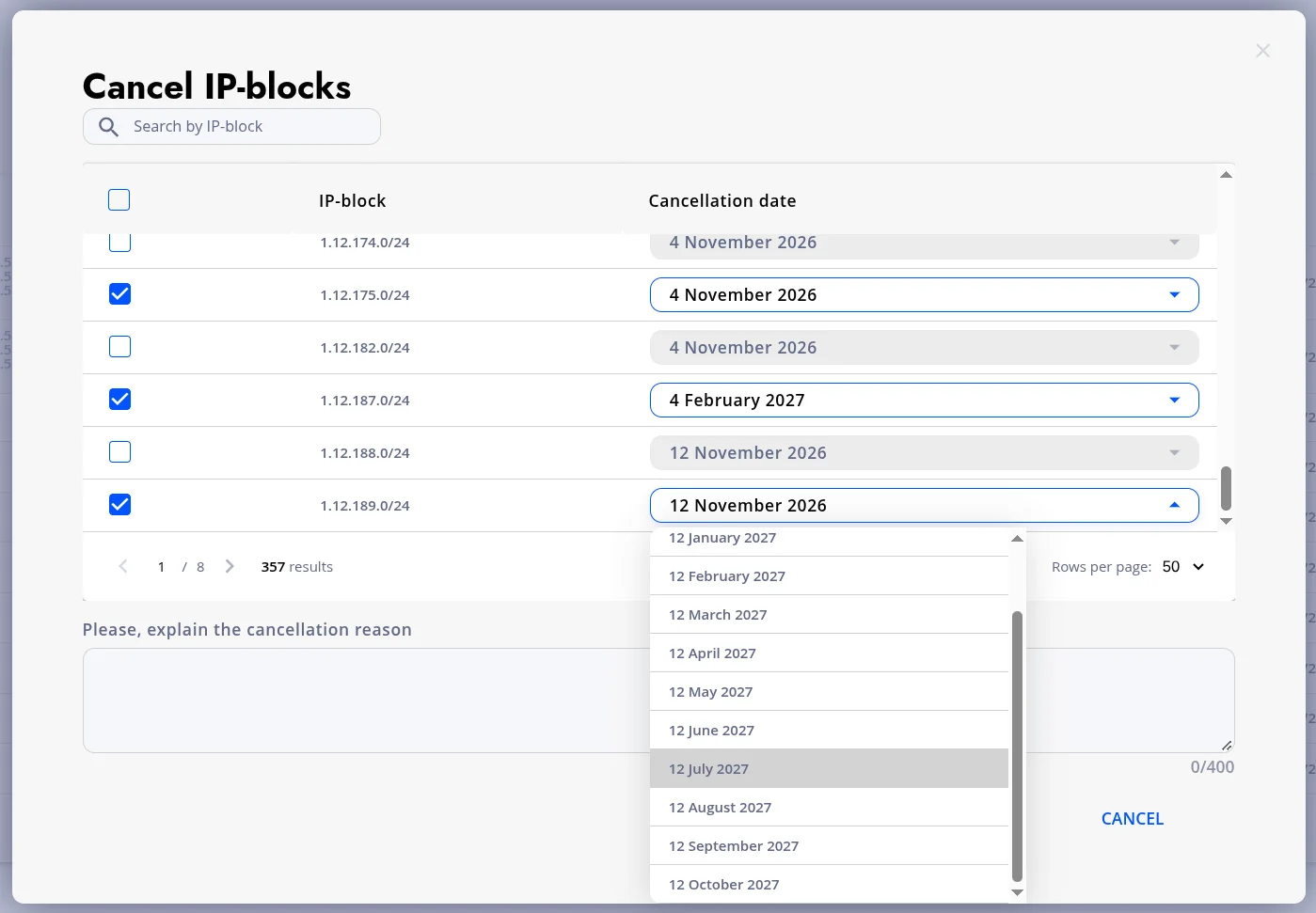
The number of selected blocks is shown on the Send request button, for example Send request (6).
9.3. Describe the reason and send the request
In the Please, explain the cancellation reason field, describe why you are cancelling the blocks (up to 400 characters). Then click Send request.
9.4. Confirm via email code
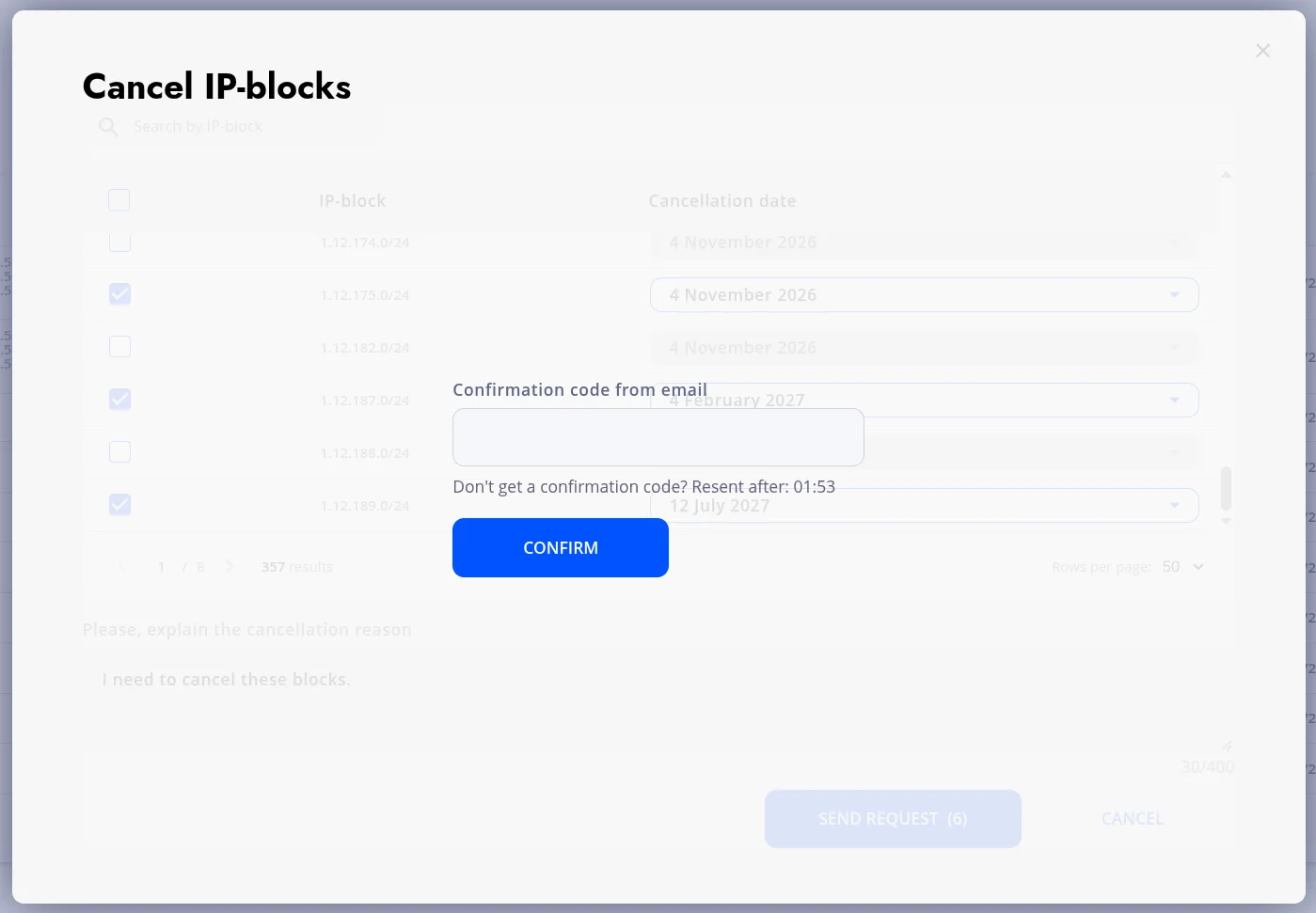
As with a regular cancellation, you will receive a confirmation code by email. One code confirms all blocks selected in this request.
Enter the code in the Confirmation code from email field and click Confirm. If the code doesn't arrive, wait for the countdown to finish and request it again (Resent after).
🛈 Didn't receive the code? See the FAQ.
9.5. What happens next
InterLIR staff review each block's cancellation request. The review, statuses and results are the same as in Step 5: after approval, each block is cancelled on the date you selected for it. Until the effective date, you can revoke any request, as described in Step 6.
Need Help?
If you face issues at any step of the cancellation process, please contact our Support Team.
See also
- Order Cancellation (glossary), including Bulk cancellation
- How to Make an Order (marketplace, before you need to cancel)
- Assignment Request Cancellation
- rDNS Request Cancellation