How to Import an Auction
This guide is intended for Suppliers who wish to list their IP-Blocks for sale via the InterLIR auction platform.
1. Navigate to the Auction Page
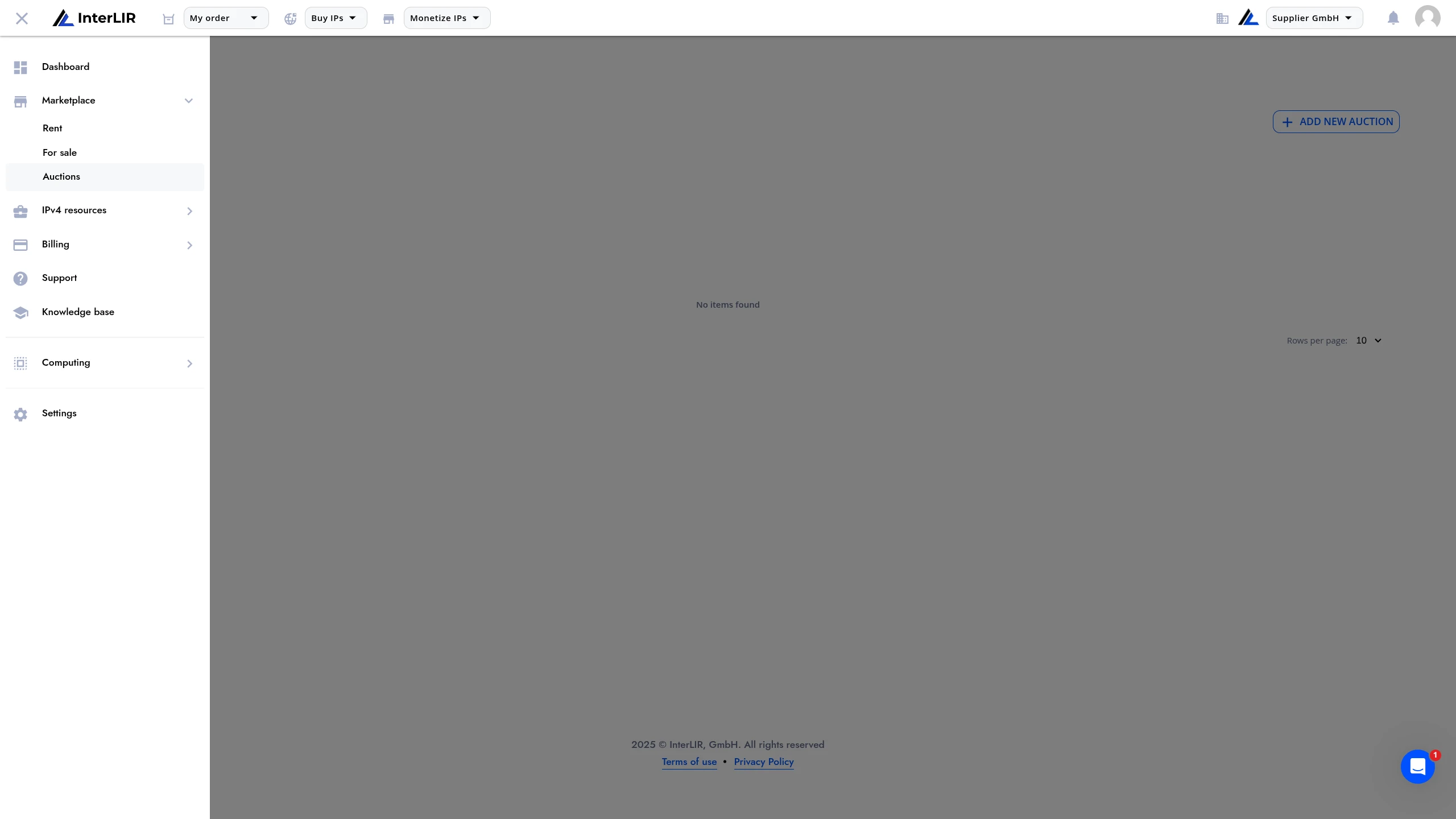
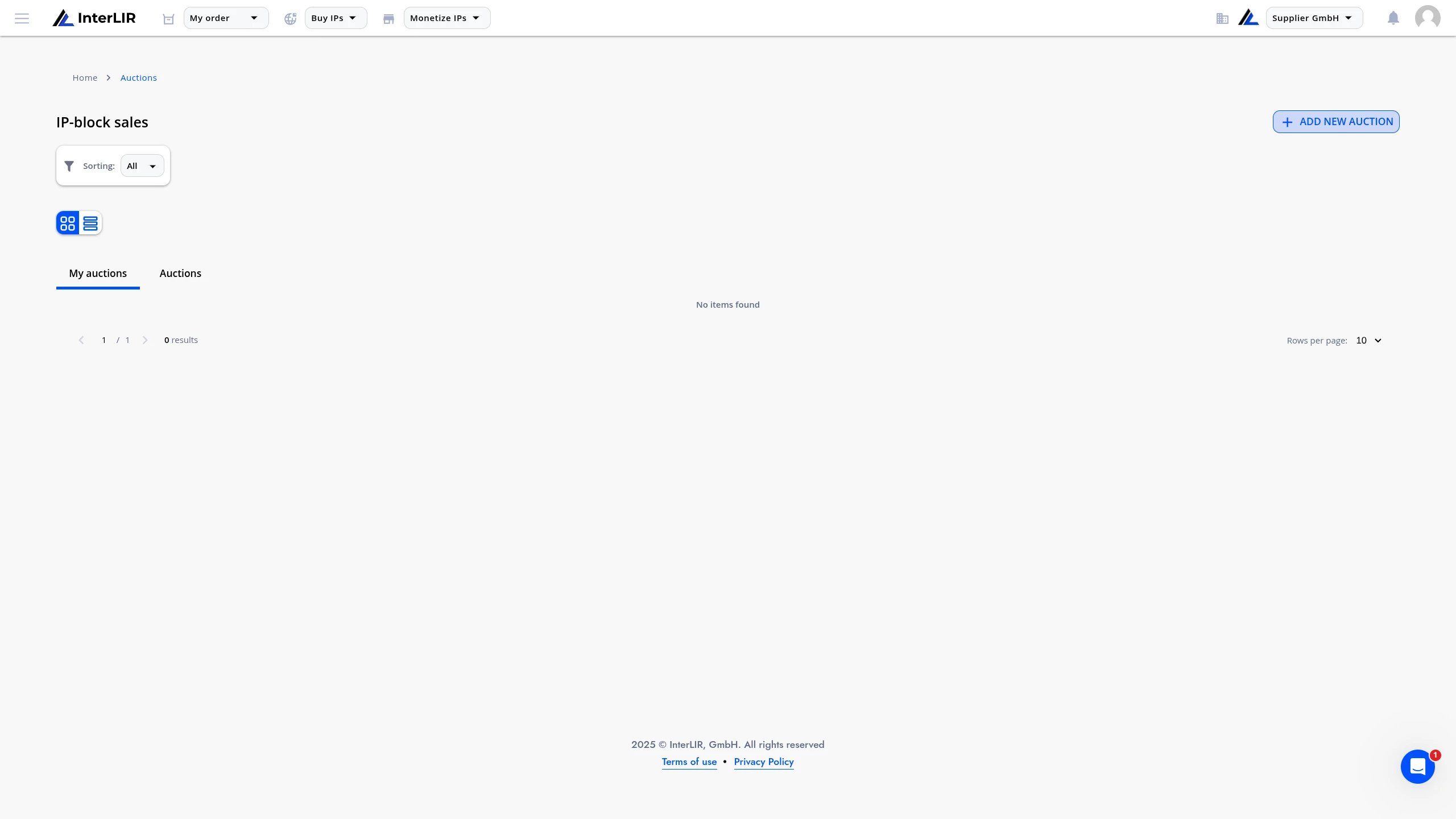
Go to Marketplace → Auctions → My Auctions:
🔗 https://portal.interlir.com/marketplace-sales
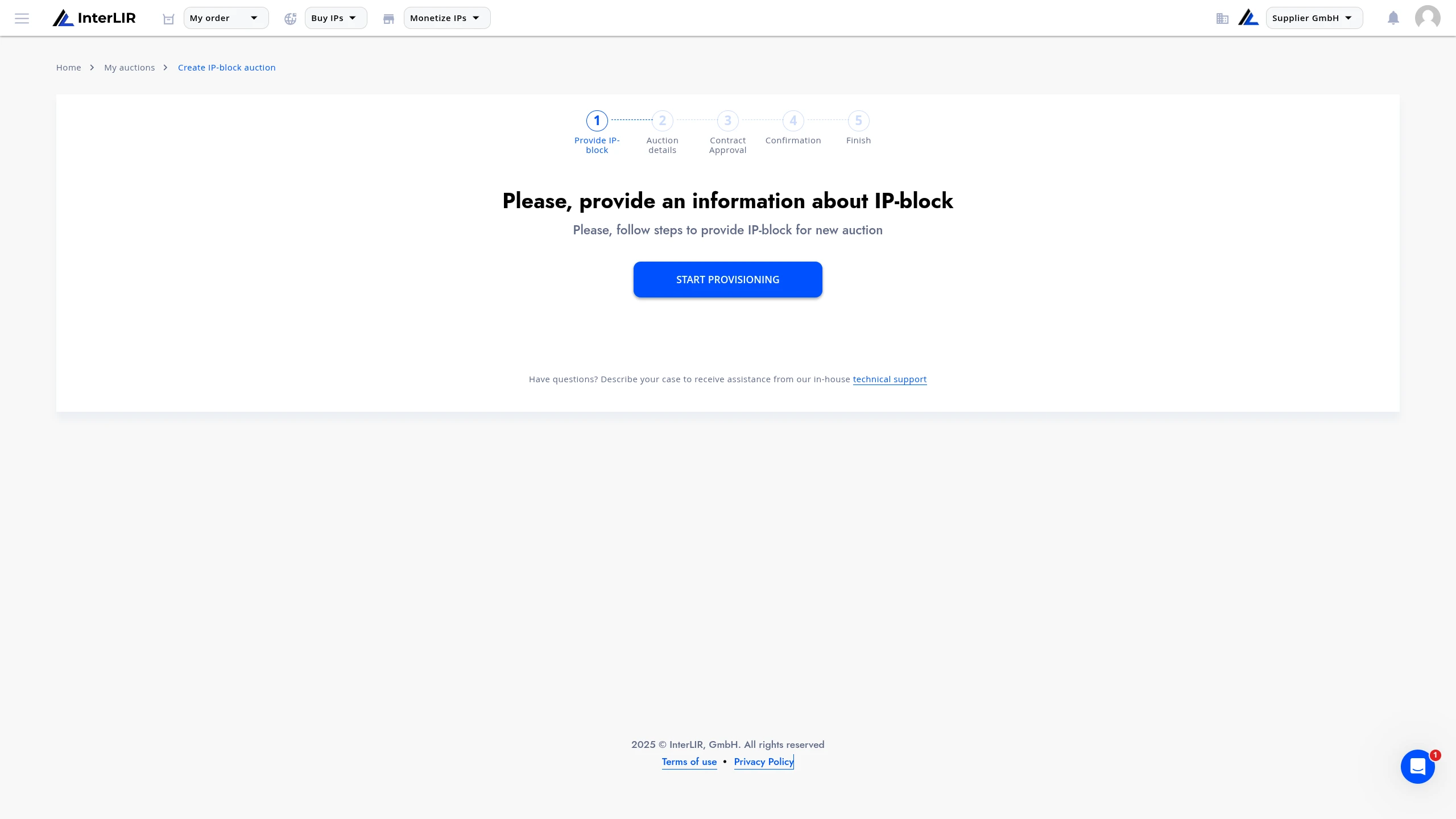
Click Add New Auction to begin the import flow.
2. Fill in Block Details
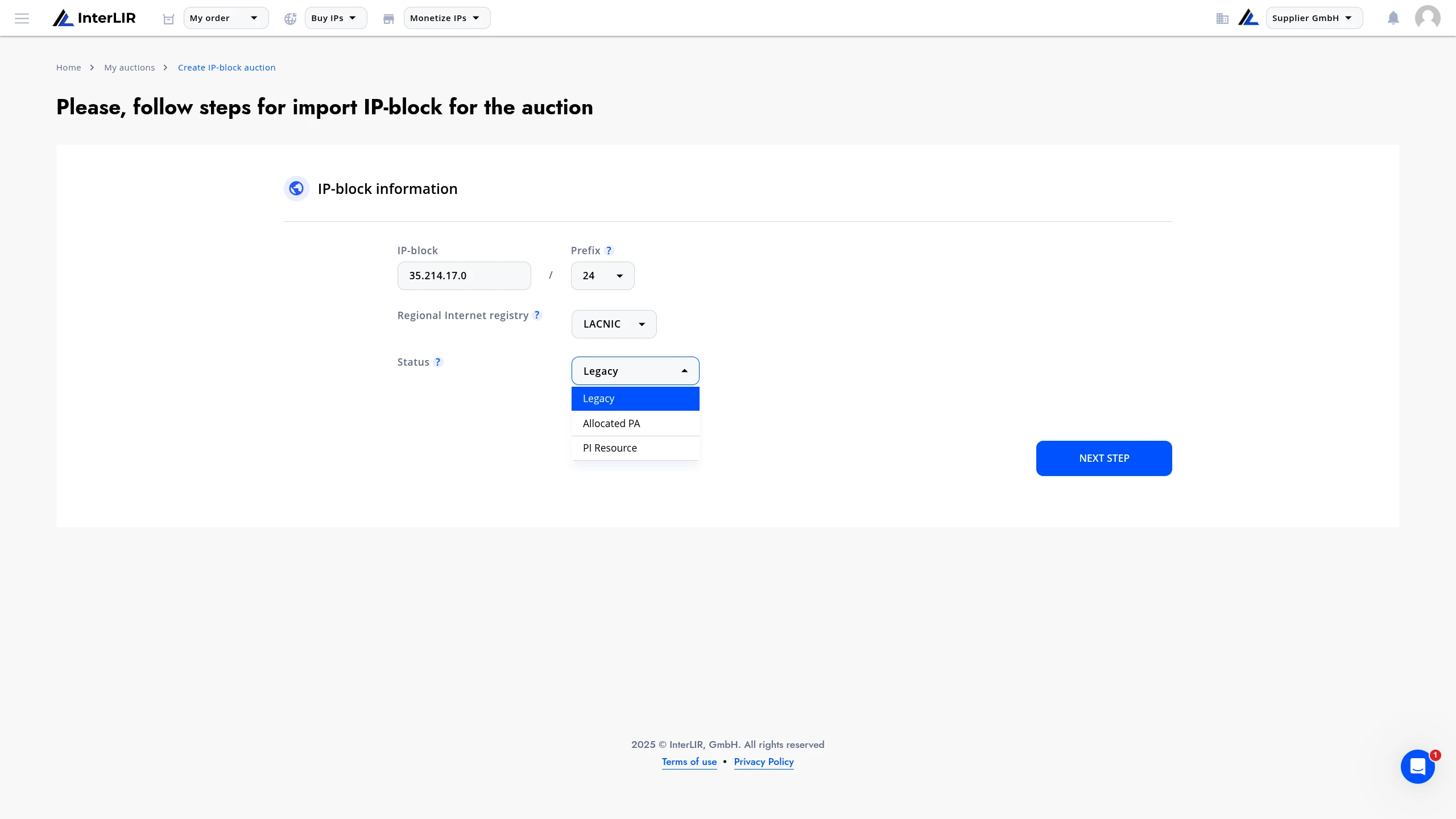
Enter the required block information:
- IP Block Address
- Prefix (Mask)
- RIR
- Status
Then click Next Step.
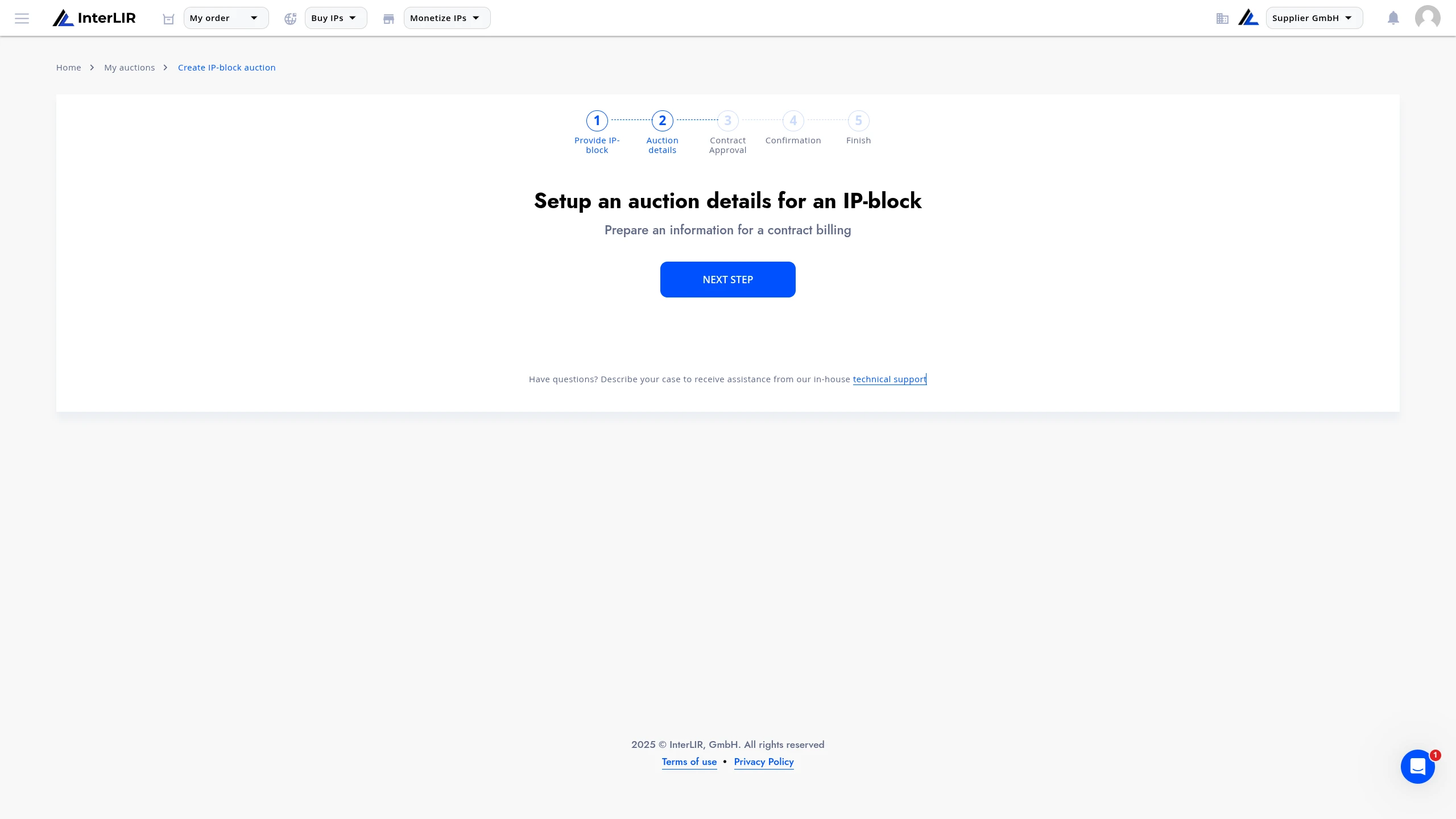
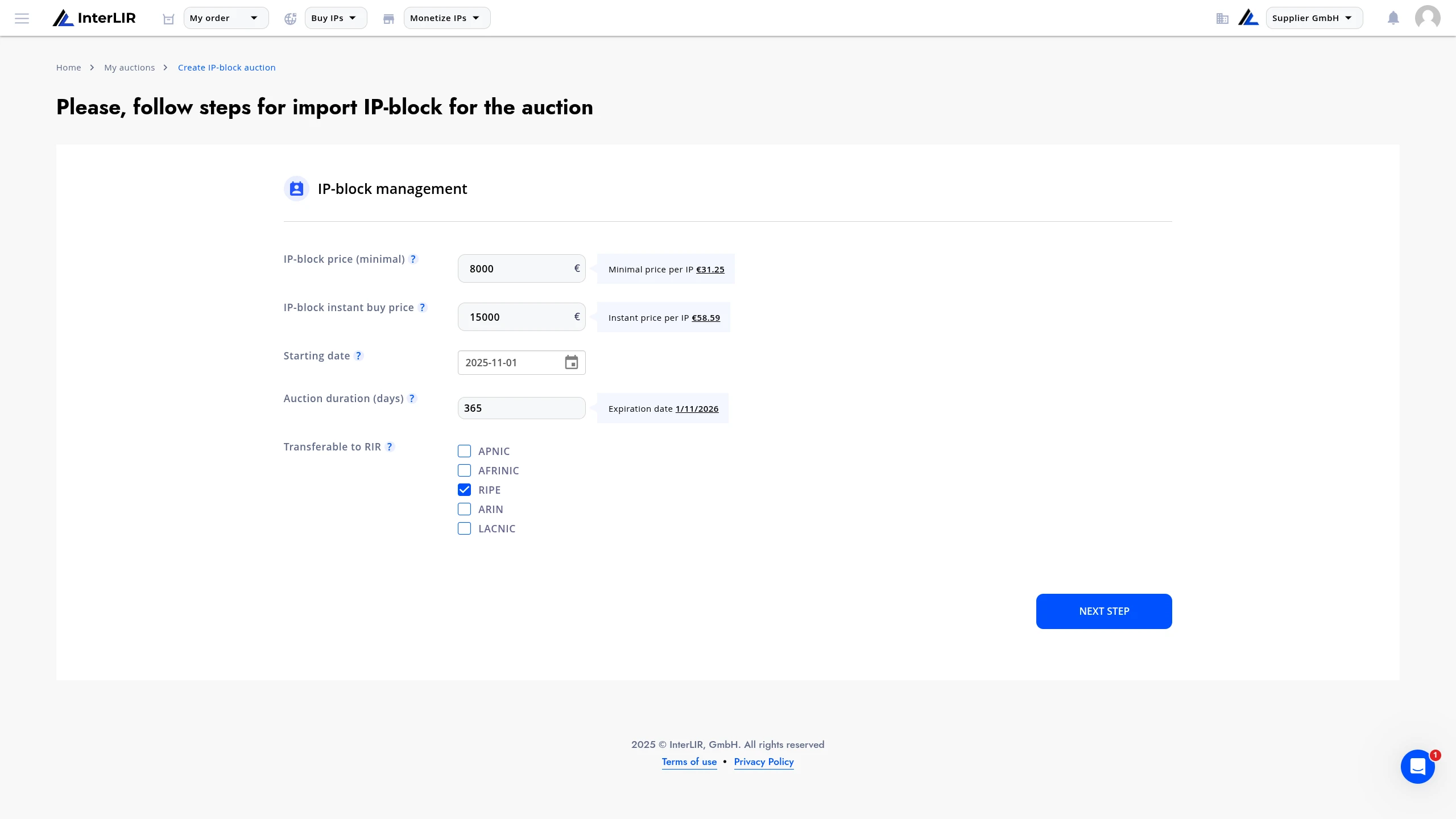
3. Set Auction Parameters
On the next step, configure the auction settings:
- Starting Price
- Instant Buy Price
- Auction Start & End Date
- Allow RIR Transfers (if applicable)
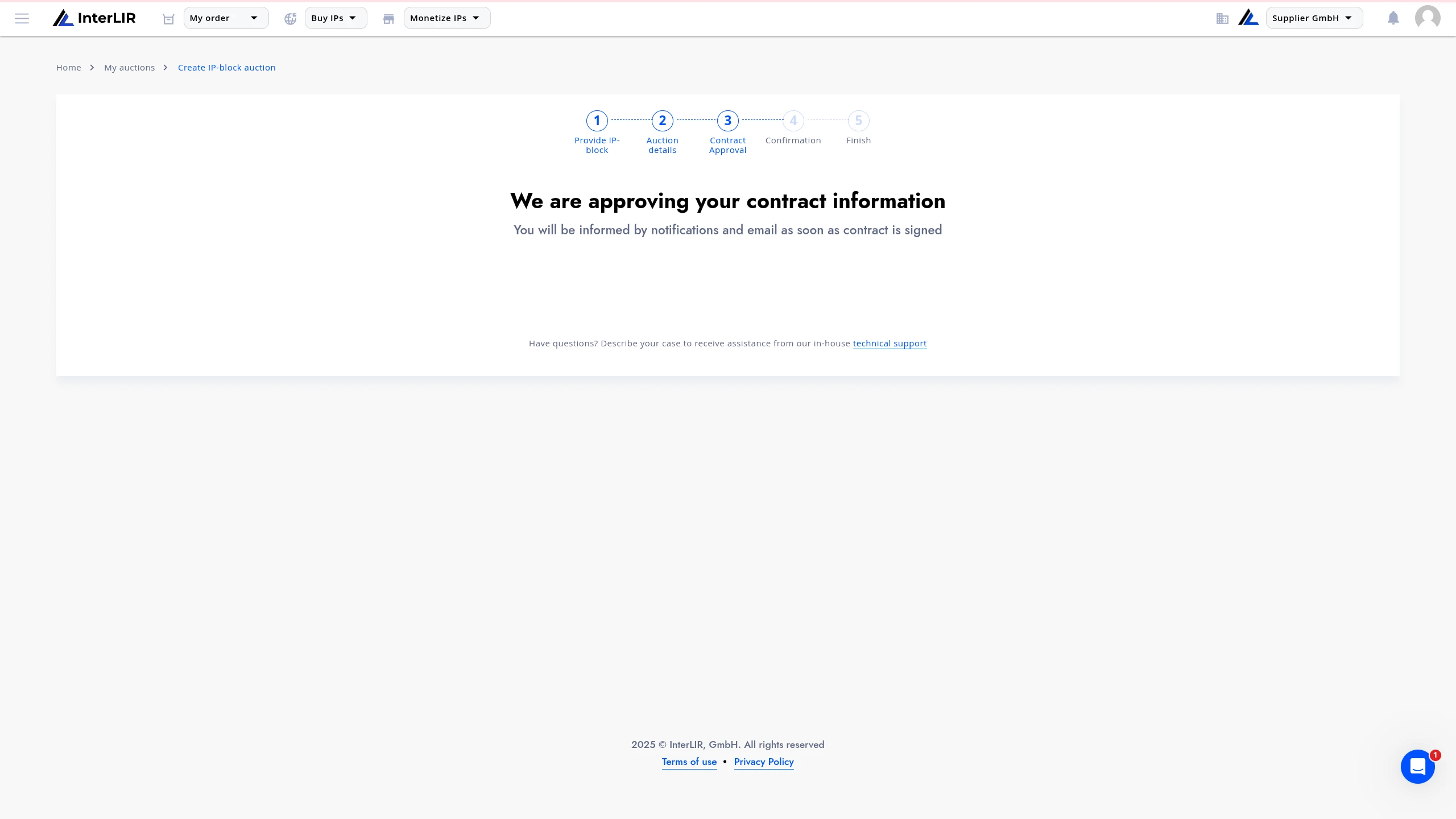
Click Next Step to proceed to the next step — review by InterLIR staff.
4. Wait for Approval
Once your auction is reviewed and approved by InterLIR staff, it will appear in the Marketplace → Auctions section under the Auctions tab:
🔗 https://portal.interlir.com/marketplace-sales
This is where Customers can view and participate in live auctions.
See: How to Participate in an Auction
5. Sign the Contract
Check that the auctions parameters are correct before signing the contract and proceed to the contract signing step.
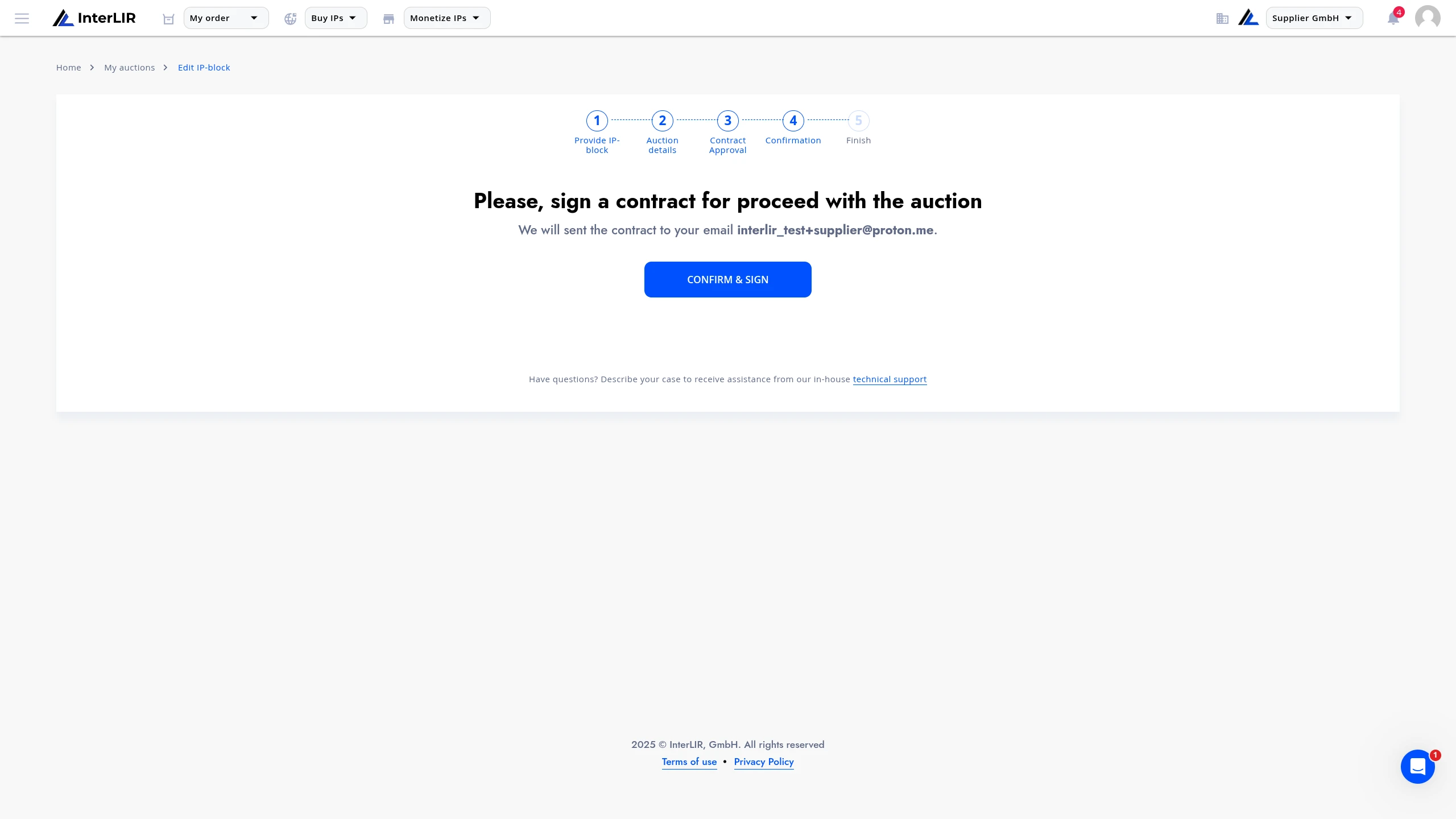
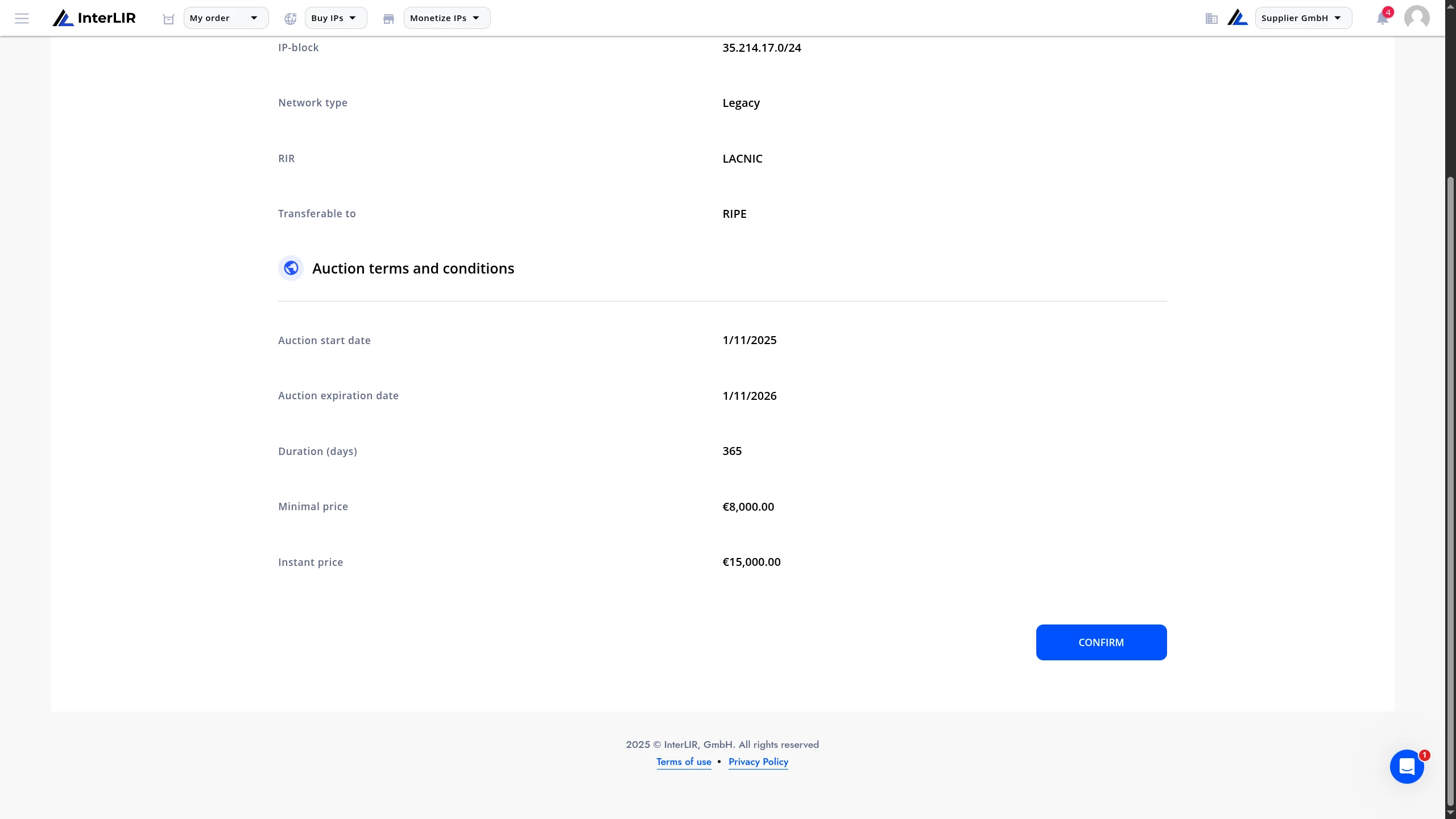
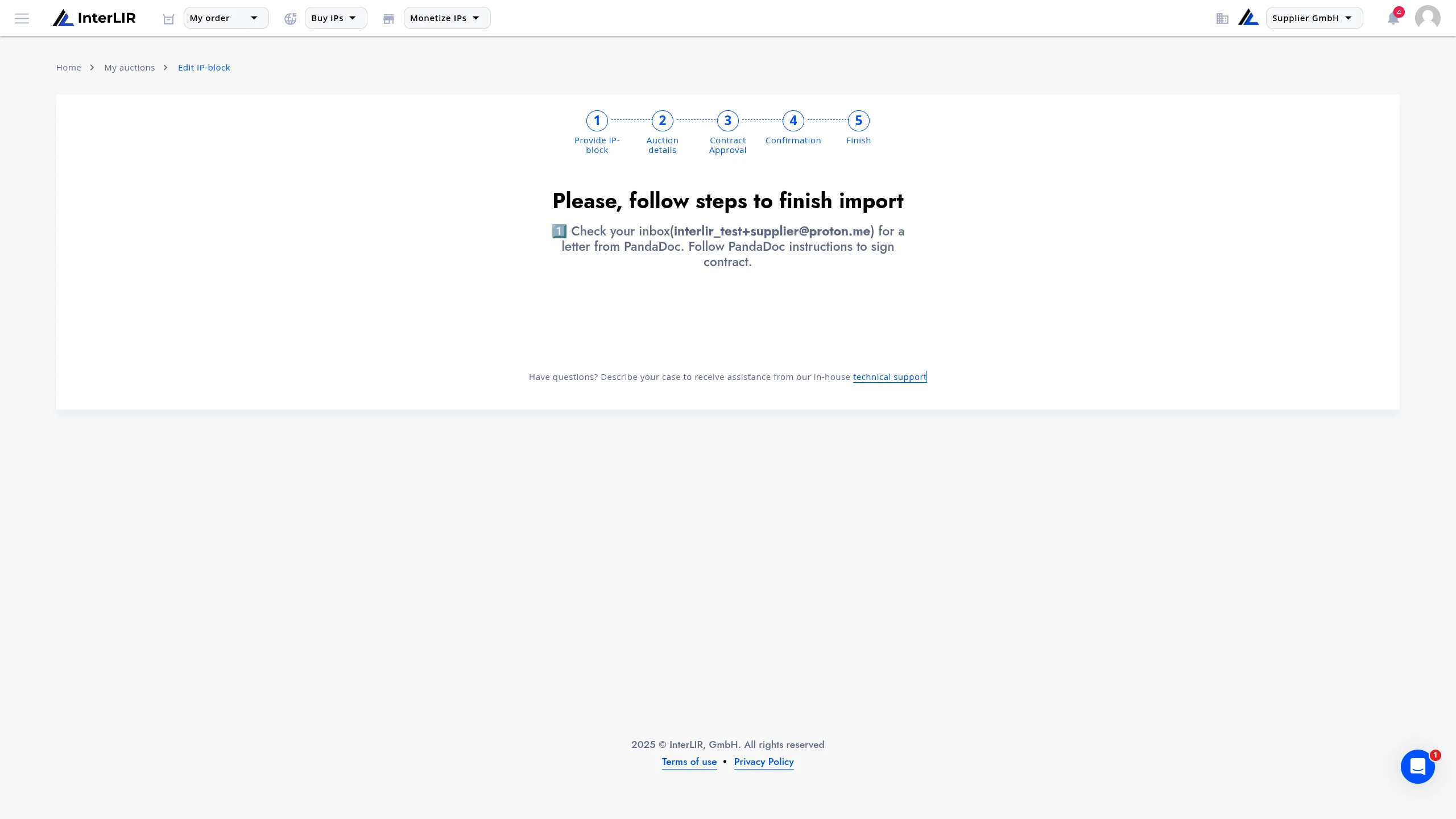
To finalize the auction, you will receive a contract via PandaDoc email.
You must sign this document to complete the import process.
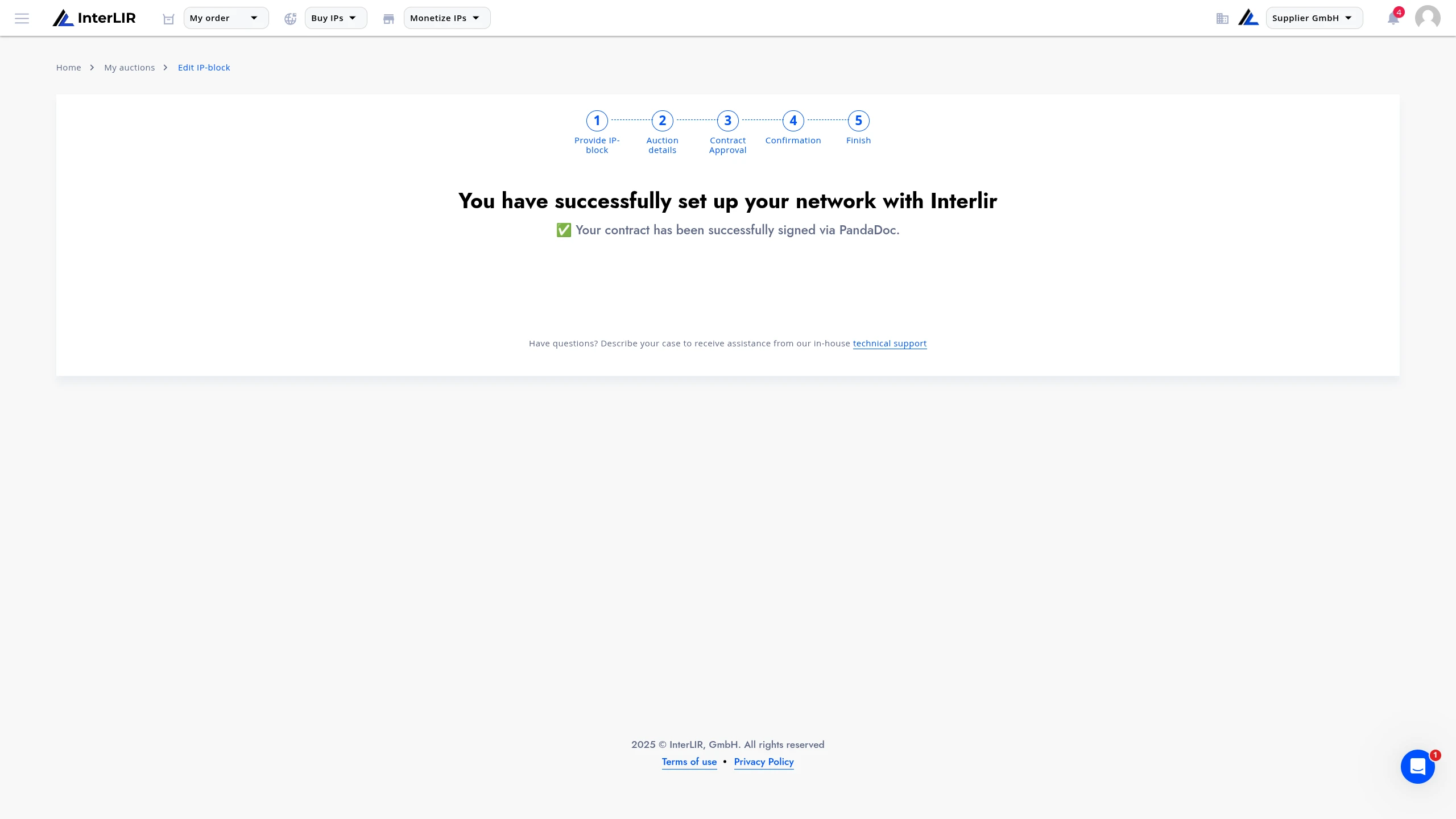
After signing the contract, everything is ready for further transactions!
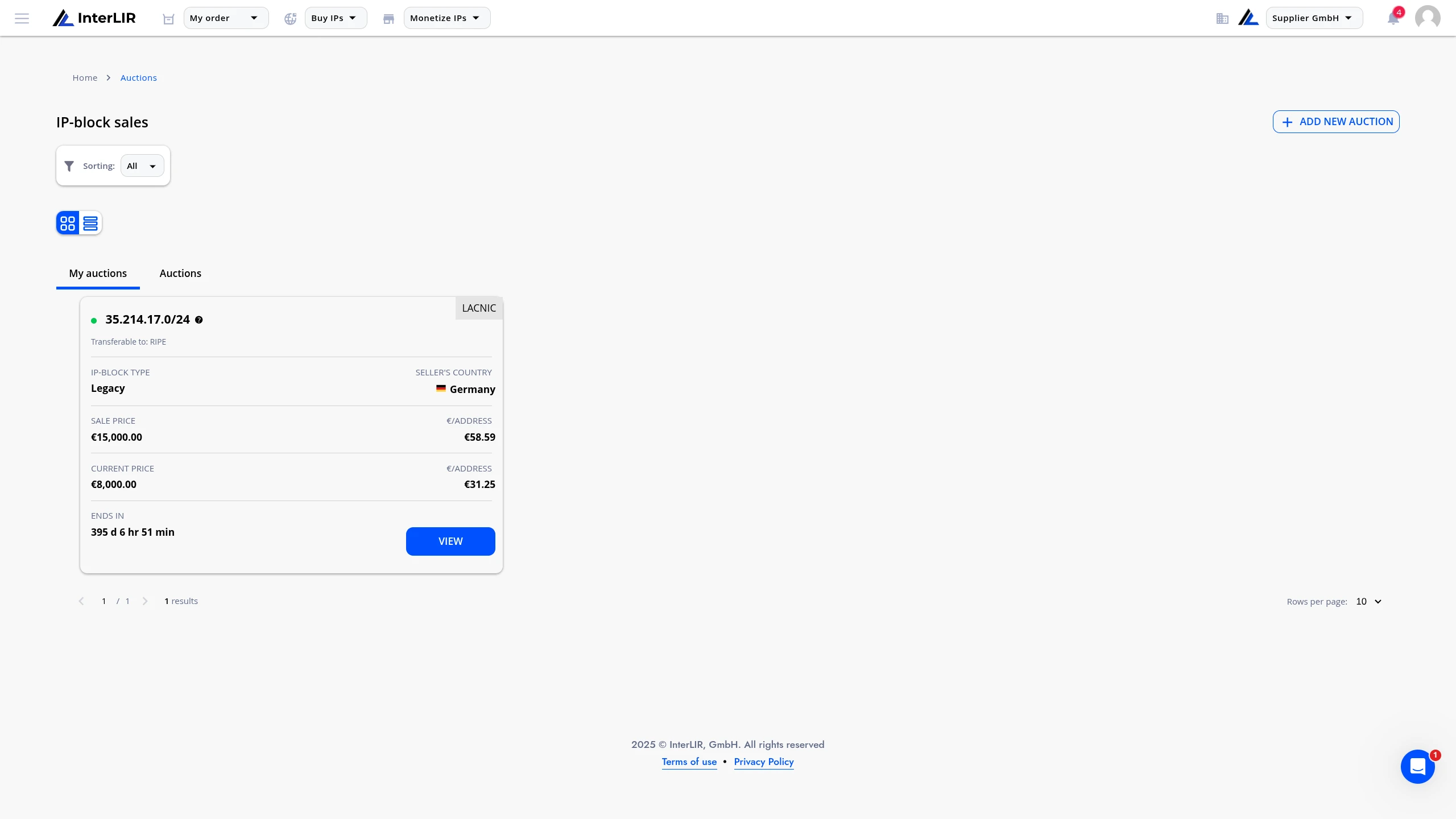
After successful import of the Auction, it will be located on the marketplace - Auctions page on the My auctions tab.
🔗 https://portal.interlir.com/marketplace-sales
Need Help?
For assistance with auction creation or contract signing, contact our sales team:
📨 Alexei Krylov — [email protected]
📨 Evgeny Sevastyanov — [email protected]
👉 interlir.com/team