How to Generate Reports
Users of the InterLIR platform — whether clients or suppliers with a custom Stripe Connected Account — can generate detailed financial reports directly through the portal.
The main reporting functionality is located at portal.interlir.com/reports.
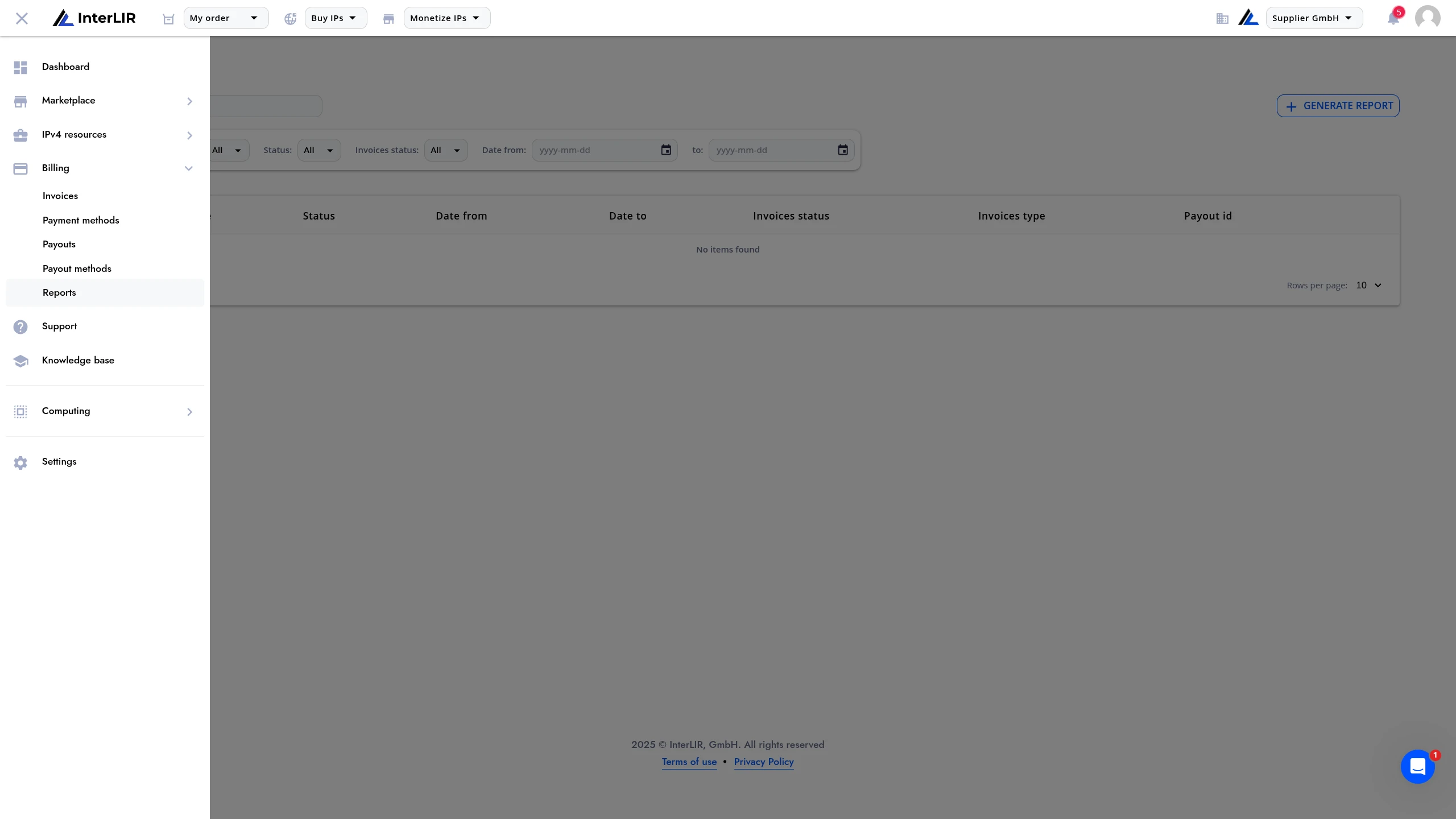
On this page, users can view previously generated reports — either created manually or automatically by the system.
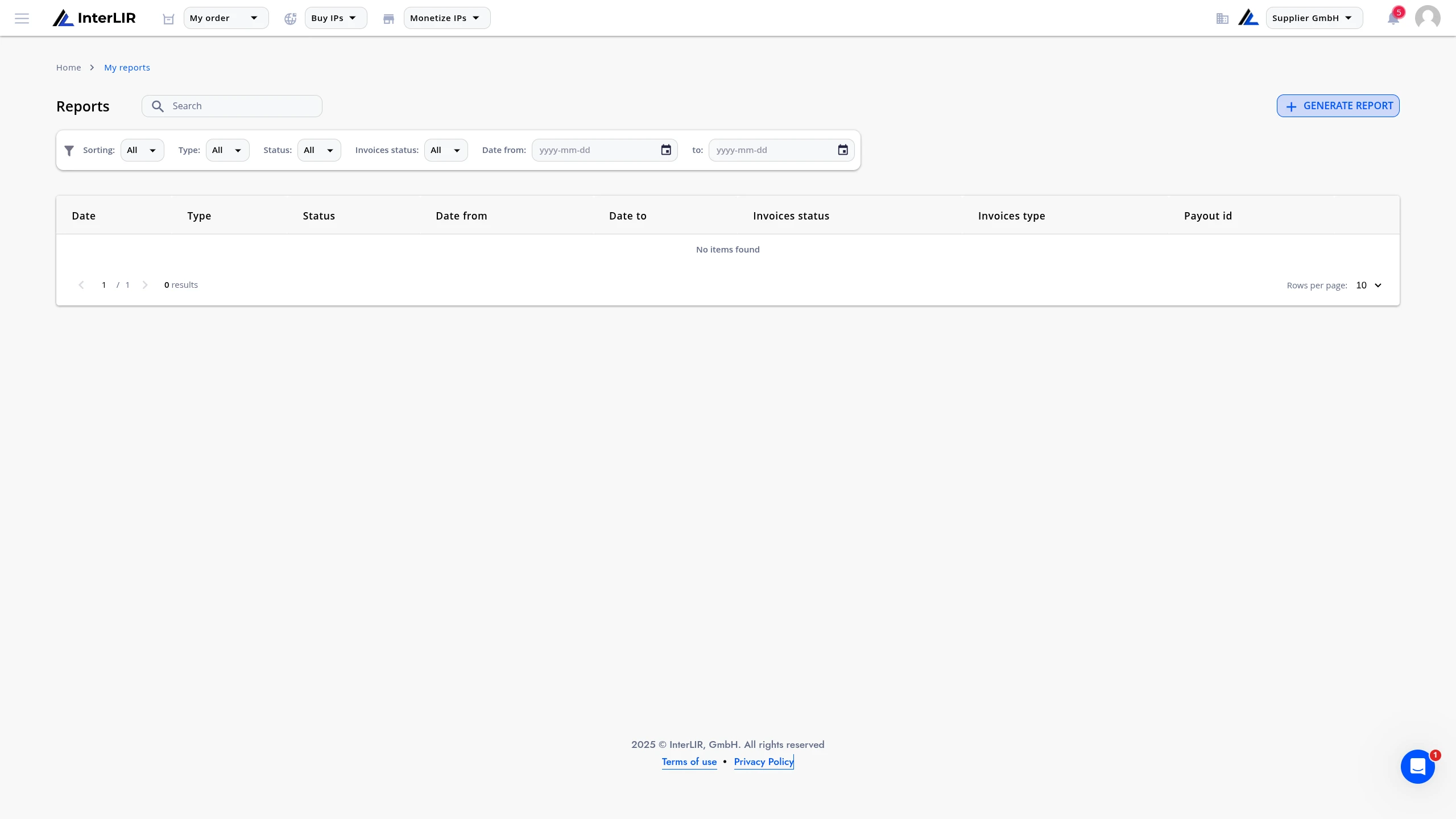
Generate a New Report
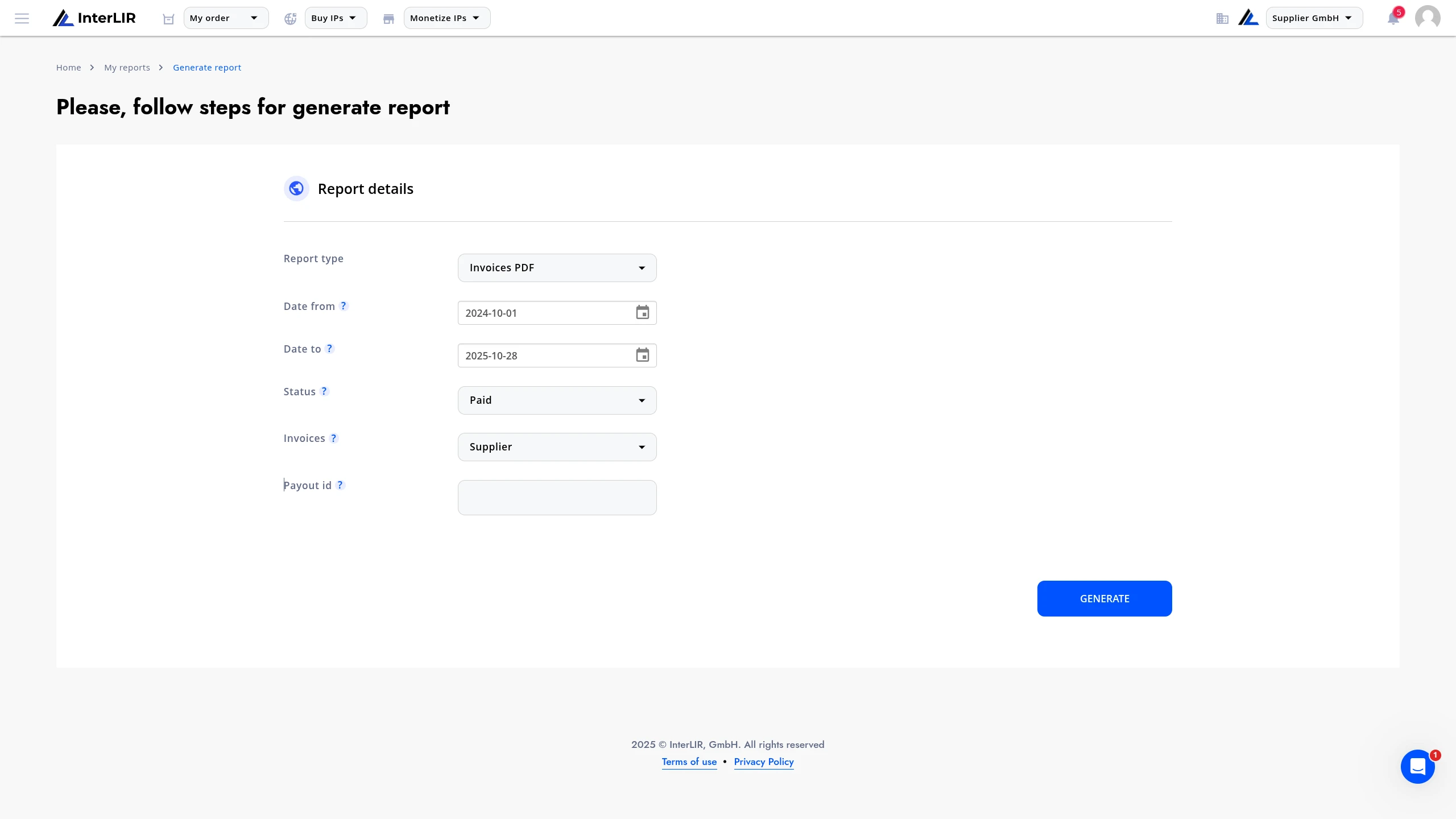
Click Generate Report to open the report generation form.
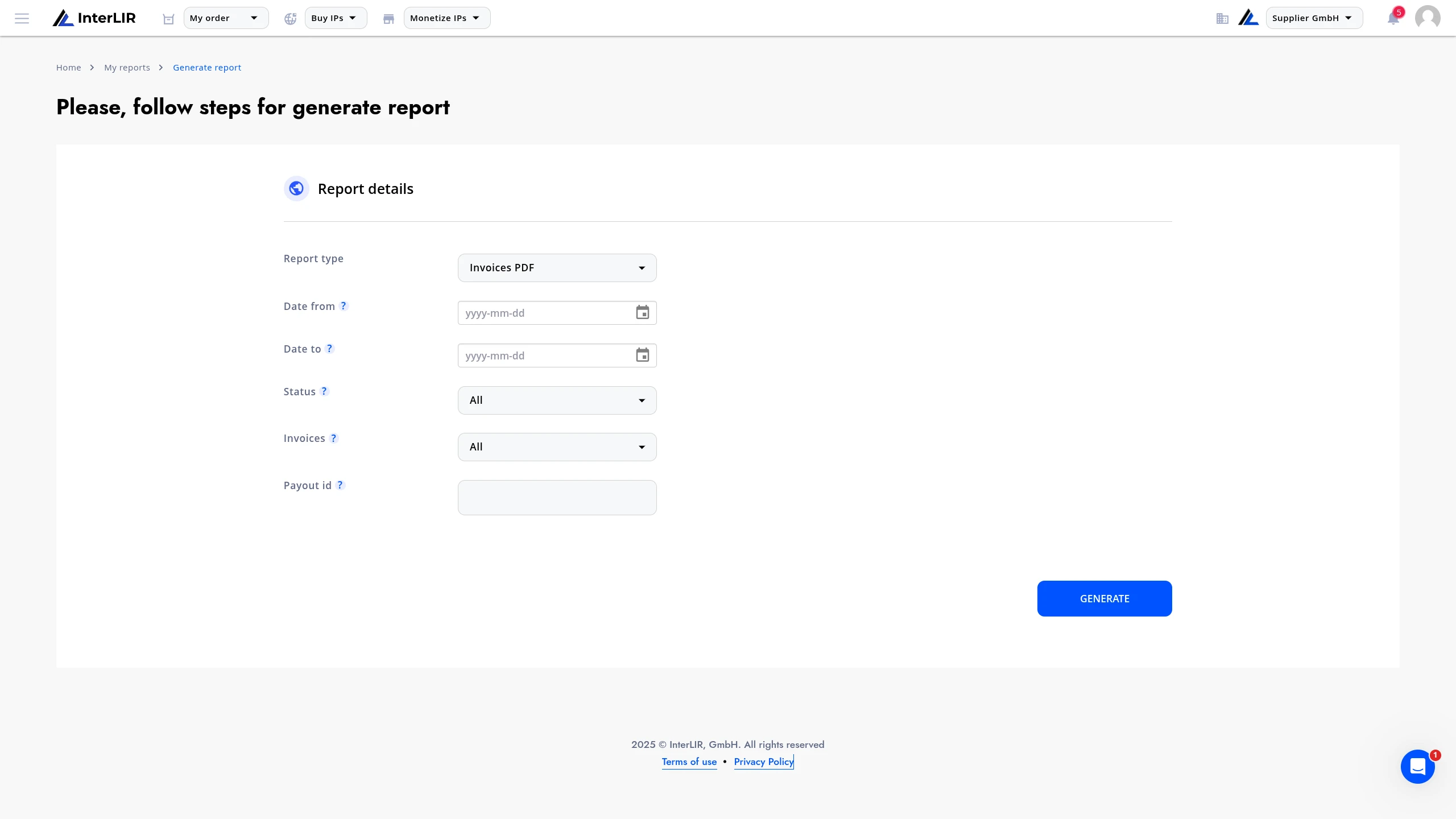
1. Select the report type
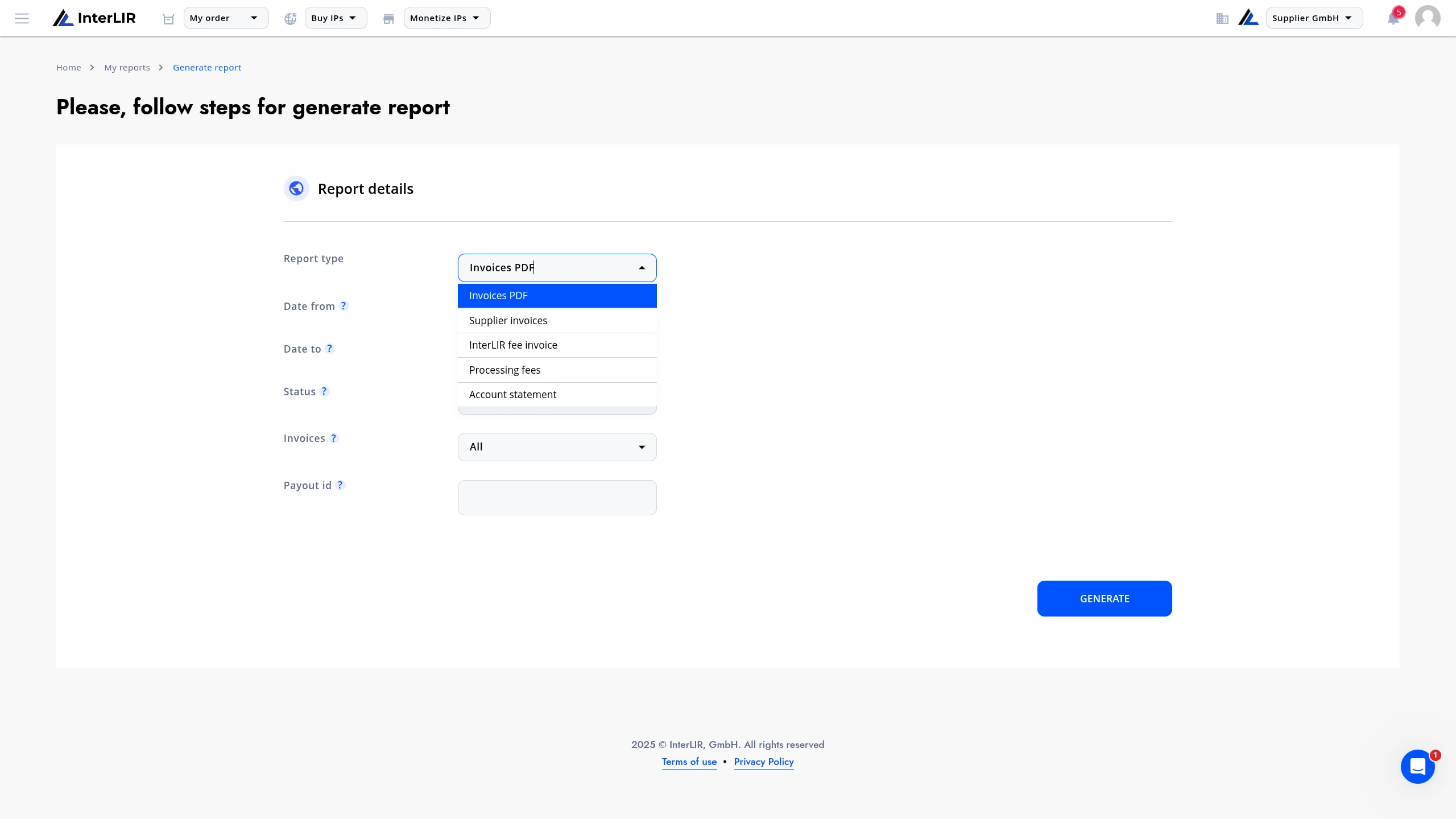
Choose the type of report you want to generate. The available report types include:
2. Select the reporting period
Specify the From and To dates for the period you want to include in the report.
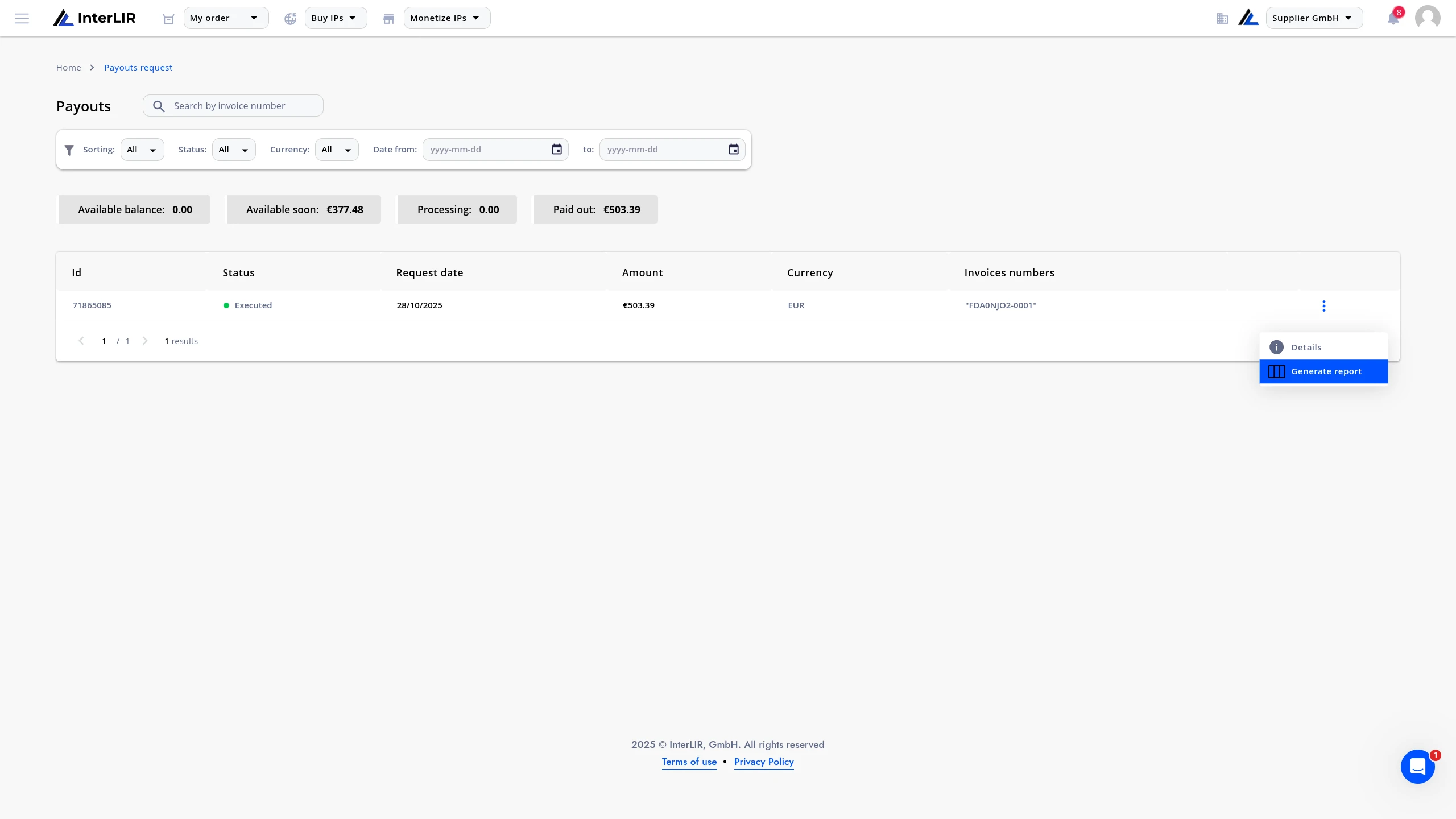
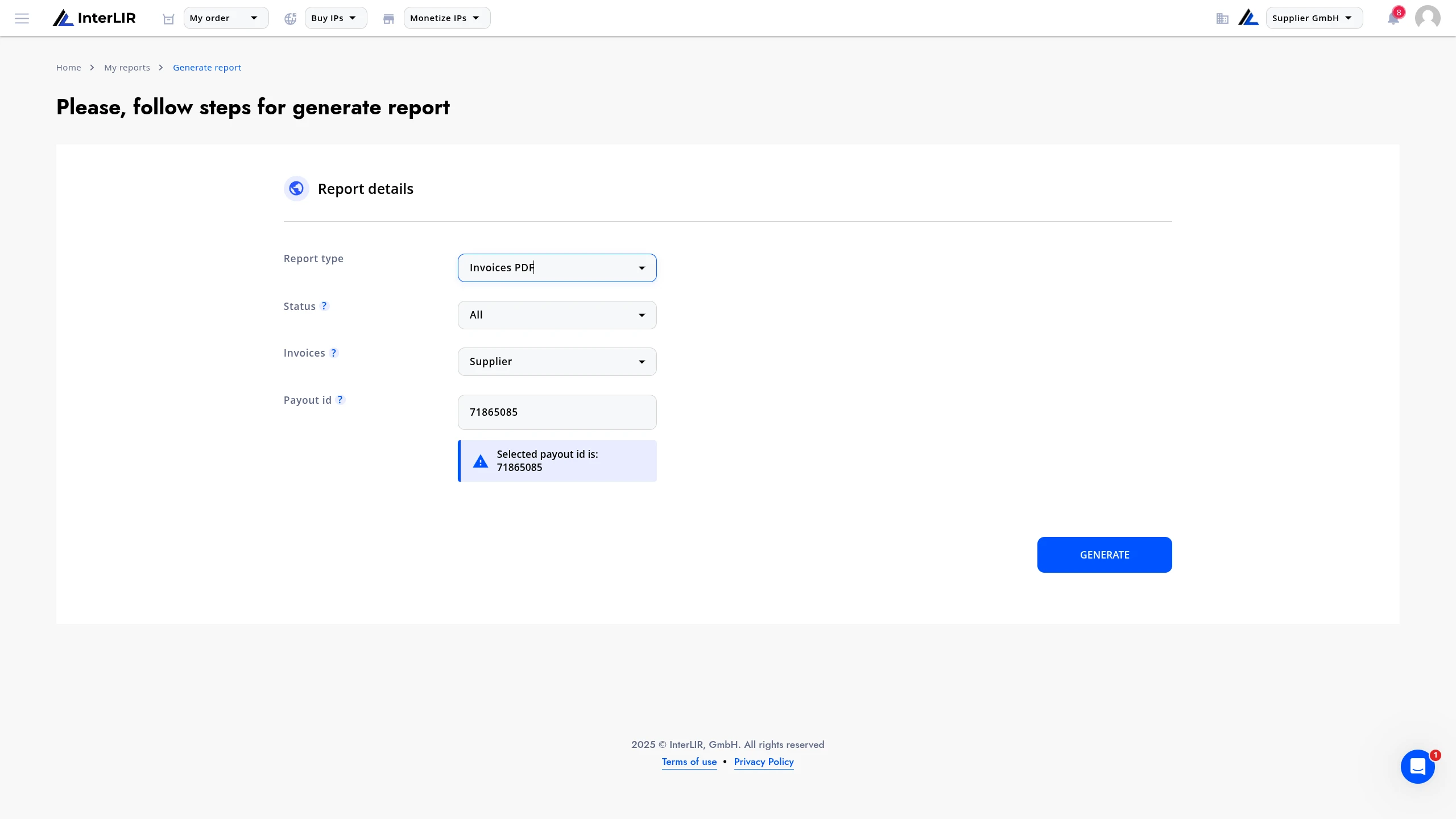
Alternatively, for suppliers, you can generate a report using a Payout ID — copy the ID from the Payouts table on the payout page.
3. (Optional) Select invoice type
For Invoices PDF reports, you can select which invoices to include:
- open
- paid
- refund
- all
4. Generate the report
Once all fields are filled in, click Generate to start report creation.
Report Generation Process
After you submit the report request, it will appear in the reports table with the status Generating.
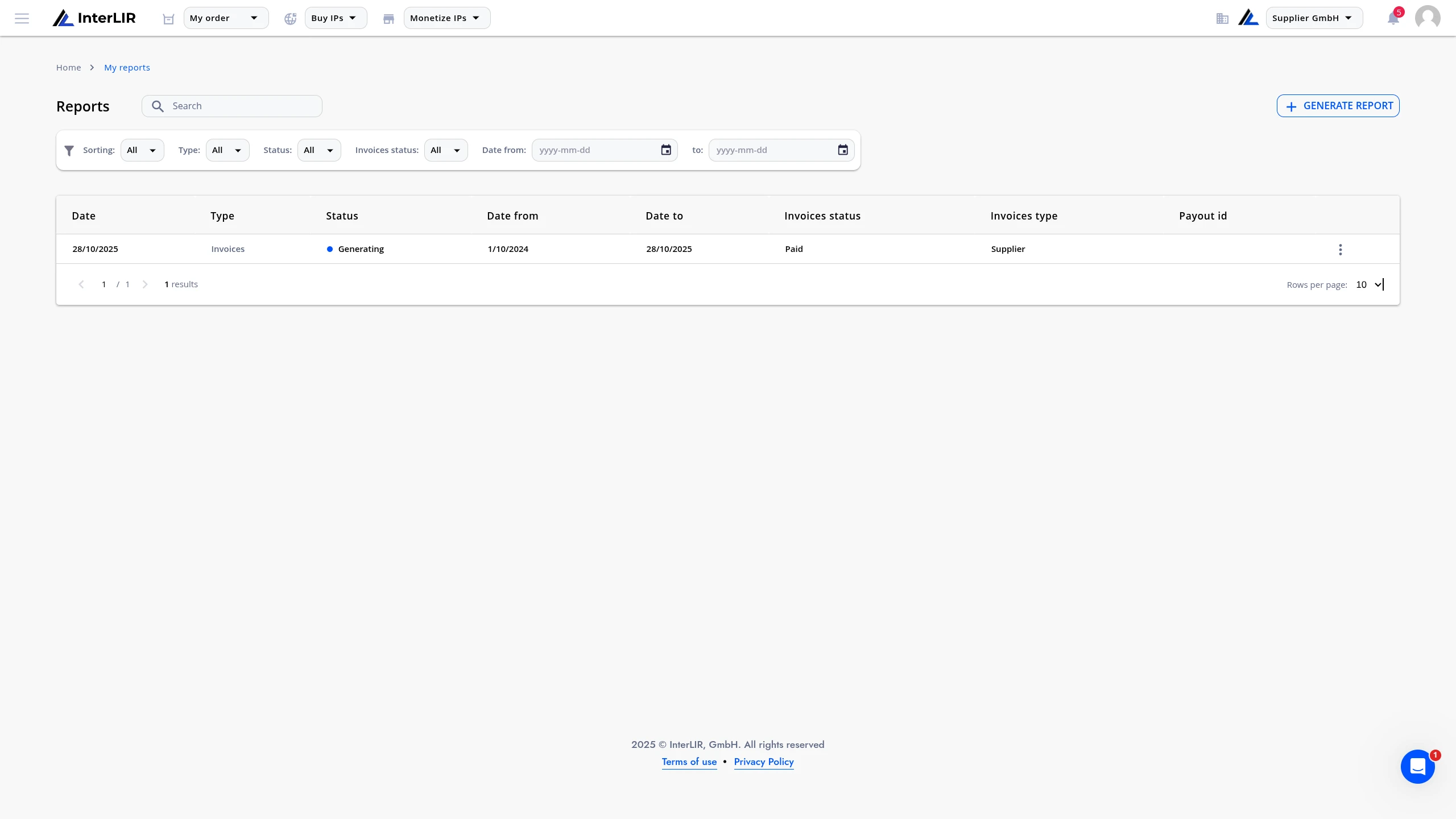
Depending on the amount of data processed, report generation may take from a few seconds up to 10 minutes.
To see status updates, refresh the page.
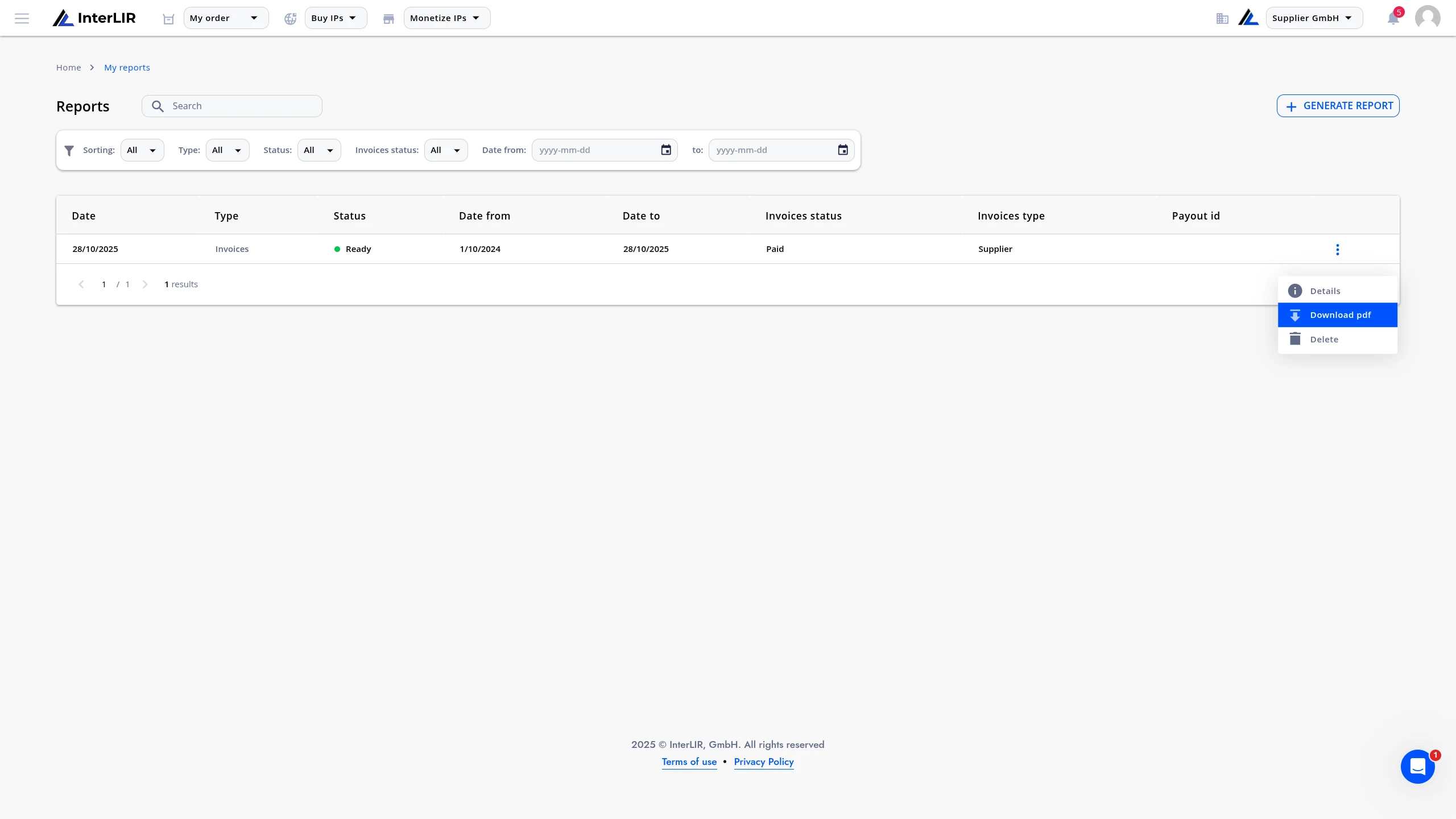
When the report is ready, its status will change to Ready.
Open the context menu for the report and click Download PDF to download it.
Generate Report with Payout ID
The portal also allows you to generate reports based on a Payout ID.
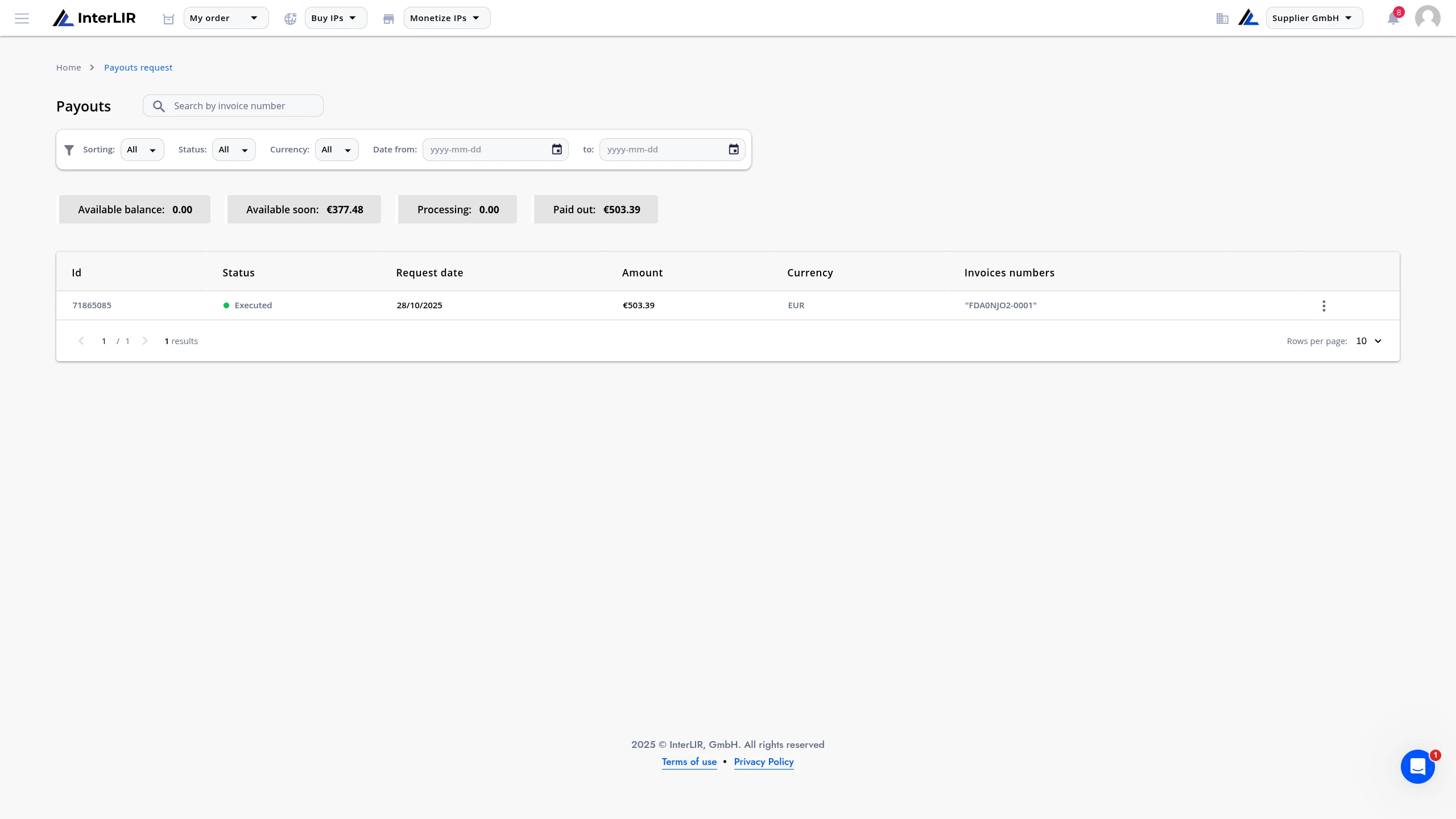
- Go to the Payout Requests page.
- Select the desired payout.
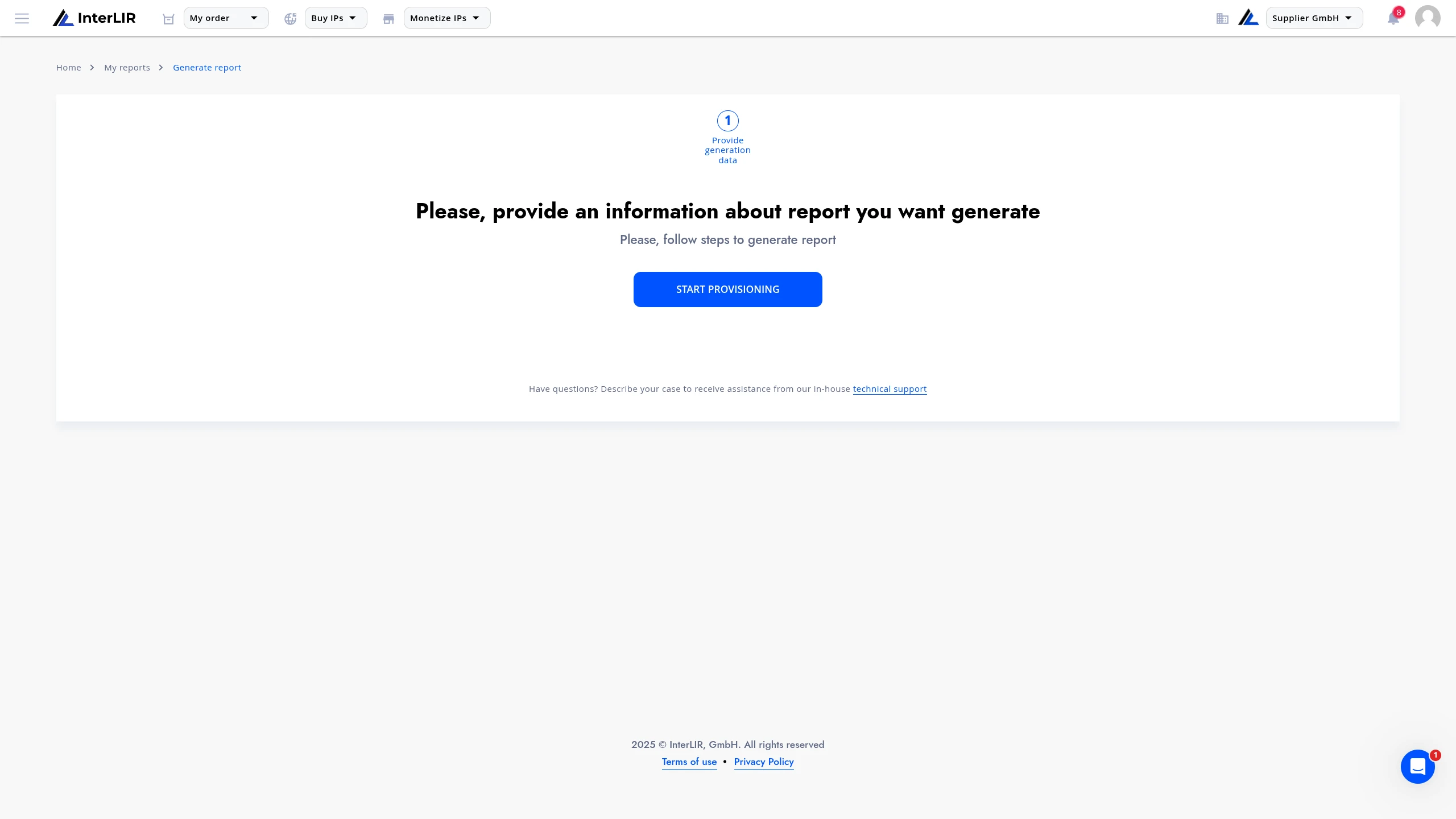
- Open the context menu and choose Generate Report.
- The report generator form will open with the Payout ID prefilled.
After submitting a payout request, you can also generate a report using the same Payout ID directly from the Reports page.
Supplier Report by Invoice
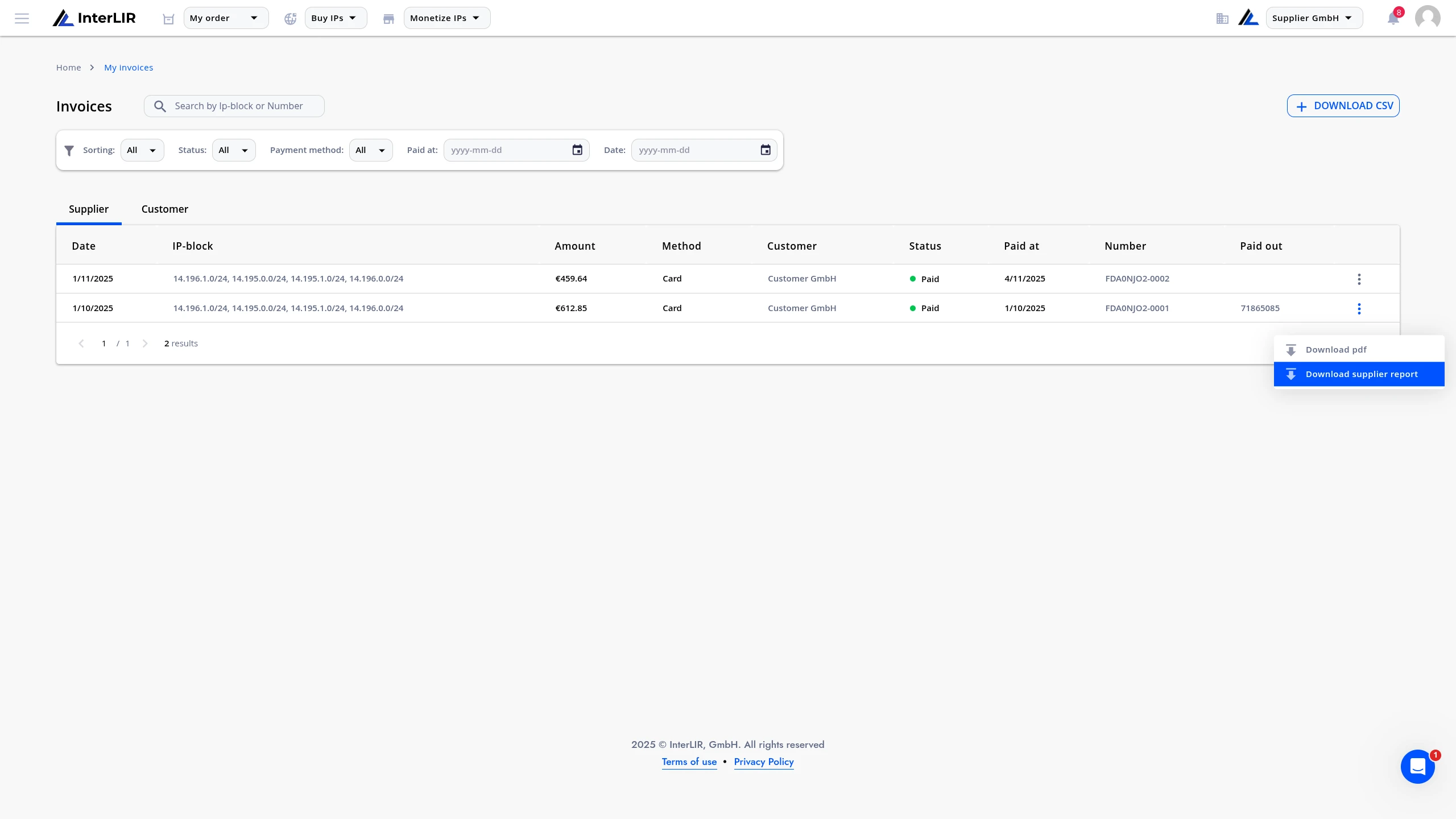
Suppliers can generate a Supplier Report for a specific invoice:
- Go to the Invoices page.
- Find the invoice you are interested in.
- Open the context menu and choose Supplier Report.
Download Invoices as CSV
On the invoices page (for both clients and suppliers), you can also use the Download CSV option to export invoices.
You can filter and sort the table before downloading, to get a CSV file containing only the data you need.