Editing a Business Account
If a user of the platform wants or needs to update their organization's information, they can initiate the Edit Business Account procedure.
This guide explains how to access and complete the editing process for a Business Account, and highlights the key difference between editing and importing a Business Account. The same rules apply to documentary proof and file quality as for a new import: InterLIR works with registered businesses and legal entities, not private individuals alone; updated proof should show company, sole proprietor / IE, or equivalent business registration in good, legible quality—see the Business Account glossary entry.
Step 1: Open the Edit Business Account Page
To begin, the user must open the top-right menu and select the organization they wish to edit.
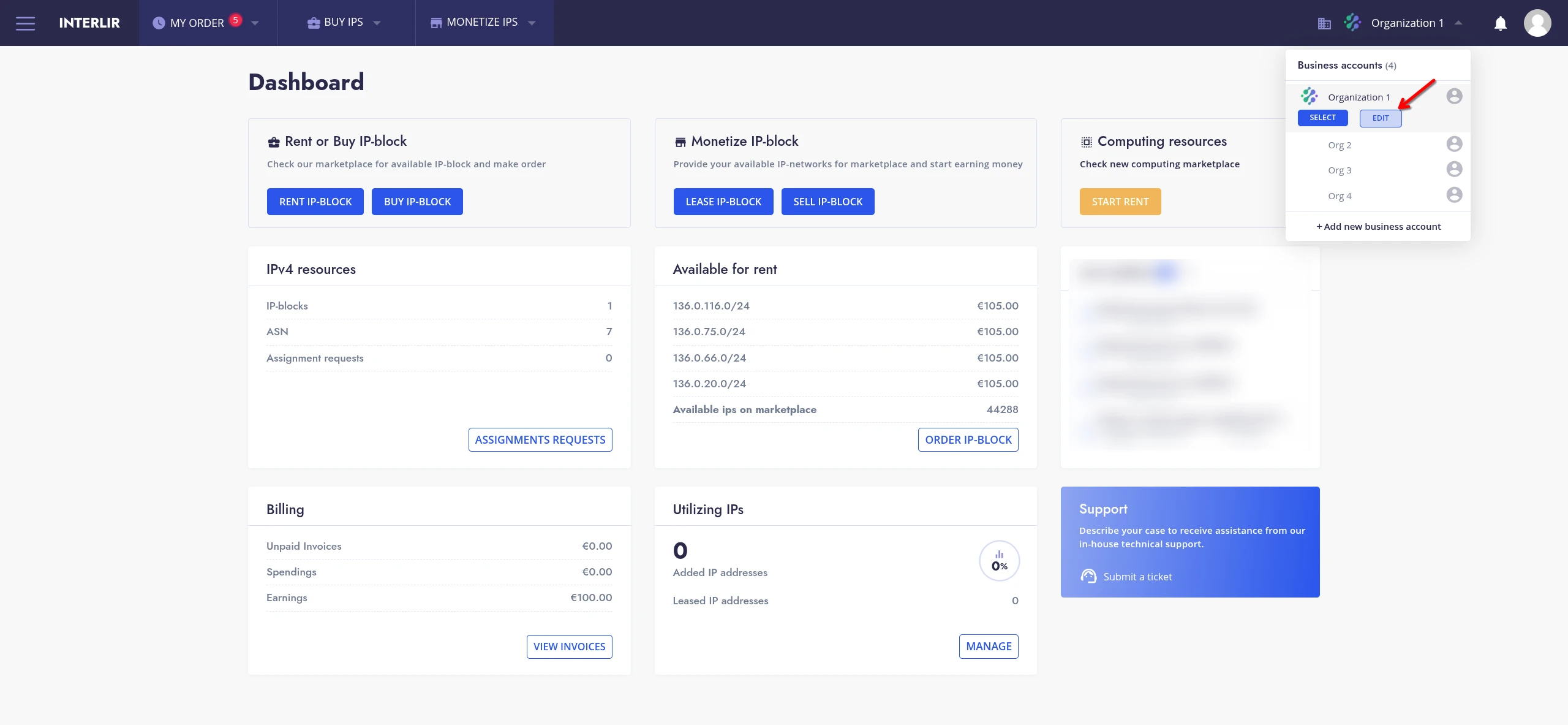
The editing button is also located on the Organizations page at https://portal.interlir.com/organization.
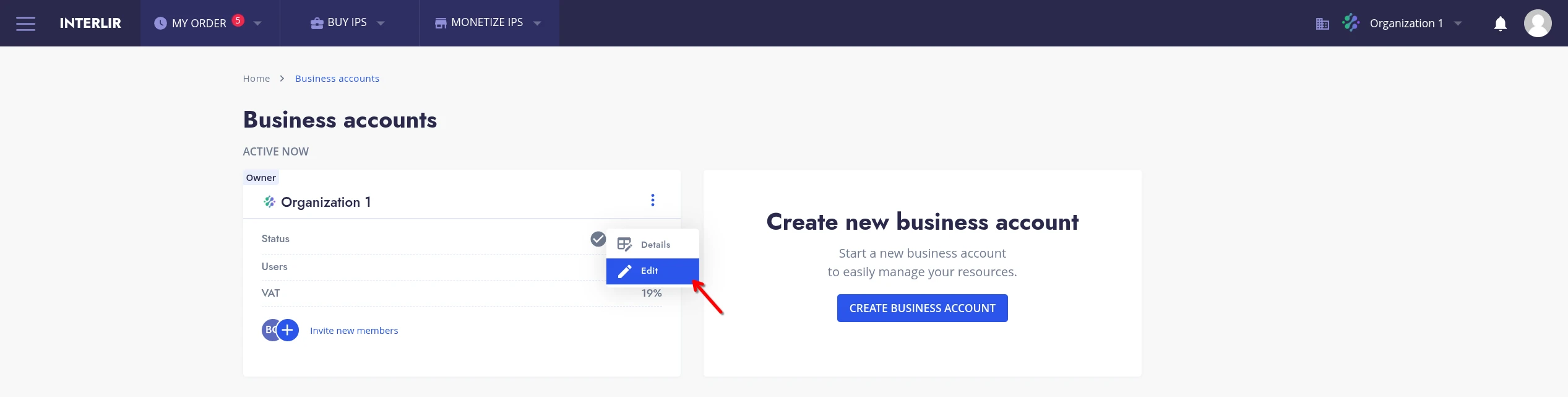
Once selected, the user should click on the Edit button. This action will redirect them to the Business Account editing page.
Step 2: Review and Modify Information
On the editing page, the user can review and change any previously submitted information about their Business Account, including:
- Customer details
- Business details
- Billing address
- Uploaded documents — if you replace or add files, they must still verify the organization (e.g. company registration, sole proprietor / IE certificate, or other business registration documents) in high quality, as described in the Business Account glossary entry.
Step 3: Confirm Data Processing Consent
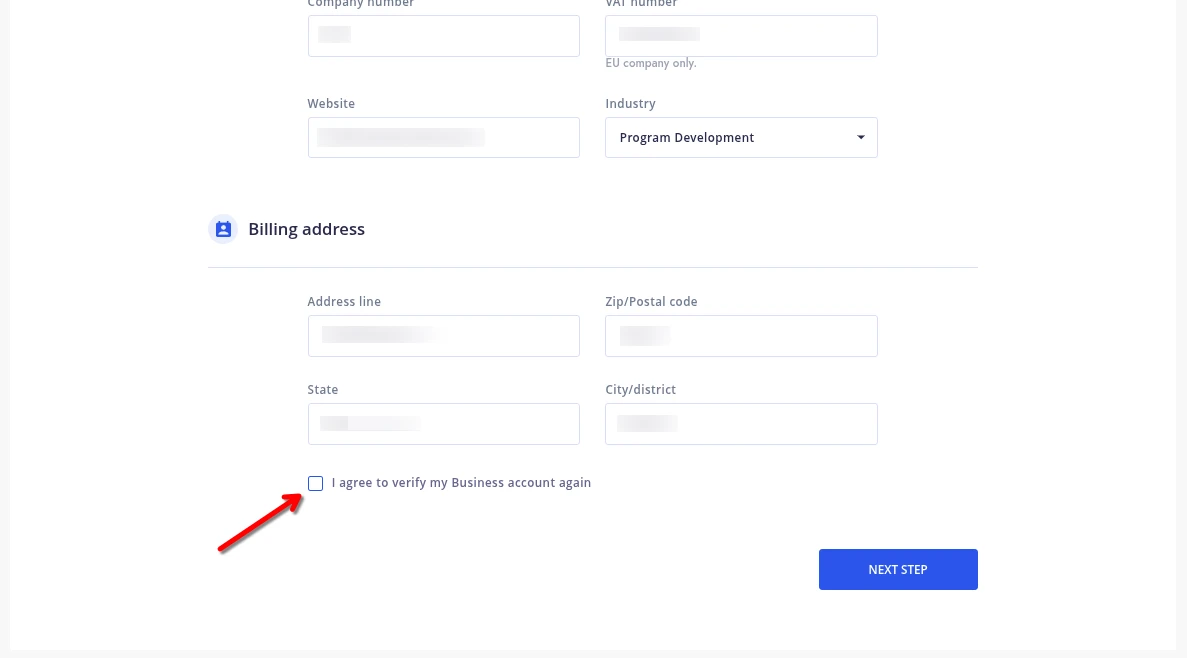
Before submitting the changes, the user must agree to the reprocessing of data by enabling the corresponding checkbox at the bottom of the page.
This step is required to confirm that the user understands and accepts that the updated information will be reviewed by InterLIR.
Step 4: Submit for Review
After reviewing the updated information and confirming consent, the user submits the form.
An InterLIR Manager will receive a notification and begin reviewing the updated request.
The process is similar to the Business Account import procedure, including potential approval or rejection based on the data provided.
Completion
Once the update request is approved, the changes take effect, and the Business Account is updated accordingly.
If the request is rejected, the user will be notified and can correct the data before resubmitting.
What's next
- If banking or legal details were changed, you may be prompted to re-verify during Stripe Onboarding.
- Suppliers: continue with Import an IP-Block.
- Customers: proceed to How to Make an Order.