How to Change IP-Geo for Leased IP-Blocks
This guide explains how a Customer can request a change of the IP-Geo (the country a block is geolocated to) for IP-Blocks held under an active lease contract. For the concept itself — what IP-Geo is and how geolocation providers determine it — see IP-Geo in the glossary.
A request is created by you, then reviewed by an InterLIR manager. Until a manager processes it, you can cancel it yourself. After a manager approves it, InterLIR submits the request to the Geo services; the final decision on the geolocation change is made by those services.
🛈 IP-Geo change is available only for IP-Blocks in a lease contract with status
Active.
1. Start a Bulk IP Geo Change from the Orders page
Go to your leased resources:
📍 IPv4 Resources → IP-Blocks → Leased IPs
🔗 https://portal.interlir.com/inetnums
🛈 If needed, switch to the Leased IPs tab to view the page with your lease contracts.
Above the table, use the Bulk IP Geo Change button to request a Geo change across one or more contracts at once.
- Select one or more lease contracts using the checkboxes in the table.
- The Bulk IP Geo Change button is enabled only when at least one selected contract is in status
Active. - If you select both
Activeand non-Activecontracts, only the IP-blocks from theActivecontracts are included — non-active contracts are ignored in the bulk flow.
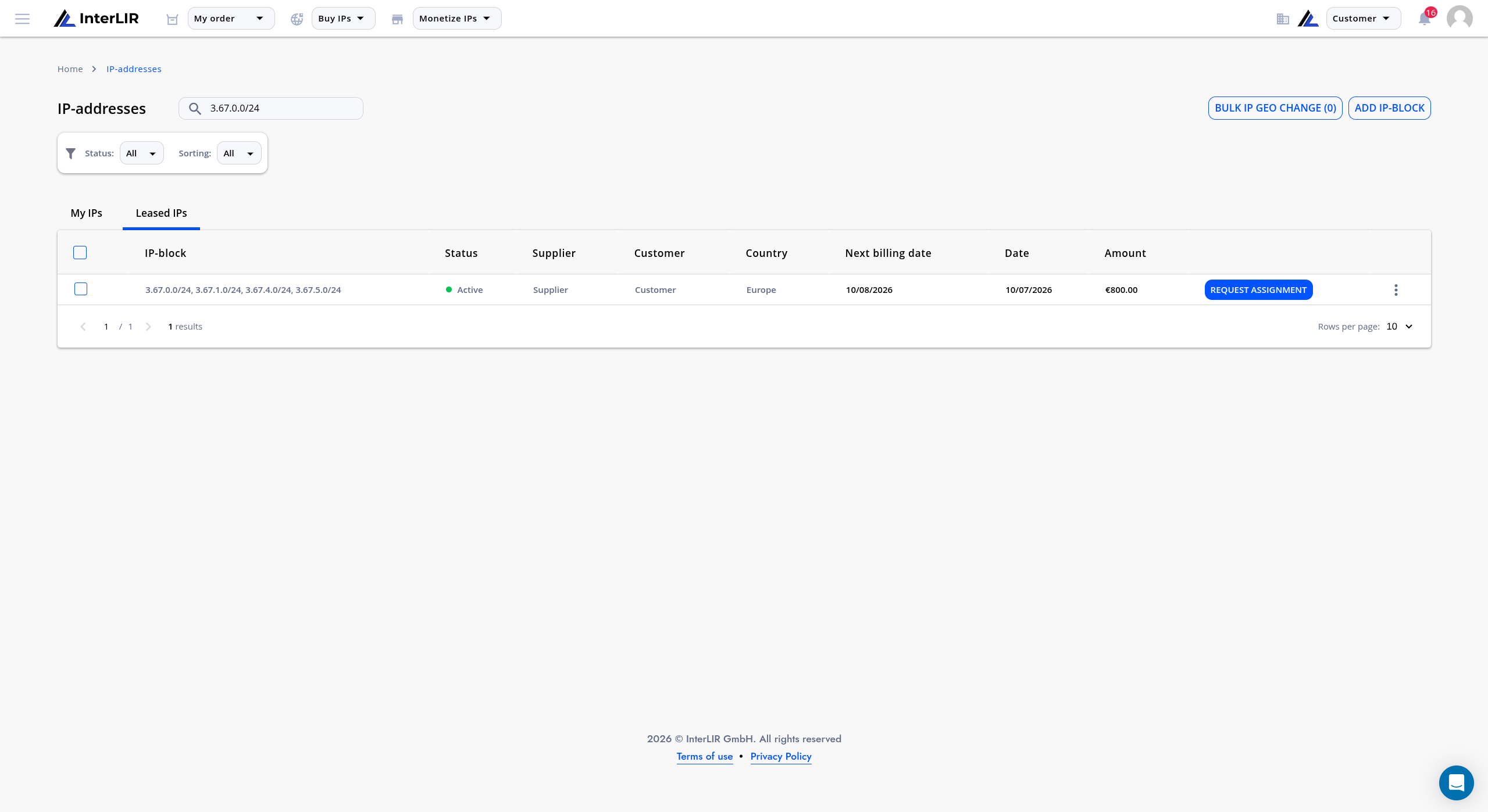
🛈 If none of the selected contracts contain IP-blocks available for a Geo change, you will see a message that there are no available IP-blocks for a request.
2. The Bulk IP Geo Change modal
Clicking Bulk IP Geo Change opens a modal window that lists the IP-blocks from all selected active contracts. You stay on the current page — because several contracts can be selected at once, you are not redirected to a single contract's details.
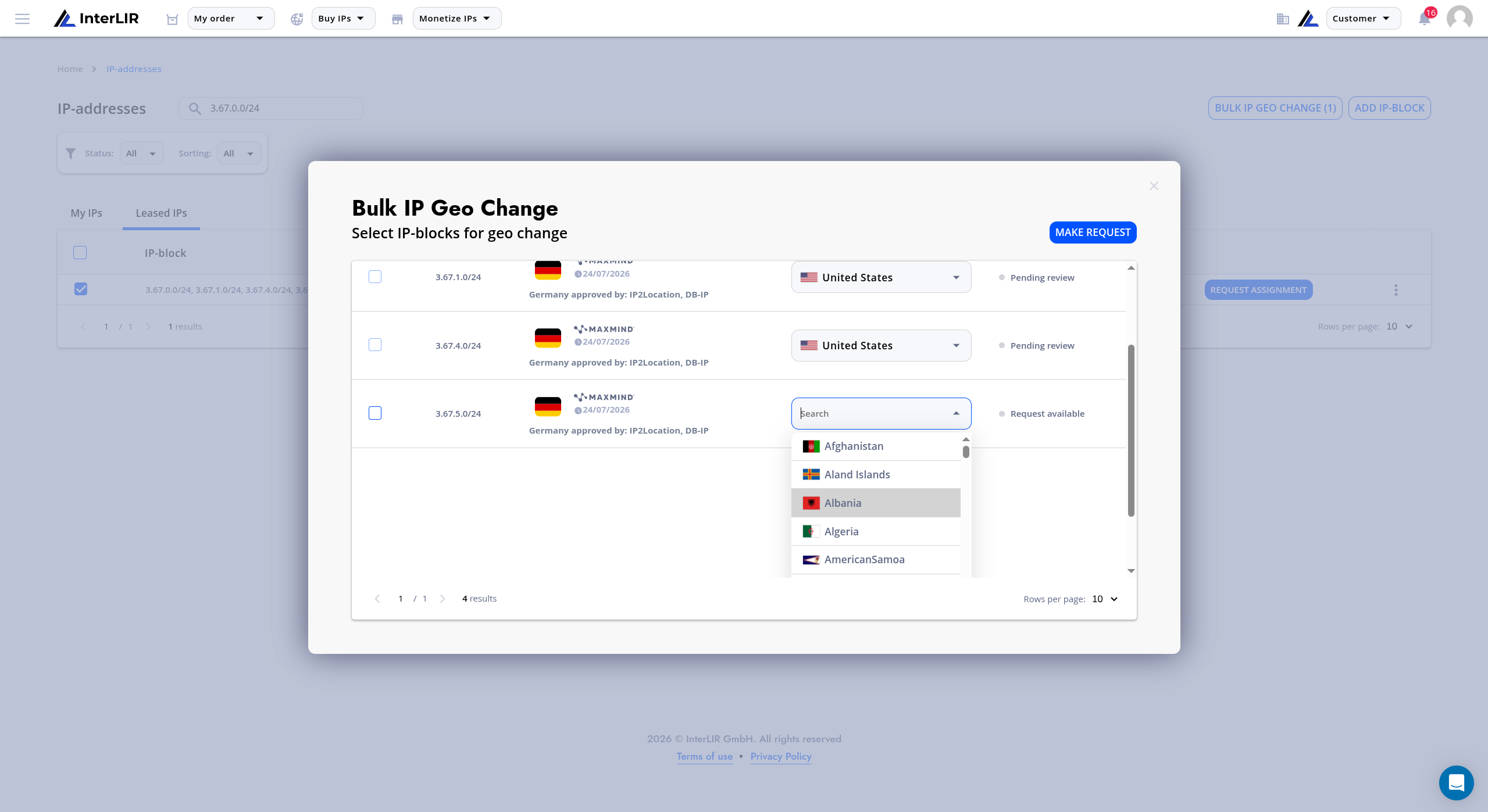
The table in the modal has the following columns:
| Column | Description |
|---|---|
| Checkbox | Selects the IP-block to include in the request. Disabled when the block is not available for a new request. |
| IP-block | The IP-block from the selected contract. |
| Current Geo | The current IP-Geo value. |
| Preferred Geo | Selector for the requested Geo country (or the value of the current request). |
| Request status | The current status of the block in the Geo-change flow. |
Select the IP-blocks, choose a Preferred Geo for each, and submit the request with Make request.
3. Change Geo in the contract details
You can also request a Geo change for a single contract from its details page. Open Details for a lease contract and scroll to the Change Geo section, located between the Invoices section and the Contract cancellation section.
The Change Geo table works like the block-cancellation table on the same page (see How to Cancel an Order or Individual IP-Blocks), but is adapted to the IP-Geo change flow: it lists the IP-blocks from that one contract and lets you submit a request for the blocks that are available for it.
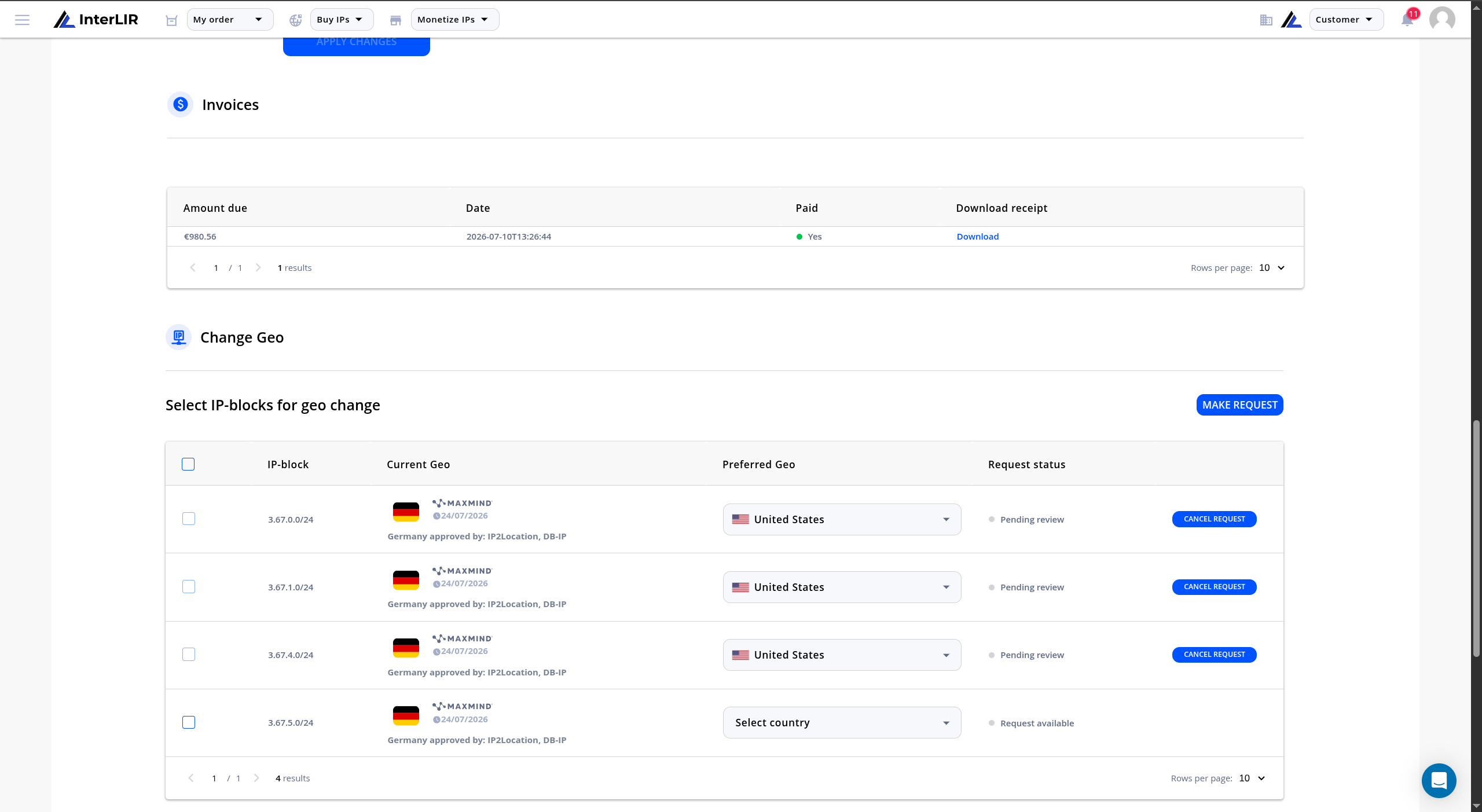
🛈 Use the Change Geo section for requests within a single contract, and the Bulk IP Geo Change modal (Step 1) for requests spanning several contracts.
4. Selecting a Preferred Geo
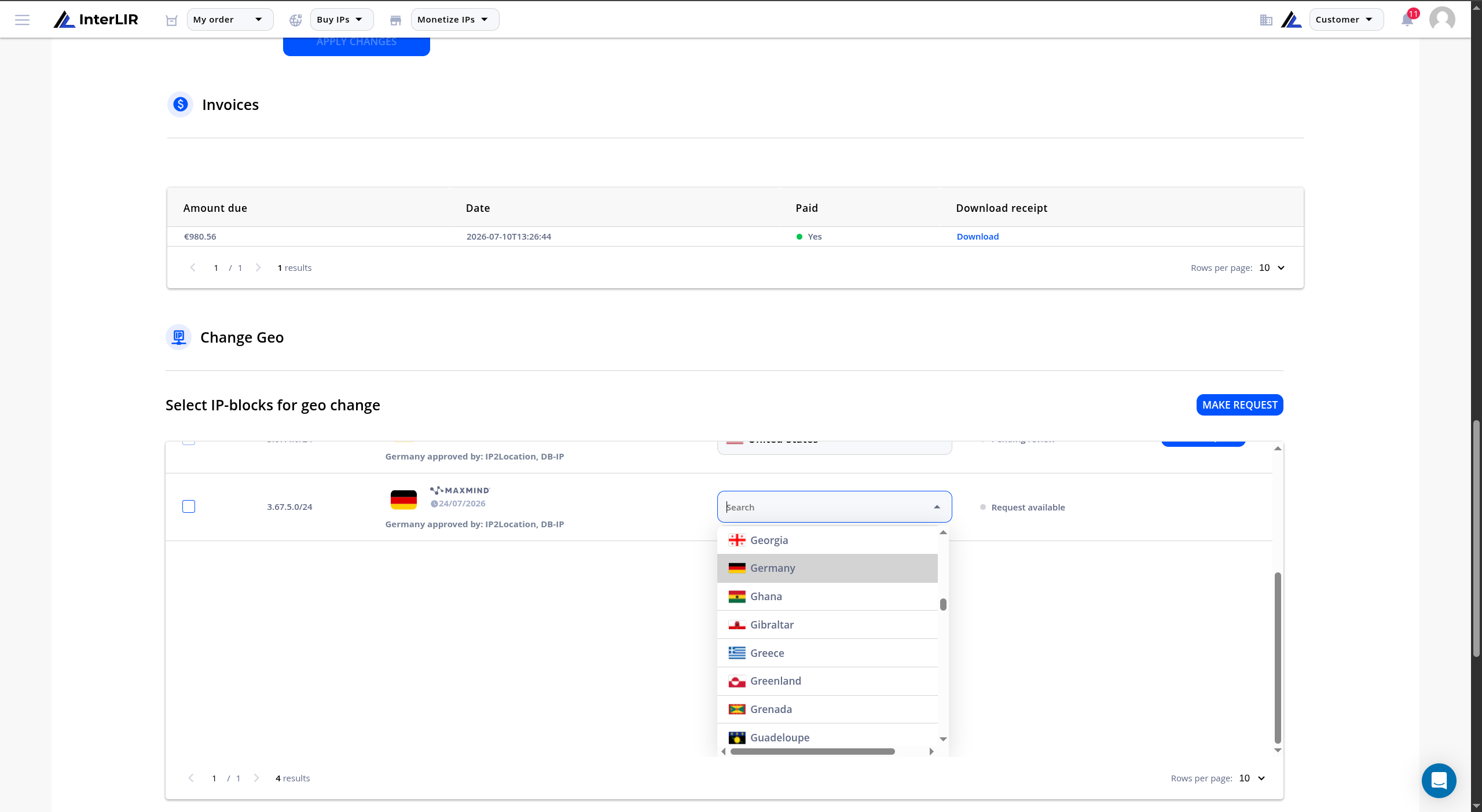
For each block that is available for a request, open the Preferred Geo selector and pick a country from the list. The selector opens on click and behaves like the existing country selector used elsewhere on the platform (for example when importing a public ASN).
The Preferred Geo selector is:
- active when the block is in a lease contract and has no active request;
- disabled when the block is canceled, is being canceled, or the block's status is
Pending revieworGeo change unavailable.
5. Submitting a request
The Make request button becomes active only when:
- at least one IP-block is selected;
- a Preferred Geo is chosen for every selected block;
- the chosen Preferred Geo differs from the block's Current Geo;
- the selected blocks are available for a new request (status
Request availableorSubmitted to Geo services).
After a successful submission:
- a request is created and the selected IP-blocks move to status
Pending review; - the checkbox for those blocks becomes disabled;
- the selected Preferred Geo is shown as a fixed value and can no longer be changed;
- a Cancel request button appears in the Actions column.
6. Request statuses
Each IP-block shows a single current action status in the table (not the full request history):
| UI status | Meaning | What you can do |
|---|---|---|
Request available |
A Geo change can be requested for the block. | Checkbox active. |
Pending review |
You submitted a request; a manager has not processed it yet. | Checkbox disabled; Cancel request available. |
Submitted to Geo services |
A manager approved the request and InterLIR sent it to the Geo services. | Shown as a successful status (green / checkmark); you can create a new request. |
Geo change unavailable |
A Geo change is not available for the block. | Checkbox disabled. |
7. Canceling a request
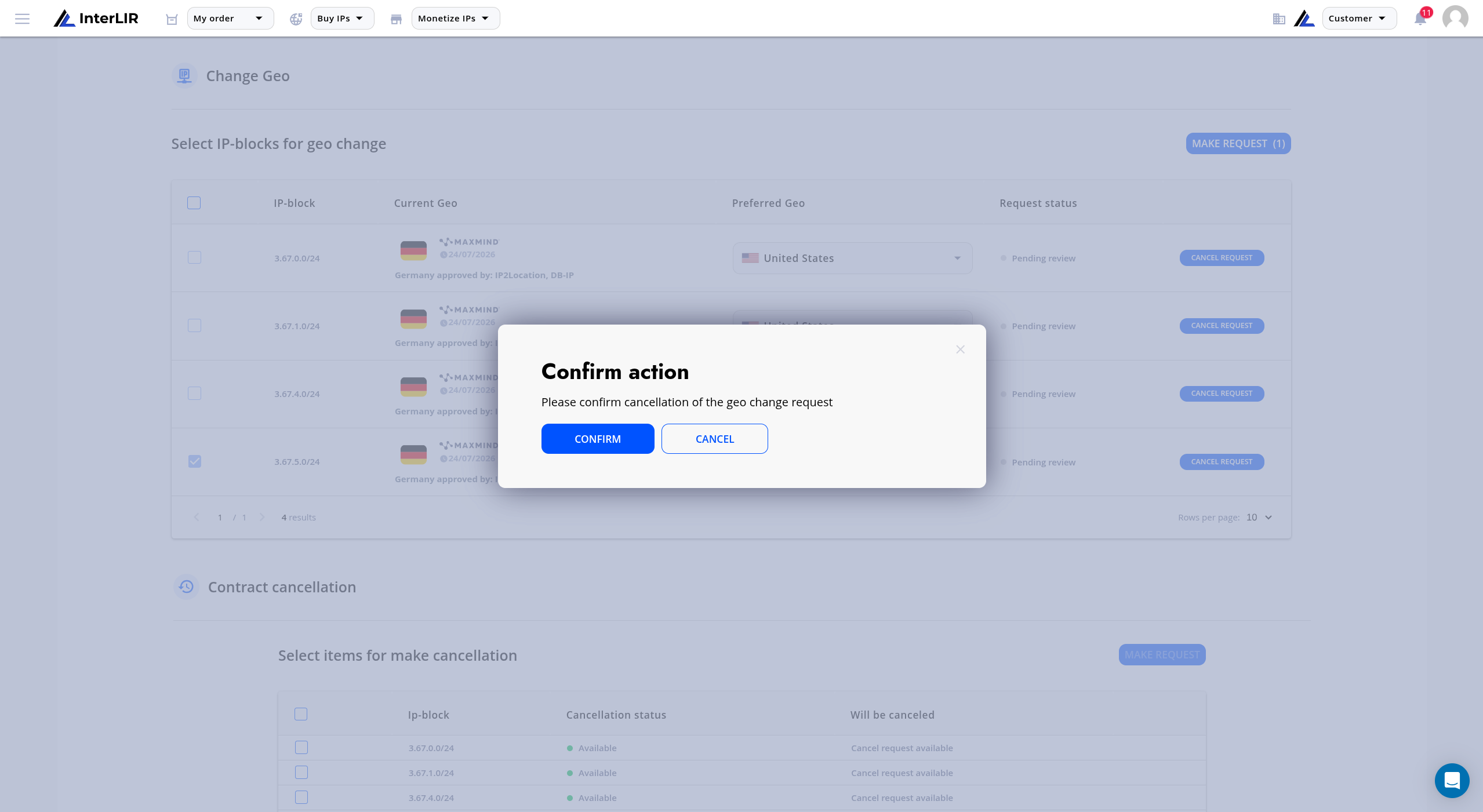
You can cancel a request only while it is in status Pending review. Use the Cancel request button in the Actions column of the Change Geo table (or the Bulk modal).
After cancellation:
- the request gets status
cancelled_by_user; - the IP-block returns to
Request available(if it has no other active restrictions); - the checkbox becomes active again and the Preferred Geo selector becomes editable again;
- the manager no longer needs to process the request.
When a Geo change is unavailable
If a block shows Geo change unavailable, its checkbox and Preferred Geo selector are disabled, no request can be submitted, and no Cancel request button is shown. Common reasons include:
- the block is not in an active contract, is canceled, or is being canceled;
- the block is suspended, archived, or expired;
- a Geo change is not supported for the block, or required data is missing;
- there are restrictions from the supplier, the registry, or internal InterLIR rules.
Need Help?
If you face issues at any step of the IP-Geo change process, please contact our Support Team.
See also
- IP-Geo (glossary)
- How to Make an Order
- How to Cancel an Order or Individual IP-Blocks (including bulk cancellation)
- Order Cancellation (glossary)