How to Make a Payout Request
To withdraw your accumulated funds, Suppliers must submit a Payout Request. This guide explains how to do that step-by-step.
Step 1: Navigate to the Payout Requests Page
Go to: payout requests page
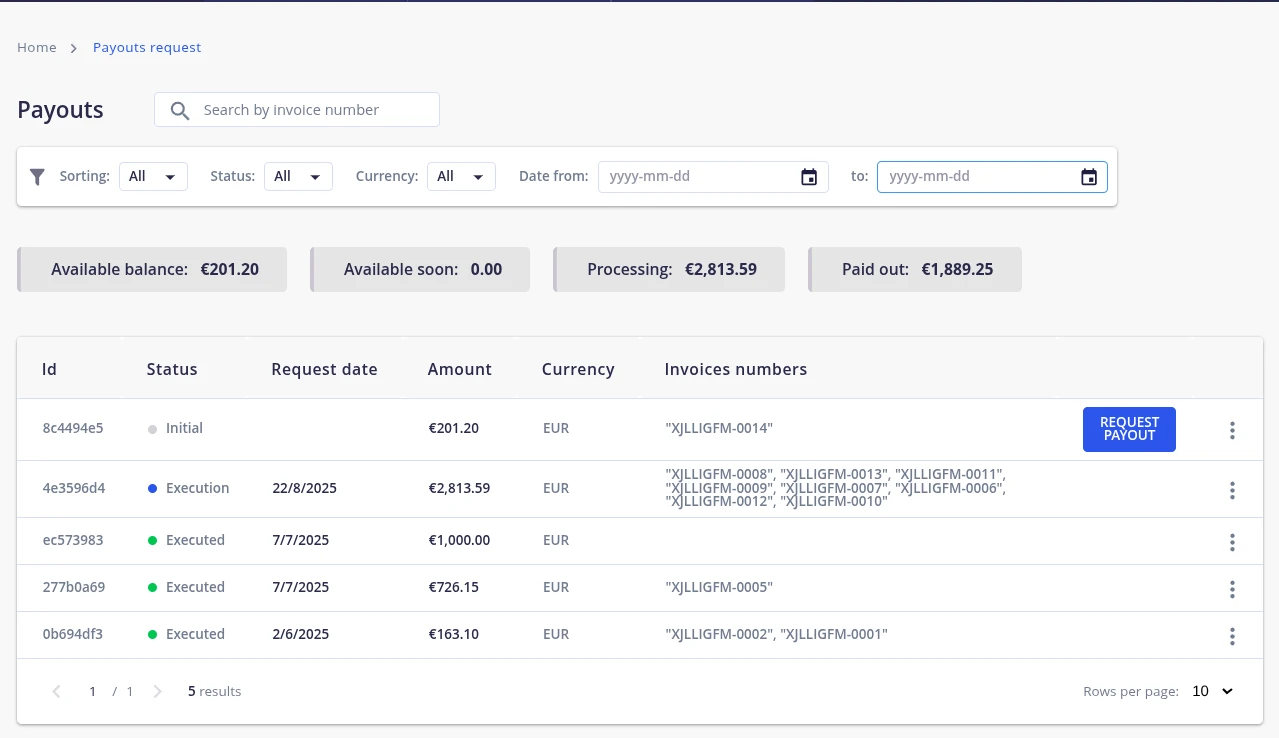
On this page, you'll see a table with all your payout request records.
Step 2: Select an Available Payout Request
Find a payout with the status Initial. This means it is ready to be submitted, provided the Amount is greater than zero.
⚠️ You can only submit a request if the payout amount is at least 100 EUR or the equivalent in another supported currency.
Click Request Payout to proceed.
Step 3: Review Payout Request Details
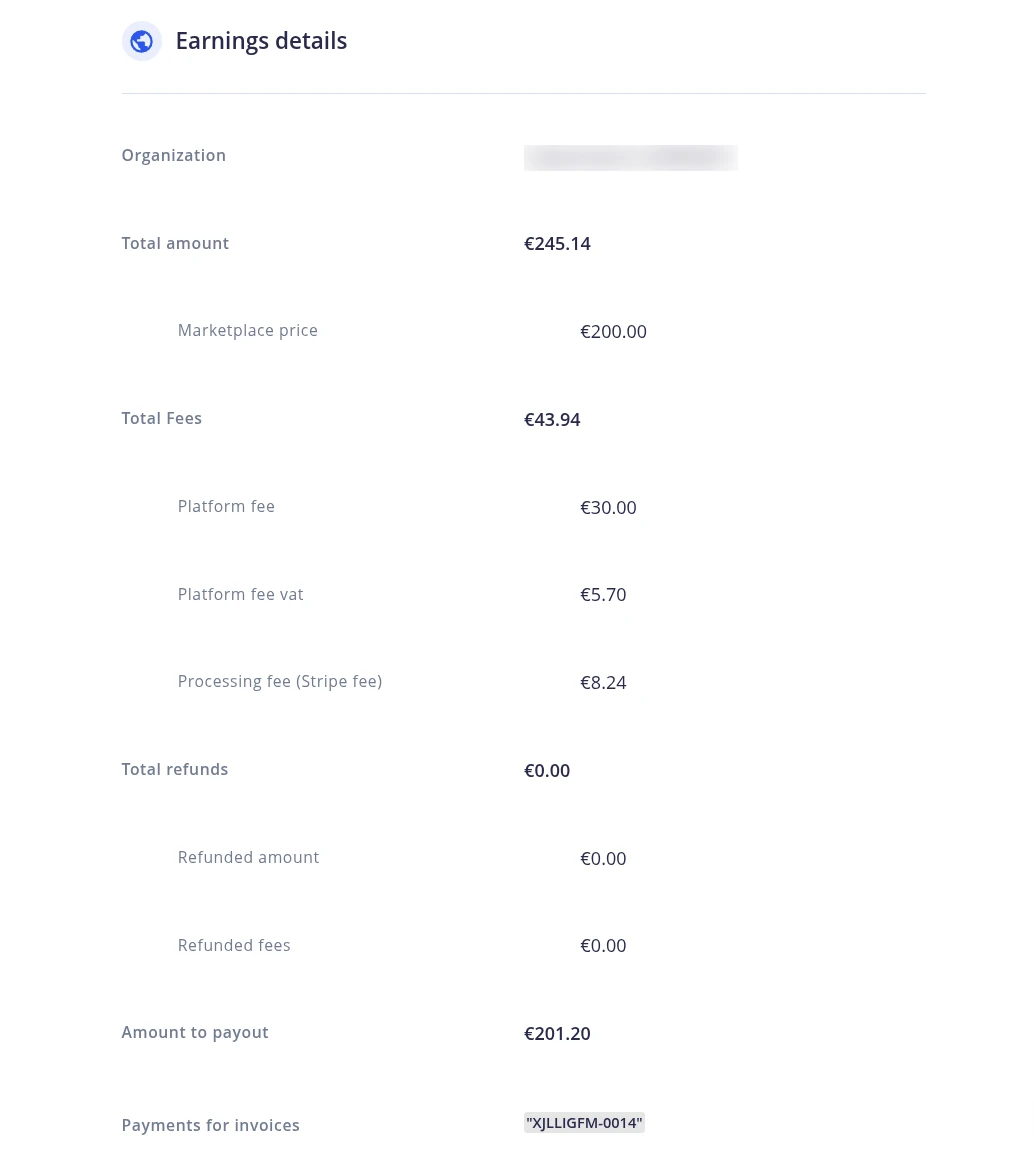
On the payout request detail page, you will see a breakdown of the financial components:
- Organization – Name of the organization making the request.
- Total Amount – Total funds paid by clients (includes VAT and processing fees).
- Marketplace Price – Value of blocks rented via the marketplace.
- Total Fees – Total fees deducted:
- Platform Fee – 15% of the marketplace price. See: Platform Fee
- Platform Fee VAT – VAT charged on platform revenue. See: VAT
- Processing Fee – Stripe fees for handling transactions.
- Total Refunds – Total amount refunded to clients:
- Refunded Amount - Amount refunded to clients
- Refunded Fees - Amount of refunded fees
- Amount to Payout – Final amount after fees and refunds.
- Payments for Invoices – Invoices associated with this payout.
Step 4: Select or Add a Payout Method
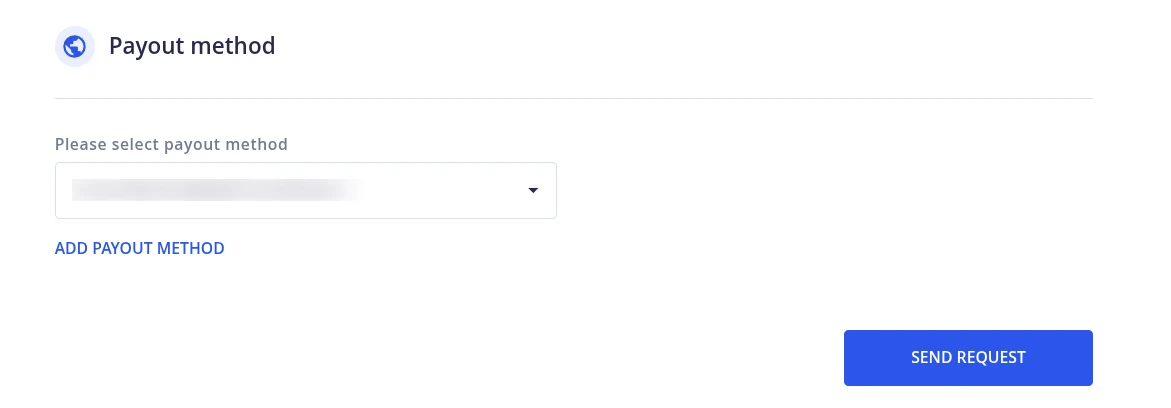
Scroll to the bottom of the form and choose an existing payout method from the dropdown list.
If no method is available, follow the link to add a payout method.
Step 5: Submit the Payout Request
Click Send Request.
The payout will change its status to Execution, indicating it is being processed by the InterLIR team.
Step 6: After Processing
Once processed:
- You will receive a confirmation
- The status will change to Executed
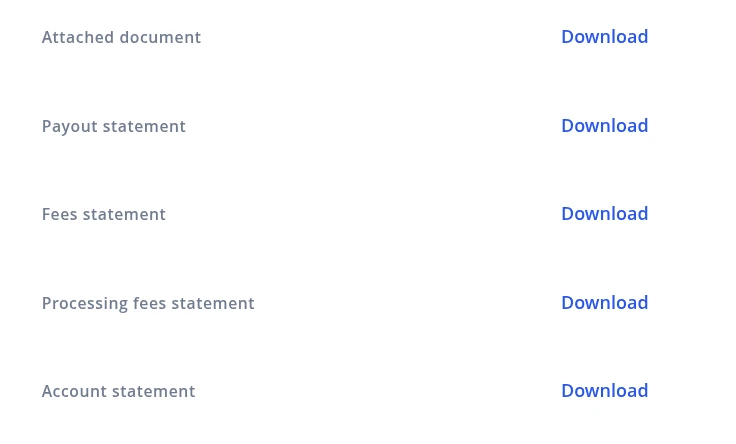
You can now open the executed payout’s menu and access additional information and documents:
- Attached Document (Confirmation of the transfer from stripe)
- Payout Statement Report
- Payout Fees Statement Report
- Payout Processing Fees Statement Report
- Payout Account Statement Report
After Payout Request
After you have submitted a payout request, you can generate a report using the Payout ID on the Reports page. See the article How to Generate Reports for detailed instructions.