How to Pay an Invoice
This guide is for Customers who need to pay an invoice for an active lease contract (subscription). Most charges are taken automatically by Stripe; this page covers what to do when an invoice stays Open and you must pay it manually, including from a downloaded PDF.
For definitions and status names, see Invoice in the glossary.
Overview
When you place an Order, the platform creates a contract (subscription) for one or more IP-Blocks. While the contract is active, the platform bills a monthly amount and issues an invoice for each billing period. Invoices are tied to Stripe and usually pay themselves with your default payment method.
Invoice creation
- Each active contract receives invoices once per billing period (typically monthly).
- The line items reflect the cost of using the rented IP-Blocks for that period.
- Billing behavior follows a subscription model in Stripe.
Automatic payments
By default, invoices are charged automatically using the payment method linked to the contract—usually the one you selected at checkout.
You can change it at any time: How to Change the Payment method.
Outcomes
- Successful charge — Invoice status becomes Paid; the lease contract stays active.
- Failed or missed charge — Status becomes Open; use the steps below or fix the payment method.
If an Open invoice is left unpaid, you generally have about 7 days to settle it before the platform may cancel the contract, deactivate the block(s), and remove related Assignment Request / rDNS setup. Follow in-app messages and the Terms of Service.
Invoice statuses
| Status | Meaning |
|---|---|
| Paid | Payment completed; subscription remains in good standing for that charge. |
| Open | Not paid yet (or last attempt failed); pay manually or update the payment method. |
| Draft | Still being generated; not payable. |
| Void | Terminal state: after voiding, no further changes can be made to the invoice. Do not pay. |
| Refund | Payment was returned (e.g. refund or dispute); nothing more to pay on that document. |
Manual payment
Use this when an invoice is Open.
Option 1: From the Invoices page
- Open https://portal.interlir.com/invoices.
- Use the Customer tab, search, and filters (e.g. Status → Open) to find the invoice you need.
- To download the PDF, use the row’s context menu (⋮ on the right) and choose Download pdf. The download action is only available from this menu on the list.
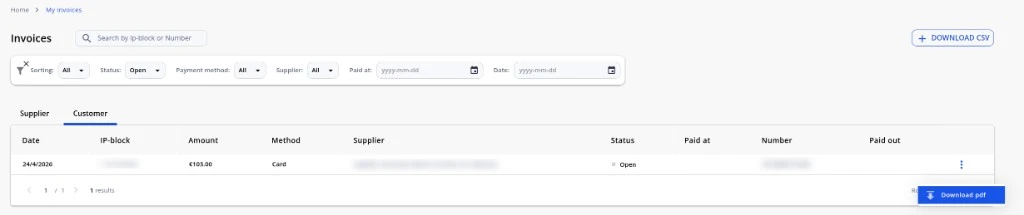
- Open the invoice from the list if you prefer to pay in the browser, or use the downloaded PDF and continue with Payment steps below.
Option 2: From contract details
- Go to your leased resources (e.g. IPv4 resources → IP-Blocks and open the relevant lease contract).
- Scroll to the Invoices section. The table lists amounts, dates, payment status, and a Download link for each invoice.
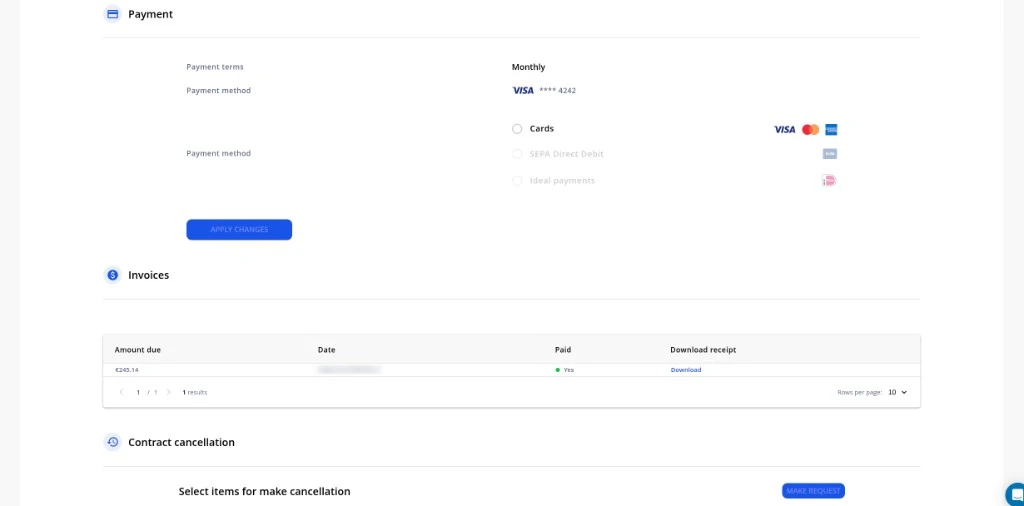
- Open or download the row where the status is Open, then continue with the steps below.
Payment steps (portal or PDF) {#payment-steps-portal-or-pdf}
- Download the invoice PDF if you are paying from the file: on My Invoices, use the context menu → Download pdf (see Option 1); on contract details, use Download in the Invoices table (see Option 2). Or stay in the browser if the portal offers Pay online on the invoice view.
- In the PDF, find the total line (amount and due date), then click the Pay online link—this opens Stripe checkout in your browser.
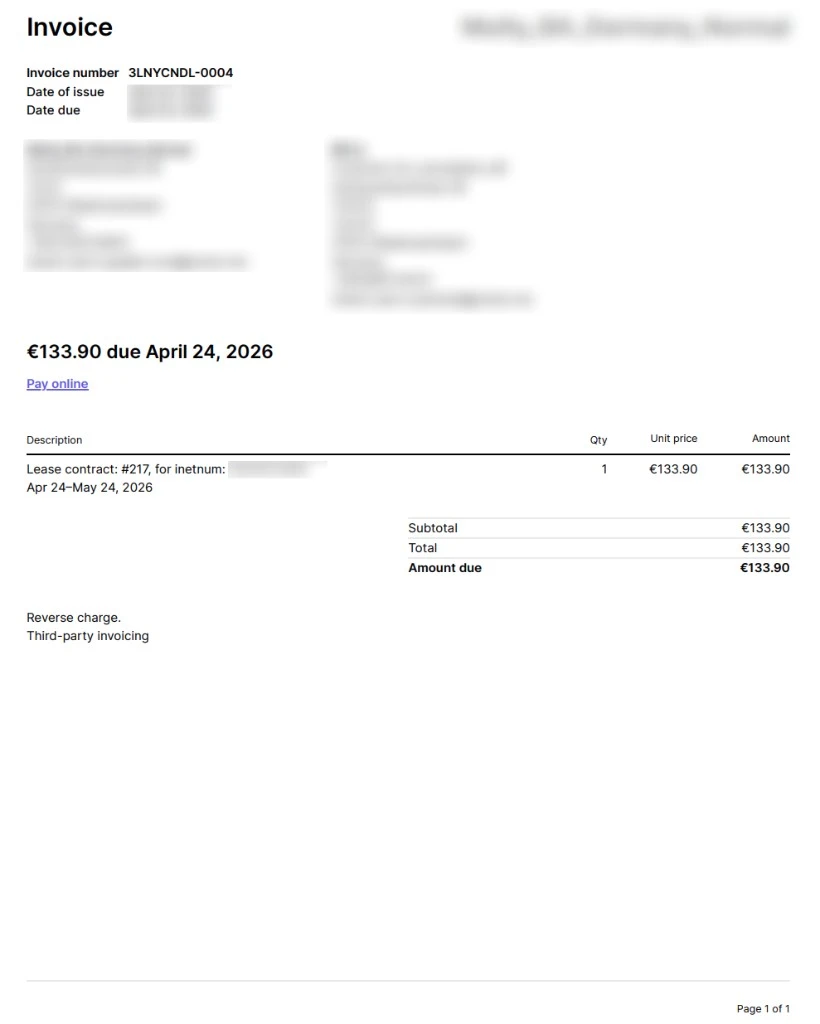
- On the Stripe page, enter card or bank details or pick a saved payment method.
- Complete the payment.
- After success, the invoice status updates to Paid in the portal (allow a short delay for sync).
Refunded invoices
If the status shows Refund (or the charge was reversed after a refund or dispute), the money was returned to you. No further payment is required for that invoice.
See also
- Invoice (glossary)
- How to Change the Payment method
- How to Make an Order
- How to Make a Cancellation Request for an Order or for a Block (including bulk cancellation)
- How to Generate Reports (including Invoices PDF for suppliers)