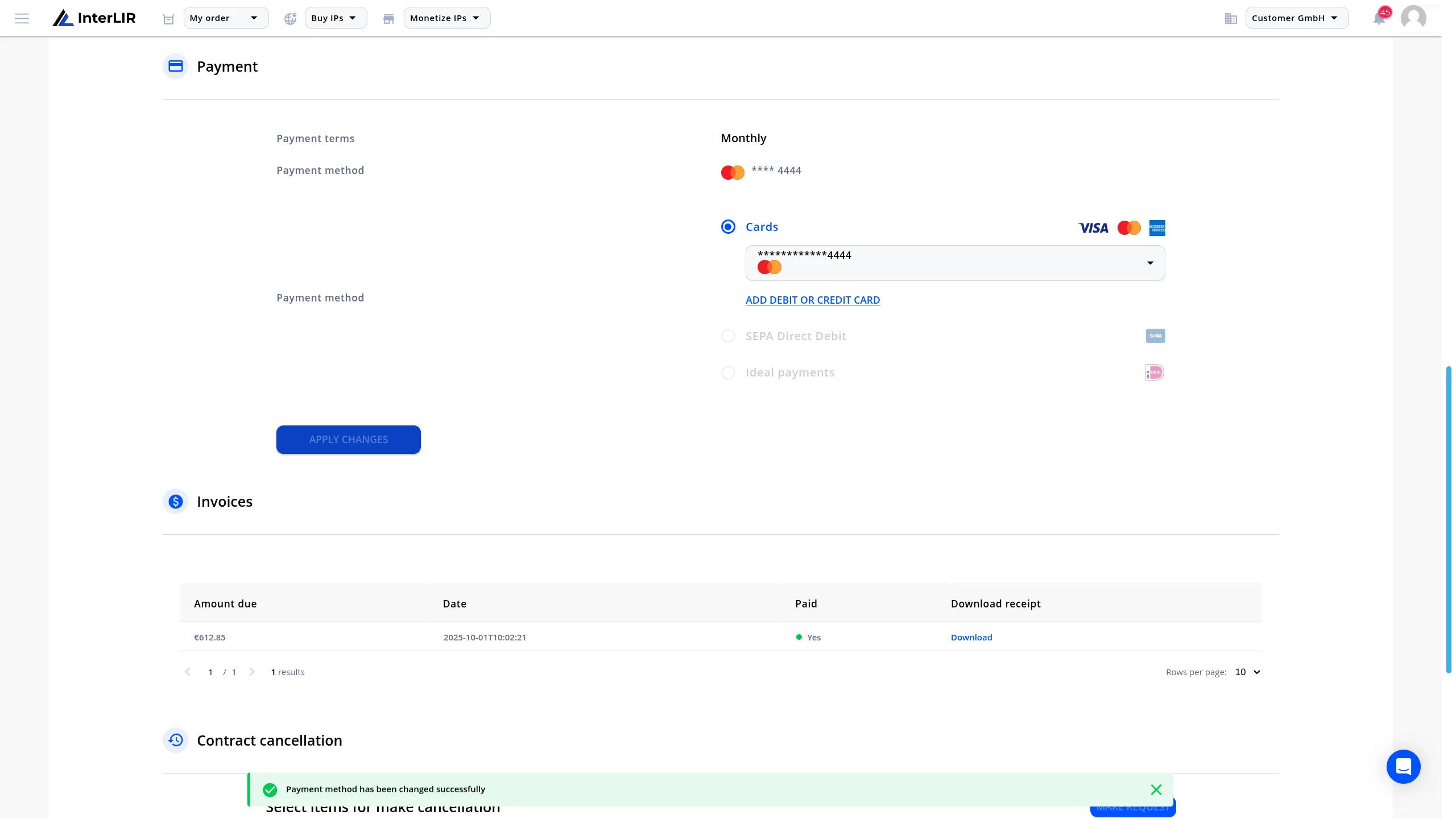
How to Change the Payment Method
This guide explains how a Customer can change the payment method for an active contract (subscription).
🔒 This action is only available to customers with active lease contracts.
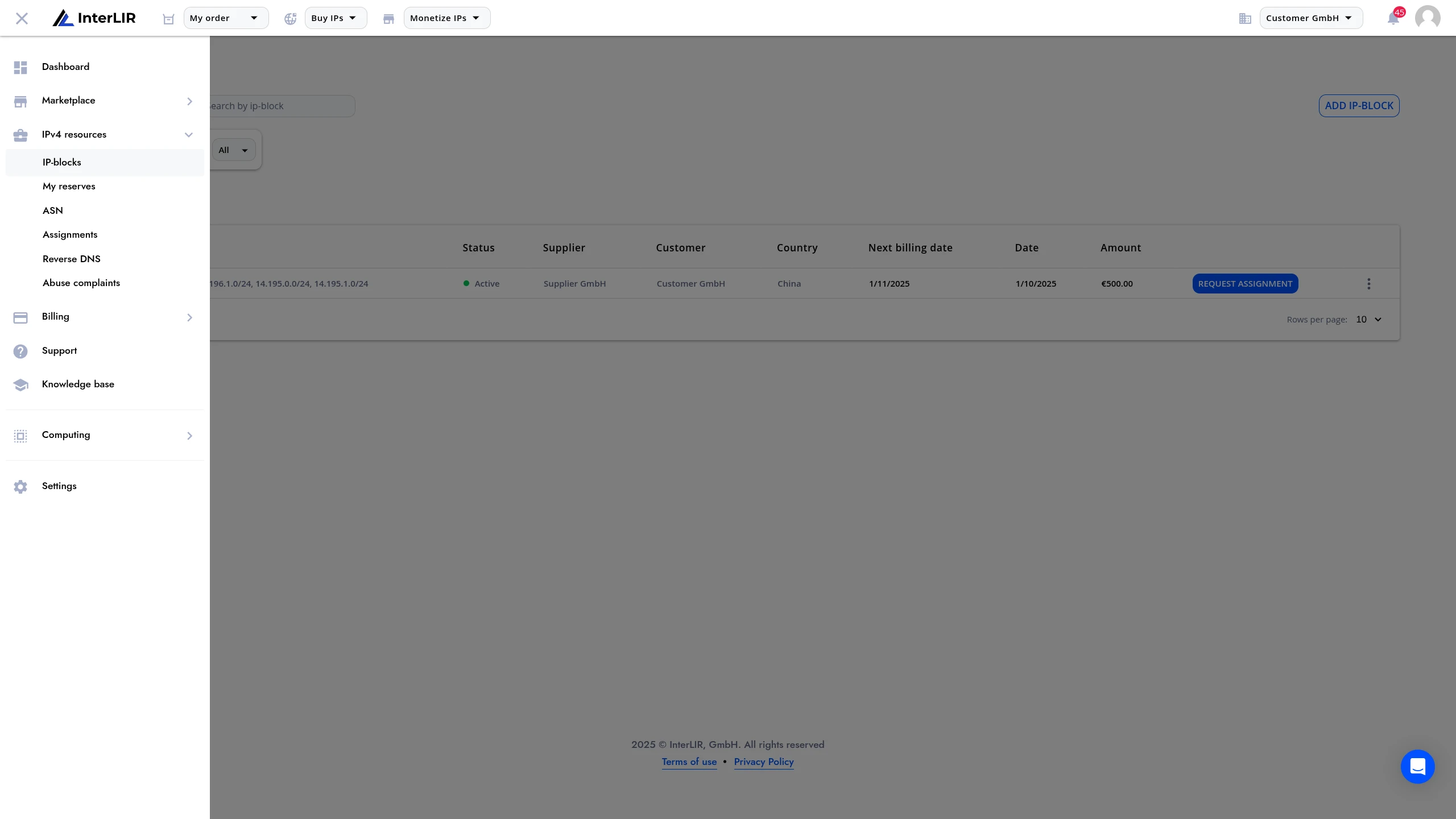
1. Go to the Leased IPs Section
Navigate to the Leased IPs tab under IPv4 Resources → IP-Blocks.
Here, you will see a list of your current lease contracts.
2. Open Contract Details
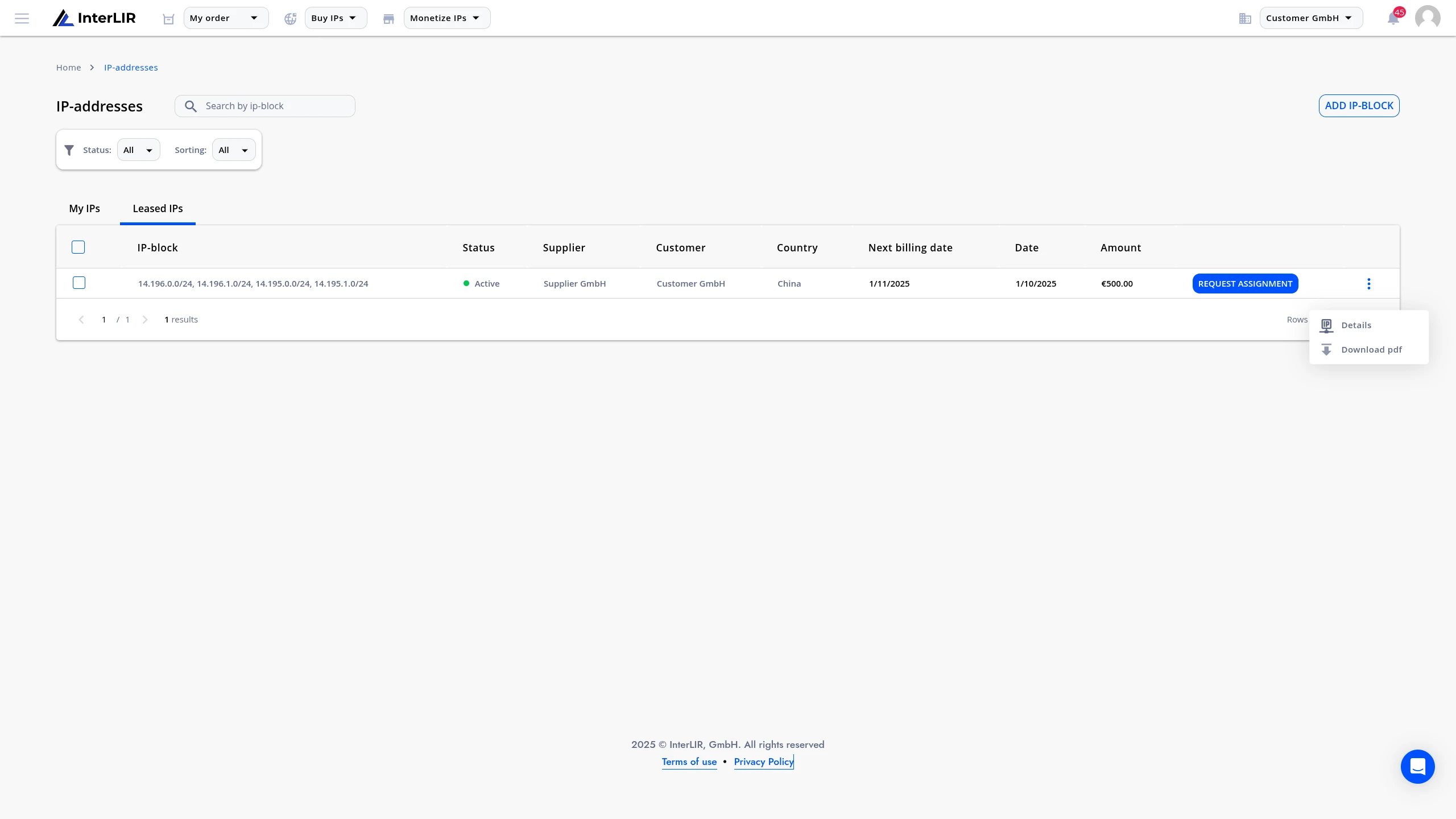
Find the contract for which you want to update the payment method.
Click the Details button from the context menu.
3. Change the Payment Method
In the Payment section of the contract details, you'll find the currently used payment method under Payment method.
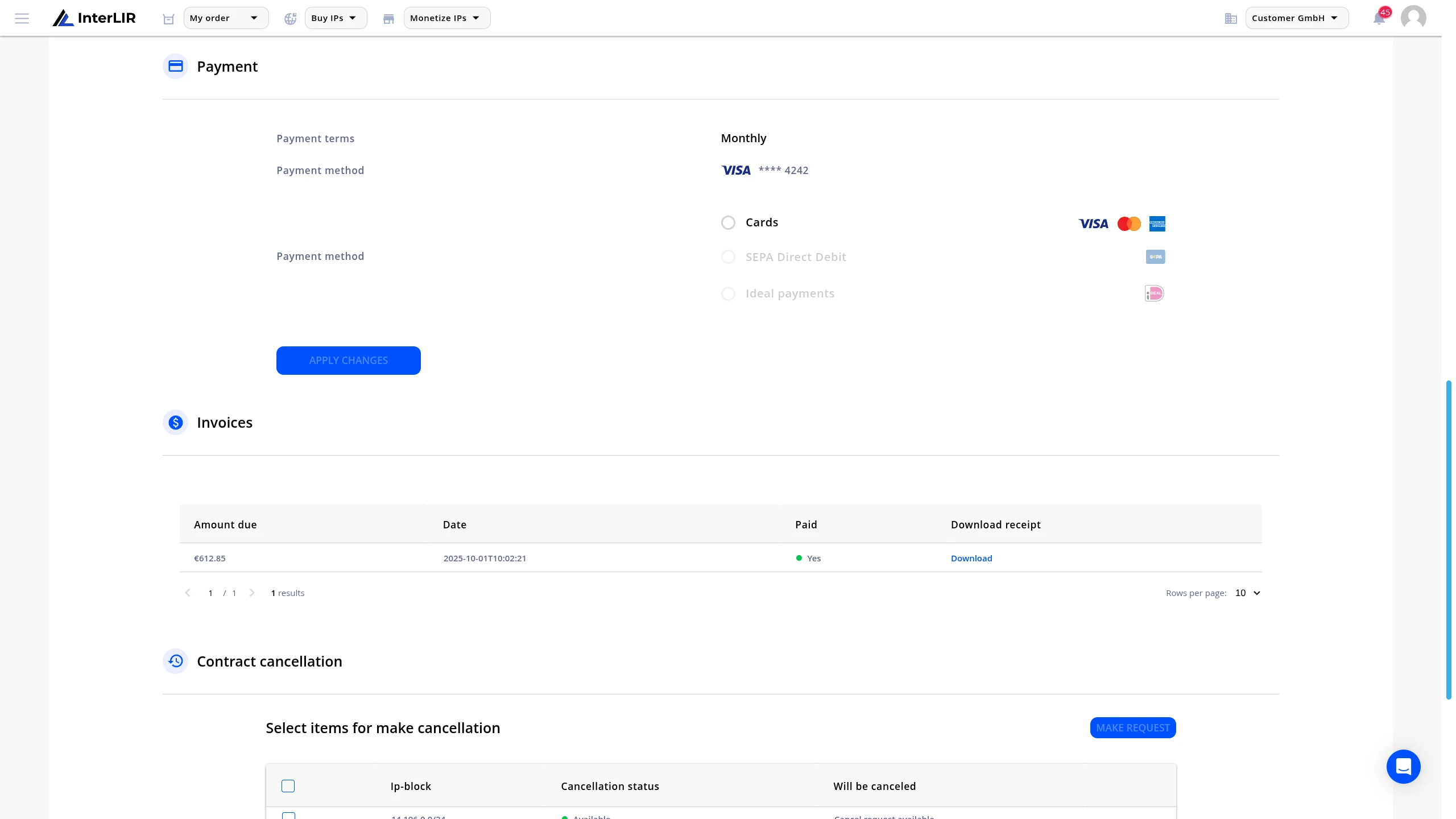
To update the method:
- Select a new method from the dropdown:
- Card
- SEPA (if available)
- iDEAL (if available)
- You can also add a new payment method and select it immediately.
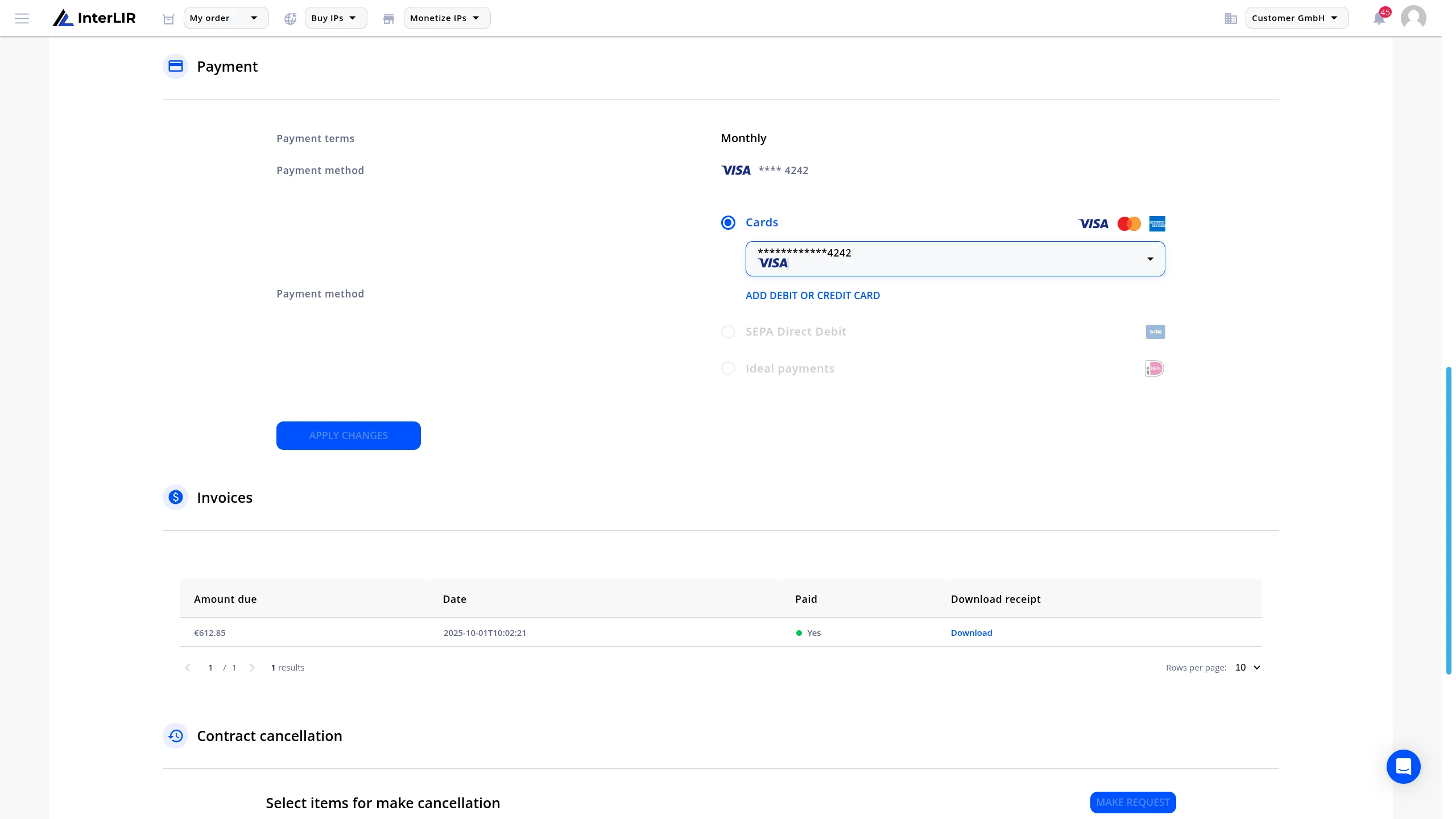
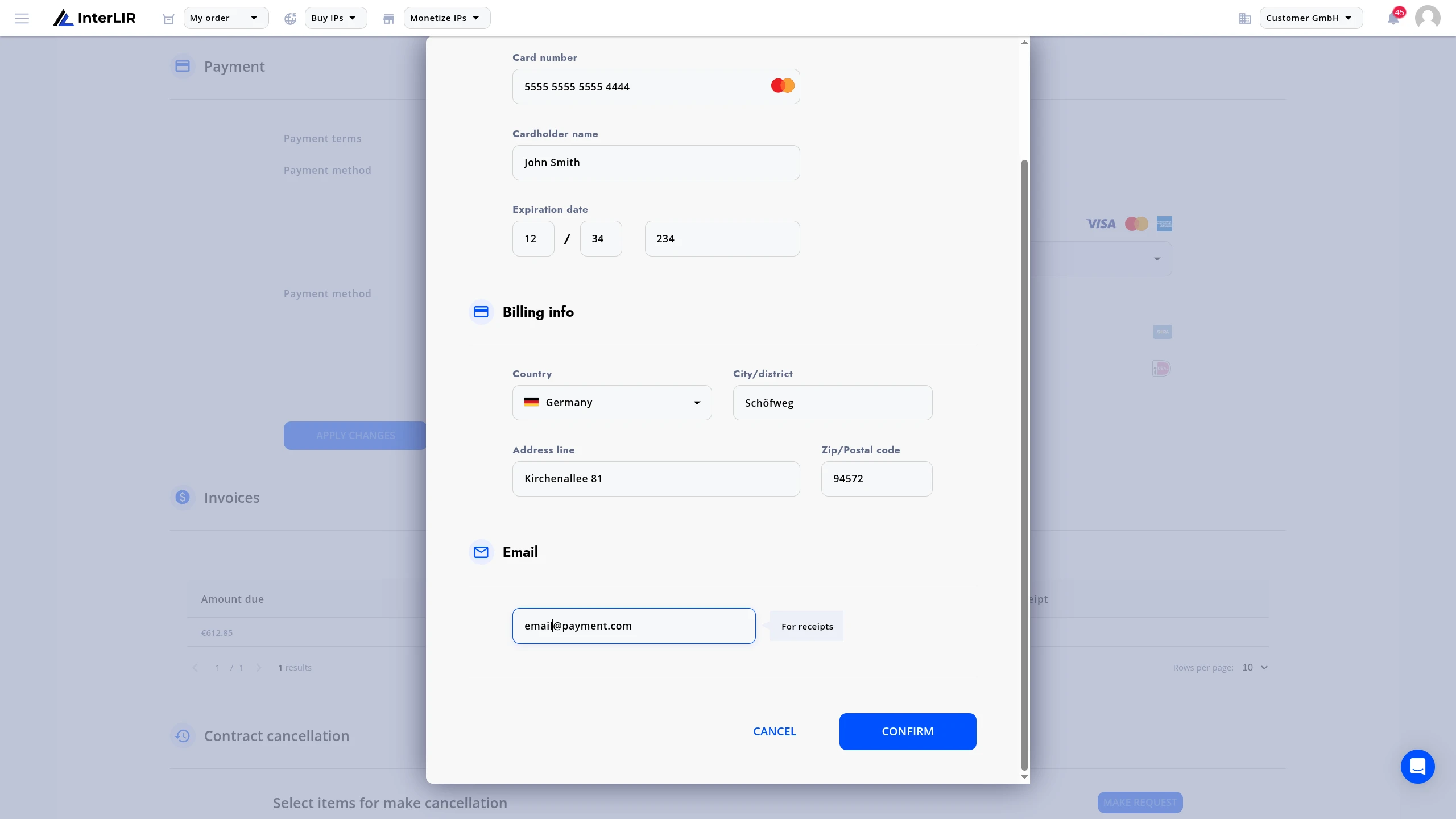
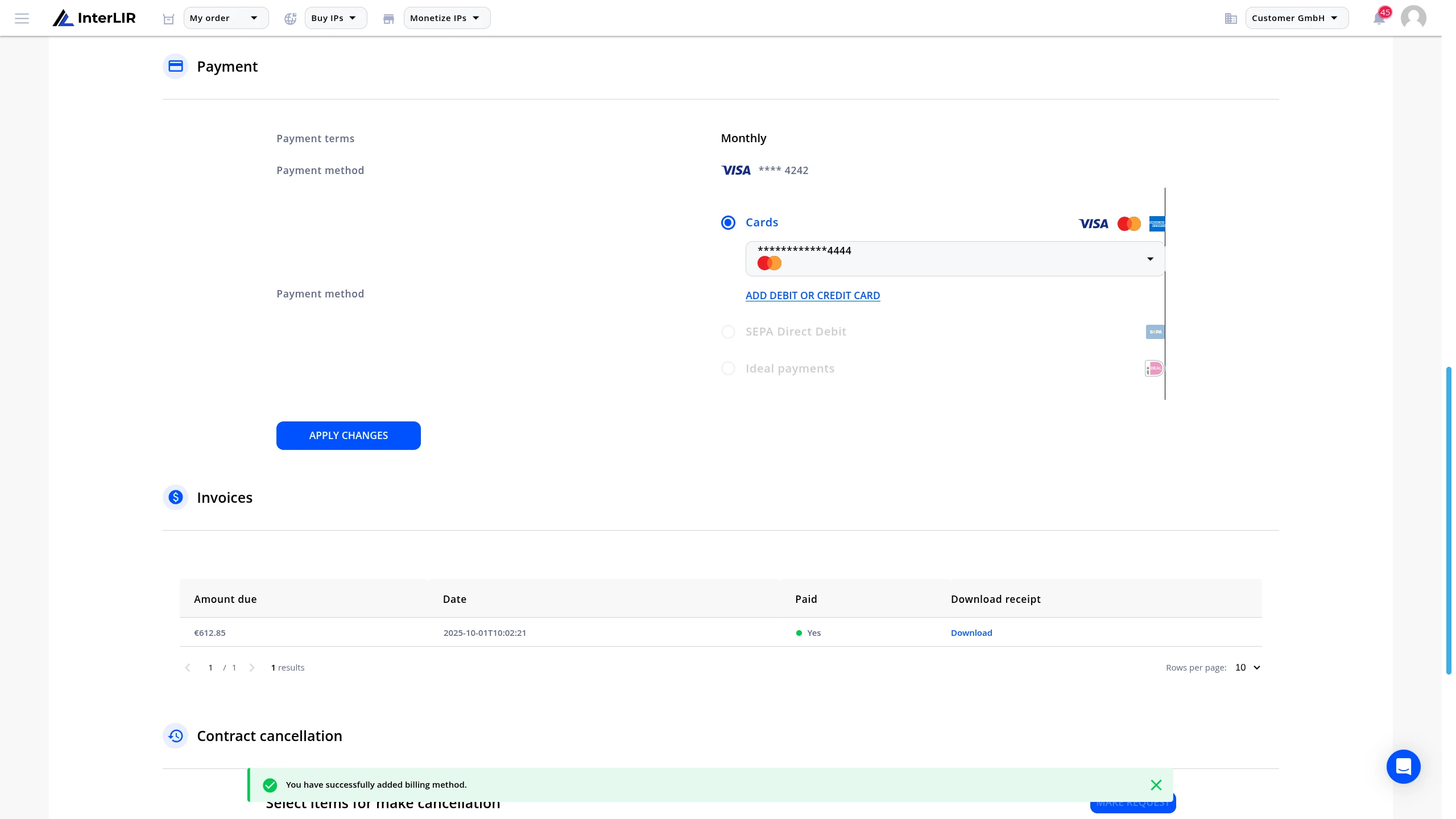
Click Apply Changes to confirm.
A success notification will appear at the bottom of the page.
Your subscription will now be charged via the newly selected method.