Importing an IP-Block
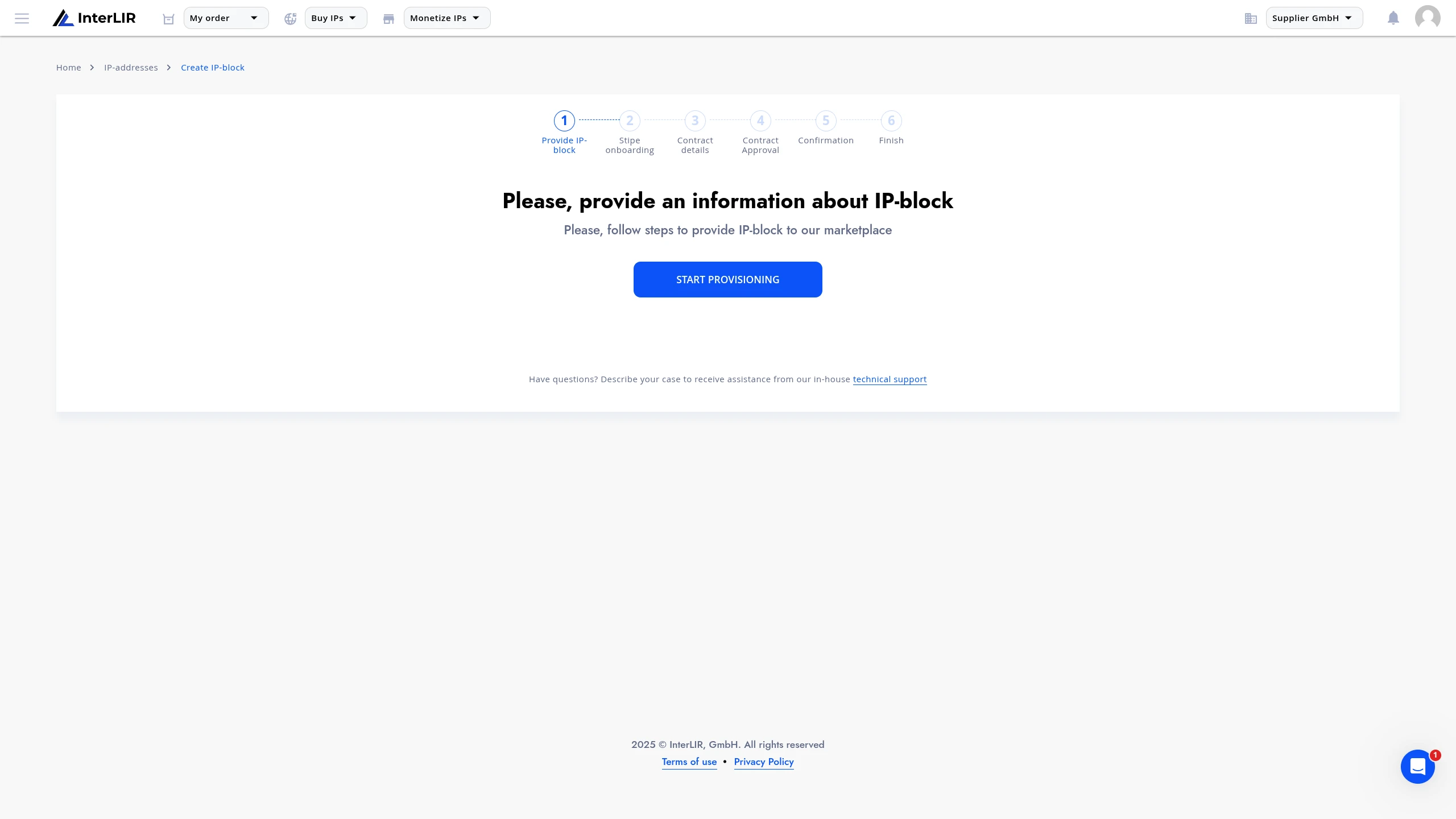
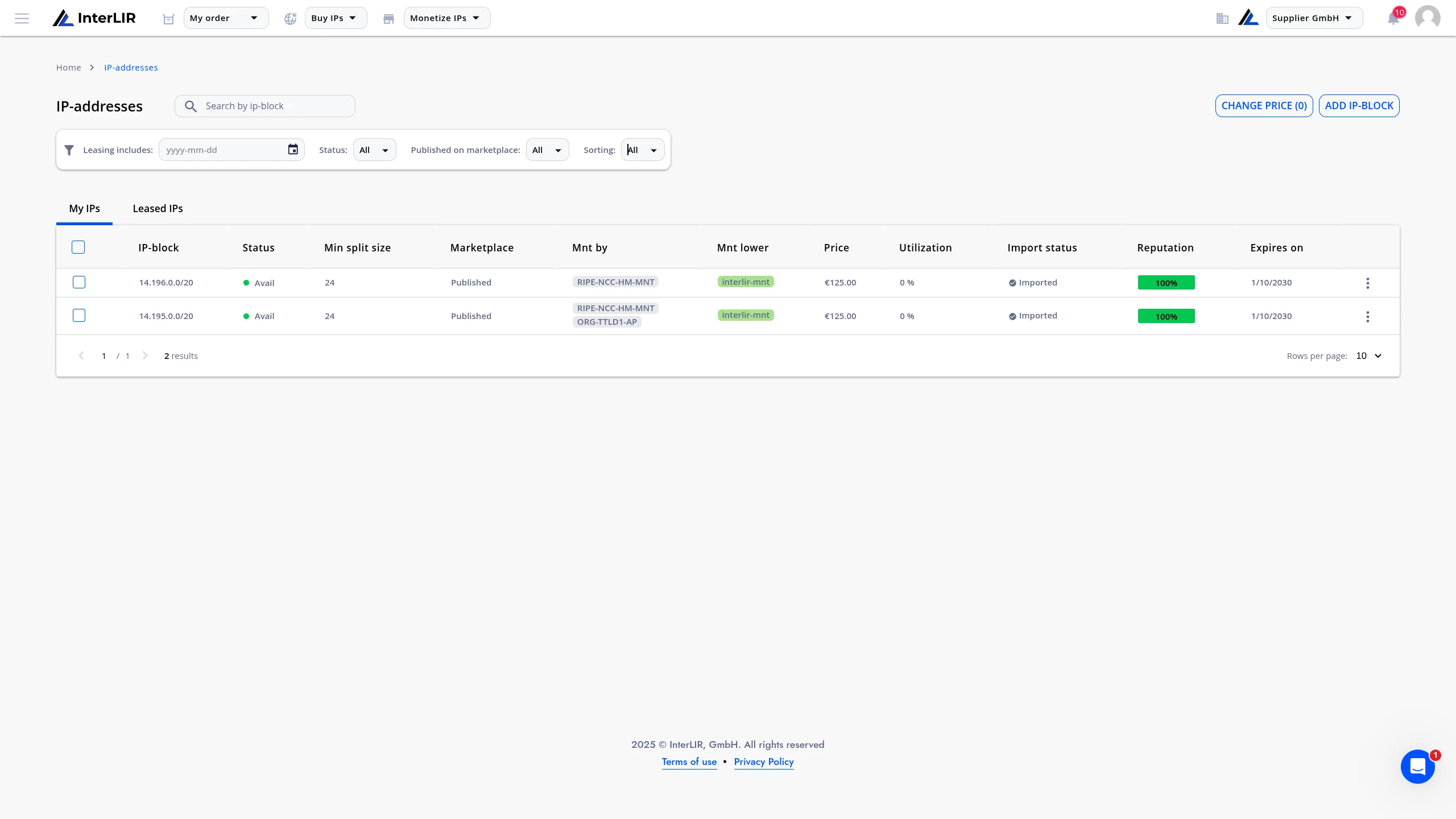
Suppliers with an approved Business Account can import IP-Blocks to the InterLIR platform by following this step-by-step procedure. You can start the import process from My IPs page using Add IP-Block button.
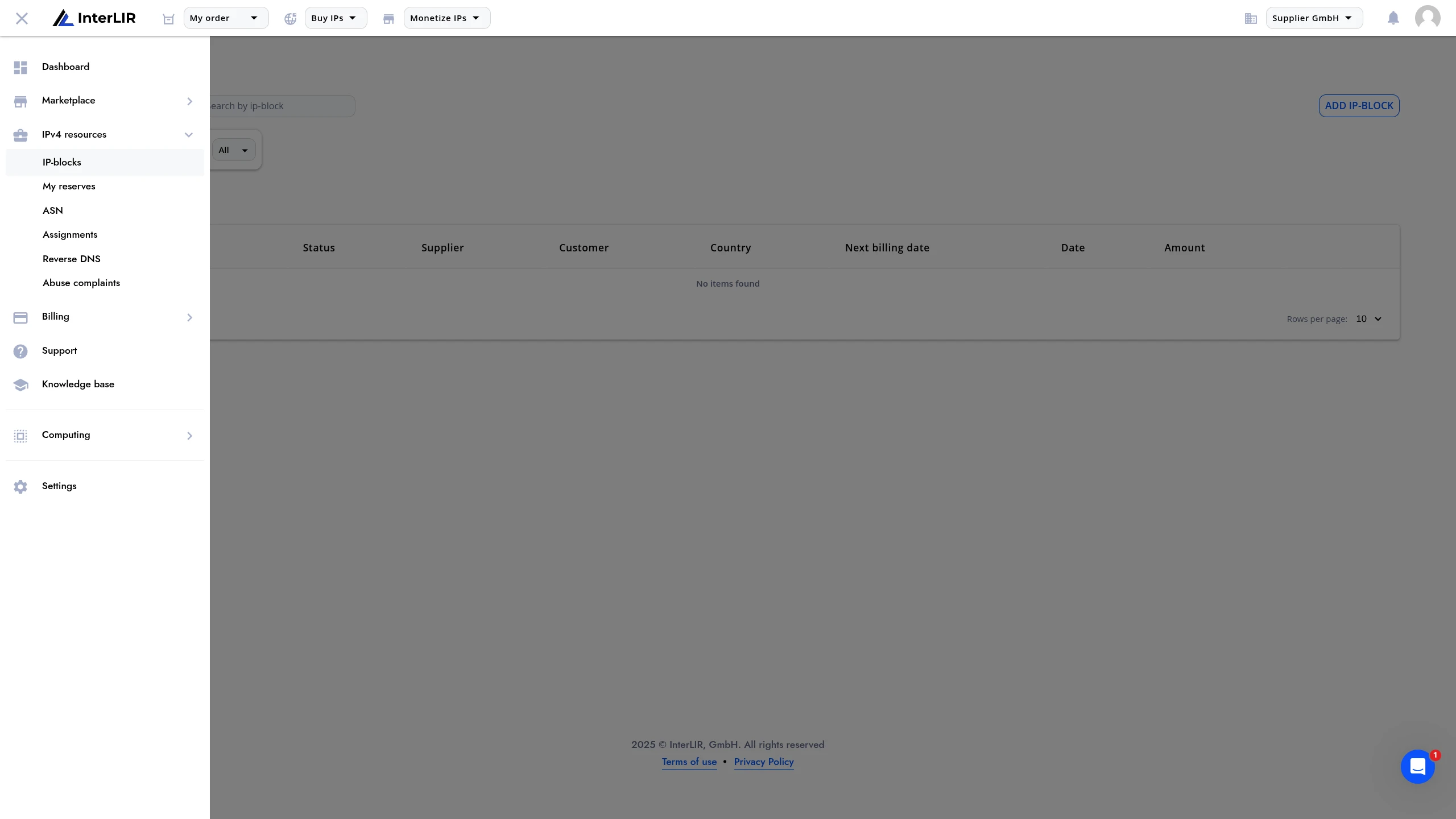
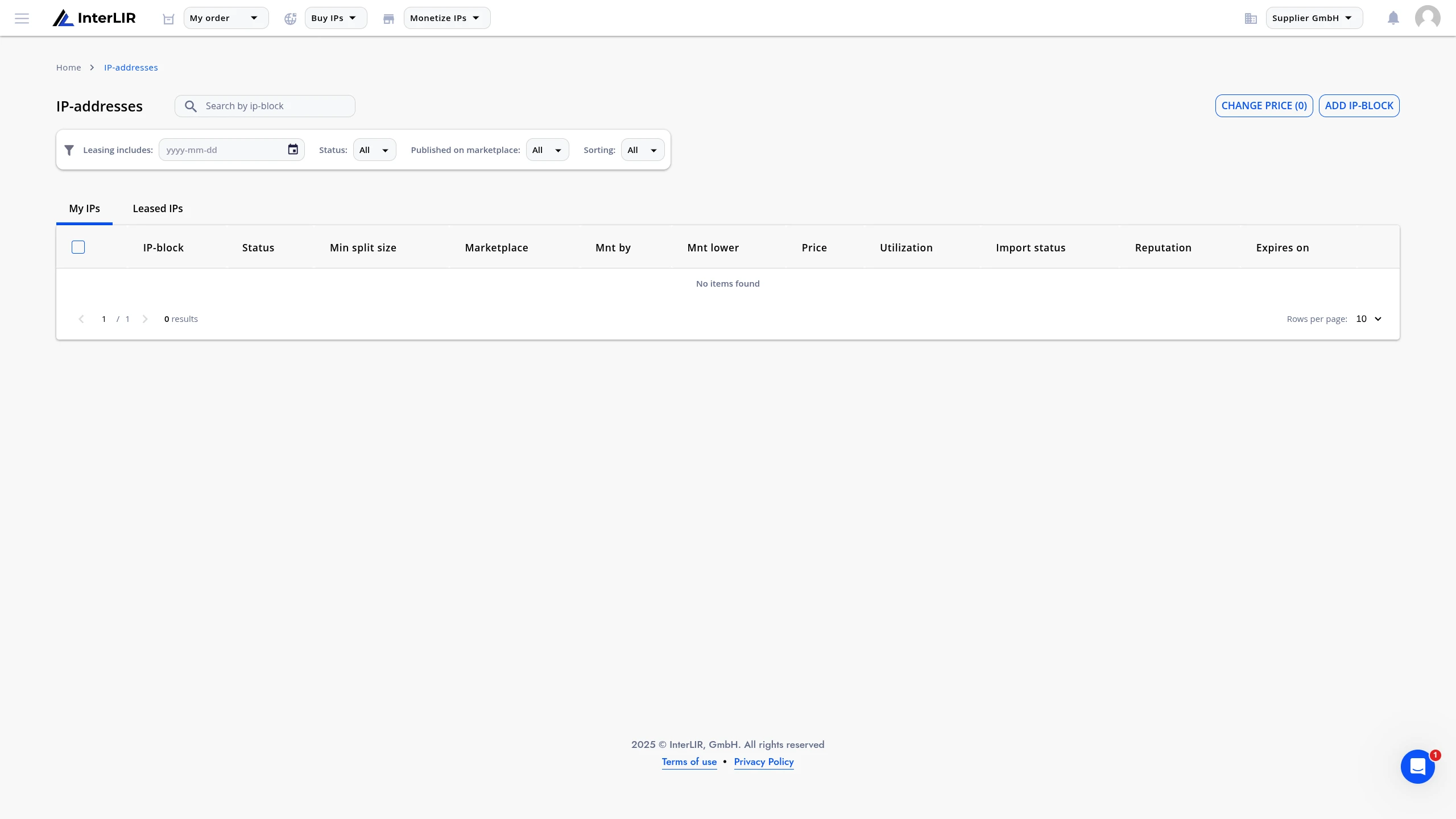
1. Initial Step: Entering CIDR and Selecting RIR
- Enter the CIDR of the IP-Block, including the address and prefix.
- Select the appropriate Regional Internet Registry (RIR) — e.g., RIPE NCC, ARIN, APNIC, etc.
Importing Multiple Blocks
You can import several blocks at once. To do so, click the "Add IP-Block" button and fill in the additional fields for each block.
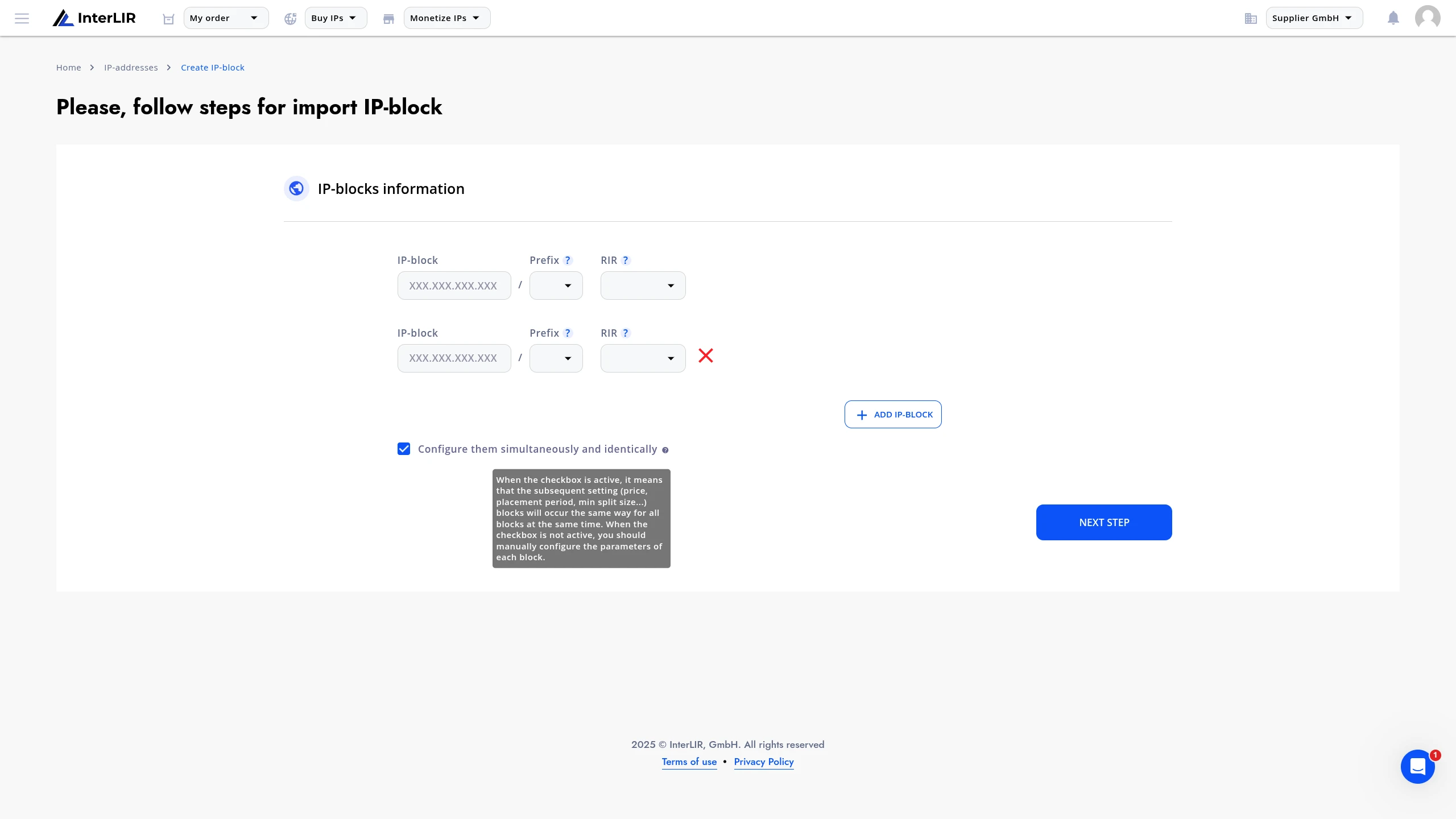
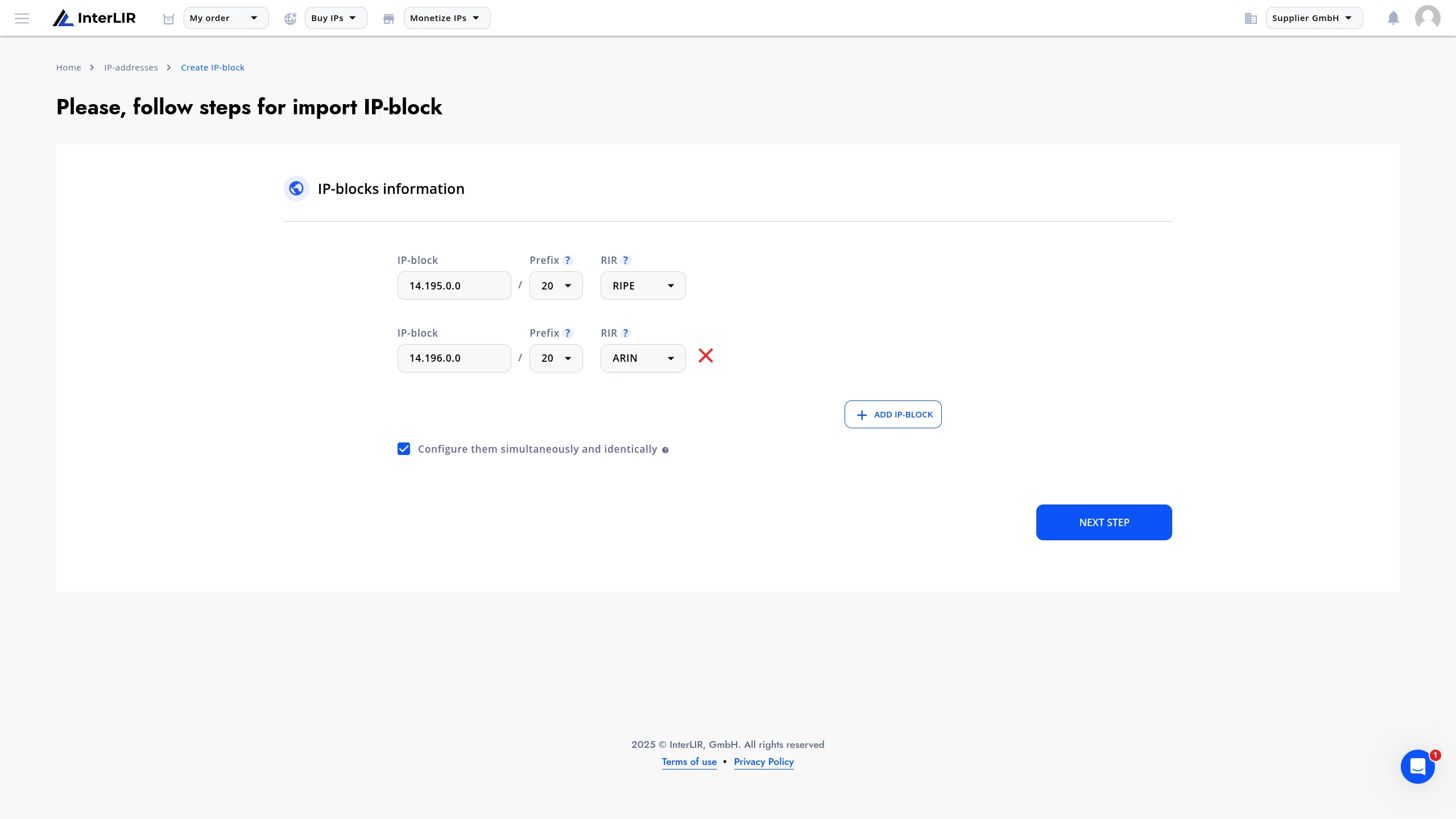
There are two configuration options:
-
Configure them simultaneously and identically
When the checkbox is active, the subsequent settings (price, placement period, min split size, etc.) will apply identically to all blocks. -
Configure each block individually
When the checkbox is not active, you will need to configure parameters for each block separately during the following steps.
2. Stripe Onboarding (If Required)
If the Supplier has not previously completed onboarding, they will be prompted to complete the Stripe Onboarding process.
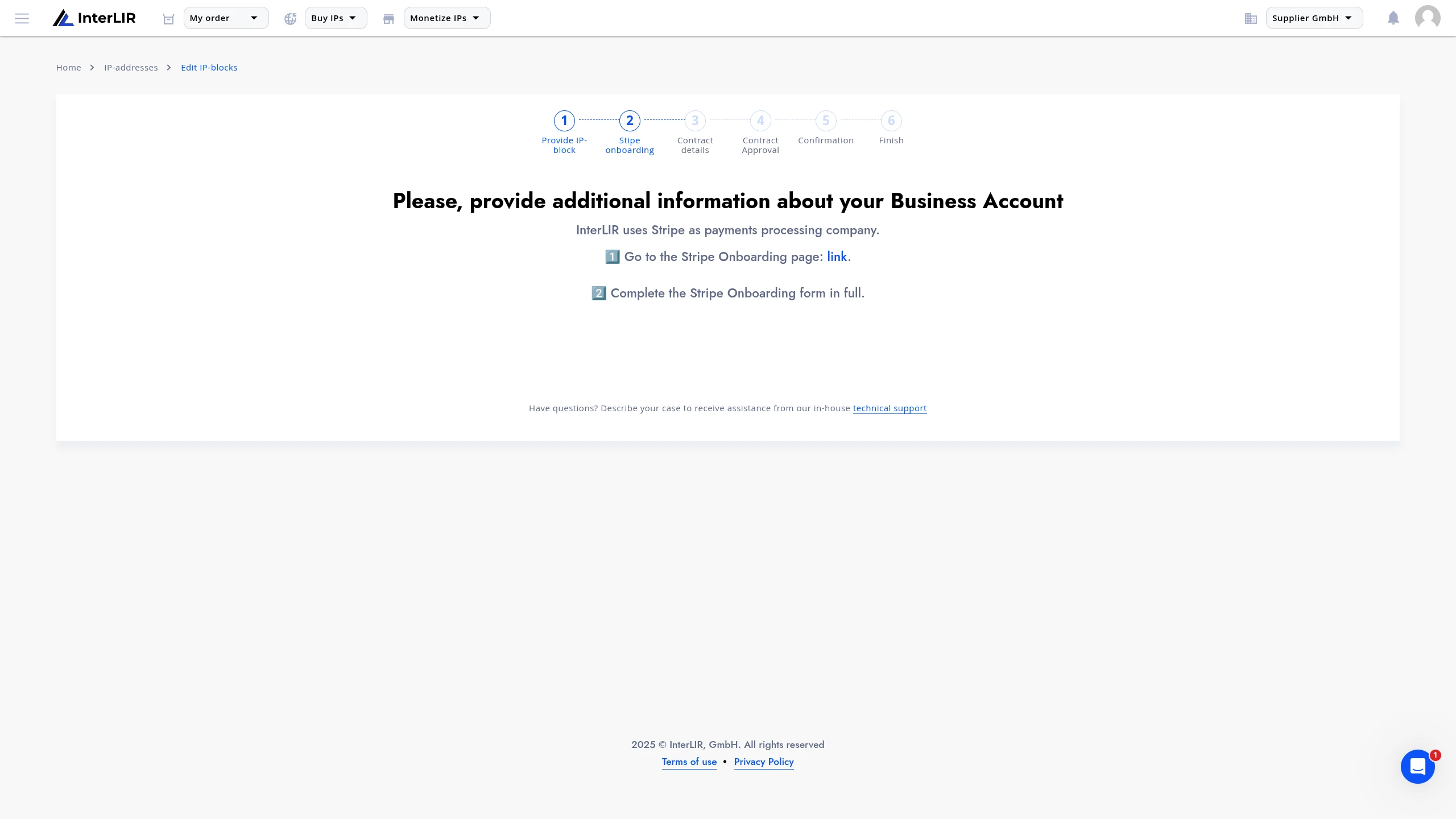
This step is mandatory and ensures compliance with KYC and enables payouts via Stripe.
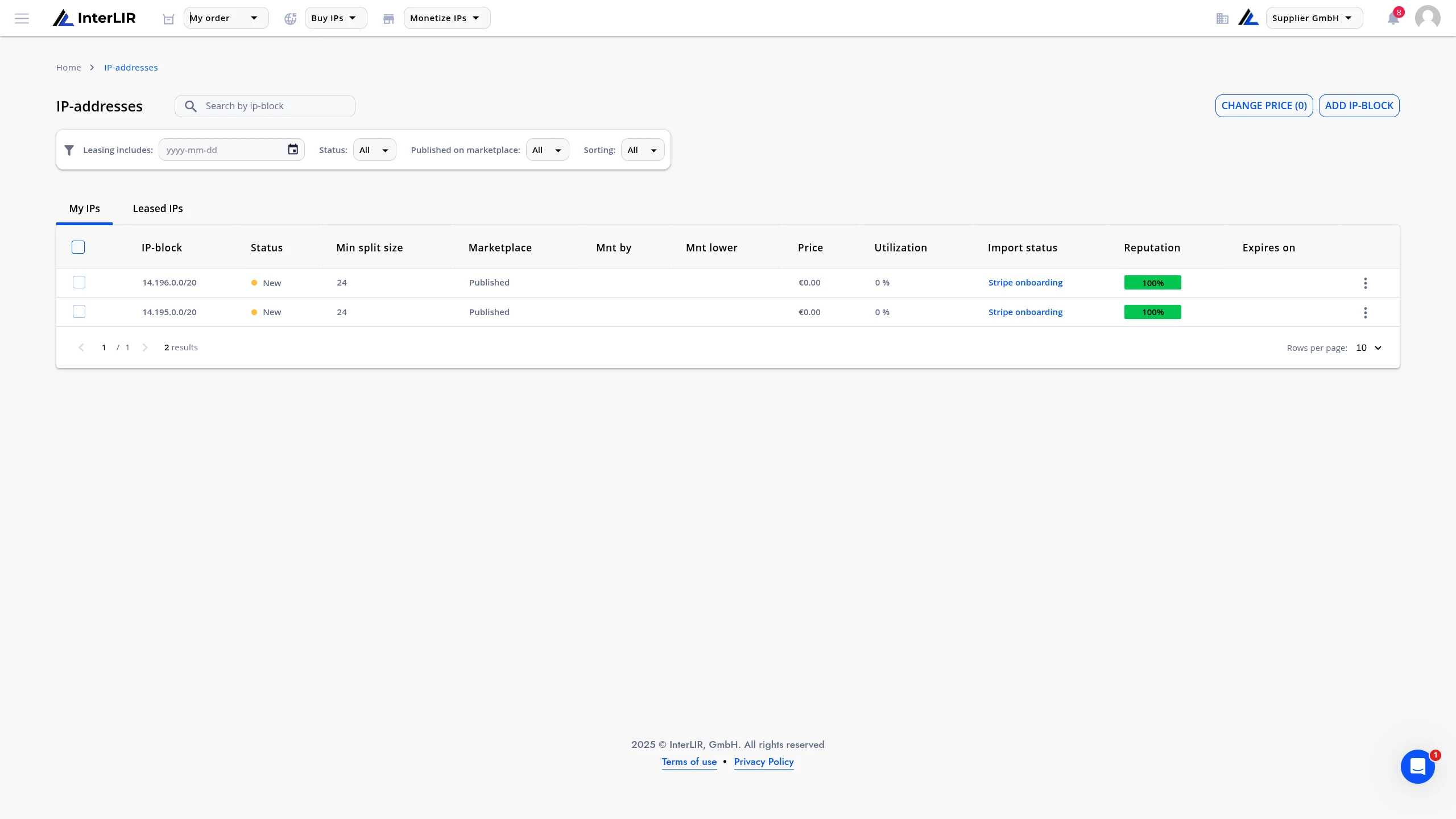
After successfully completing the onboarding process in Stripe, you will be automatically redirected to the portal page, where you can continue the import process on the blocks page by clicking on Import status.
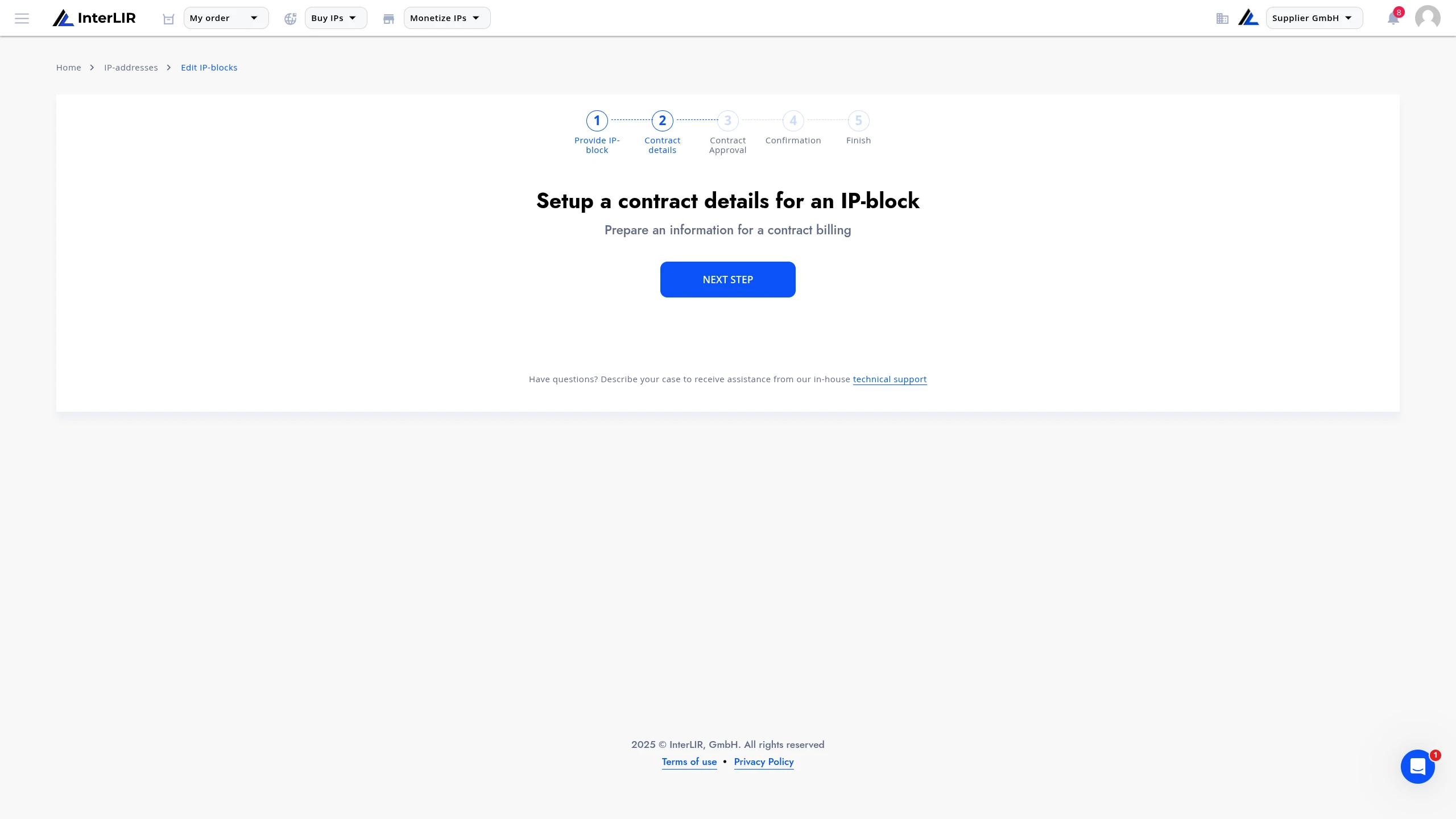
3. Setting Parameters
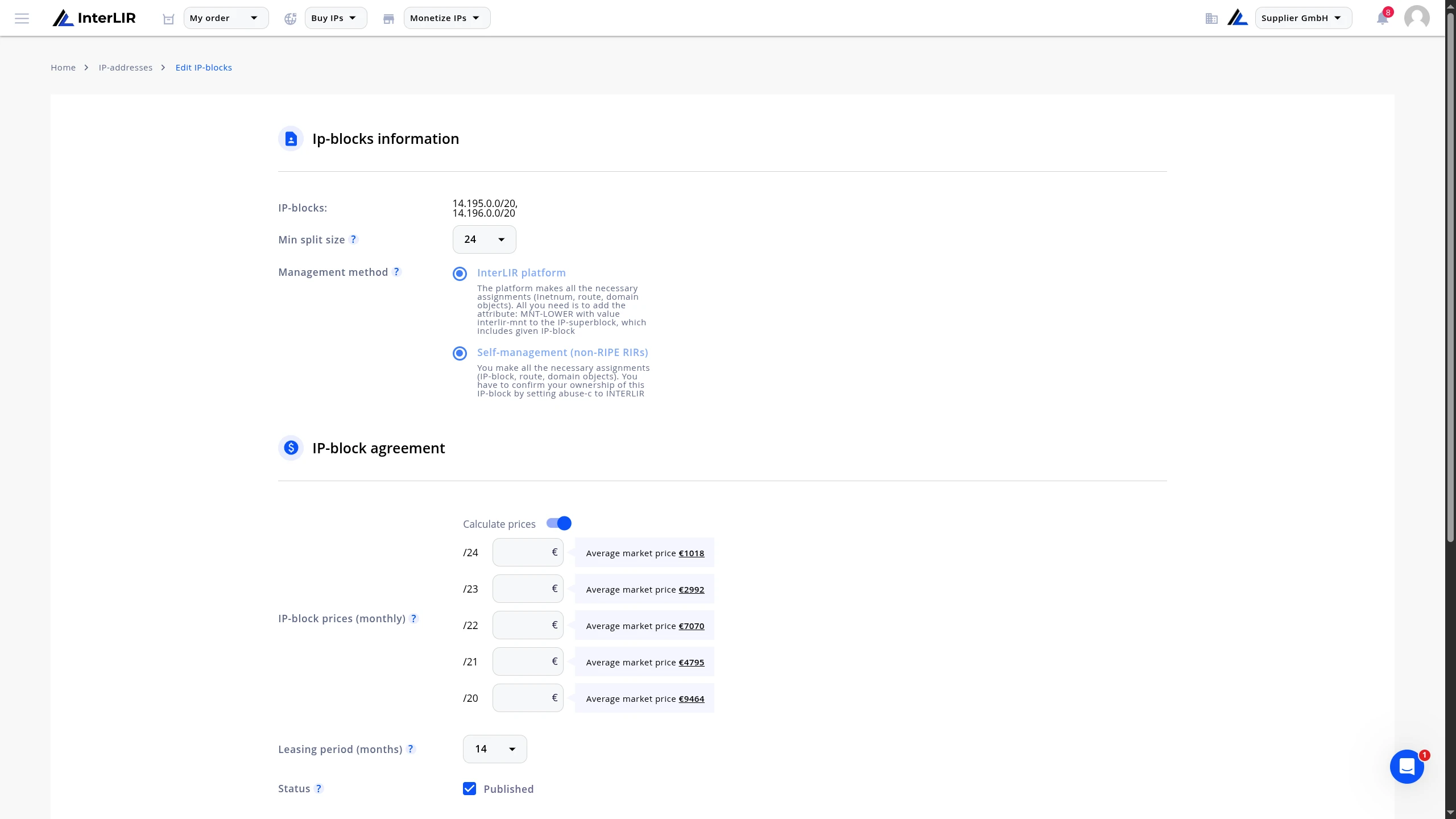
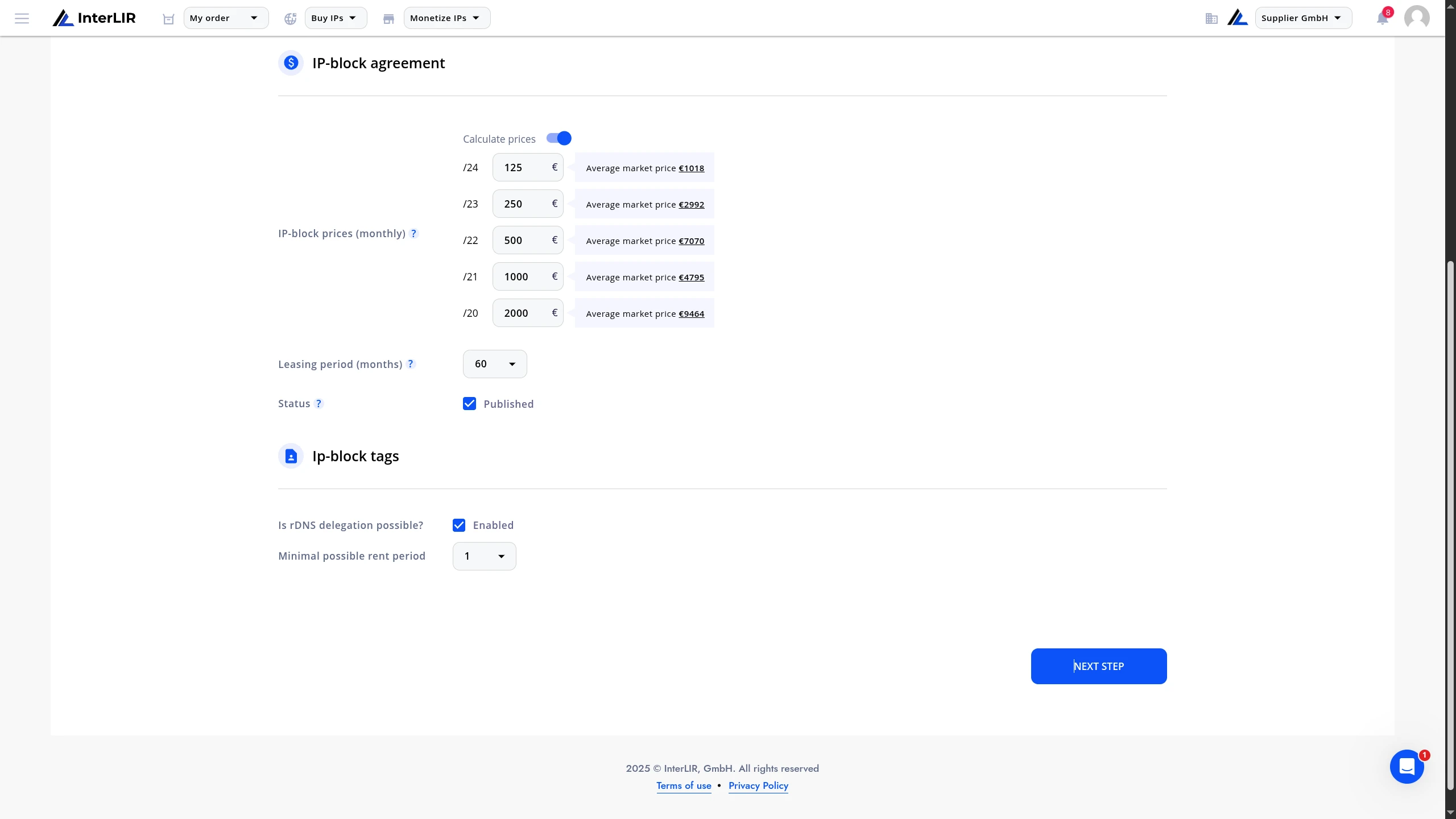
On the second step of the import process, configure the following options:
-
Minimum Split Size
Define the minimal split size, which determines the smallest subnet you are willing to rent out. -
Pricing
Set the prices for the entire block and any eligible sub-blocks. -
Leasing Period
Define the duration (in months) for which the block will be active on the marketplace.
See: Minimal Lease Period -
rDNS Delegation (optional)
Indicate whether rDNS delegation should be enabled for clients. -
Minimum Order Period
Set the minimal order period — the minimum time a client must rent this block.
Configuring Multiple Blocks
If you are importing multiple blocks with different configurations, you must configure each block separately.
To switch between blocks, use the tab selector at the top of the configuration interface.
4. Manager Approval
After saving your parameters, submit the block for review by an InterLIR manager.
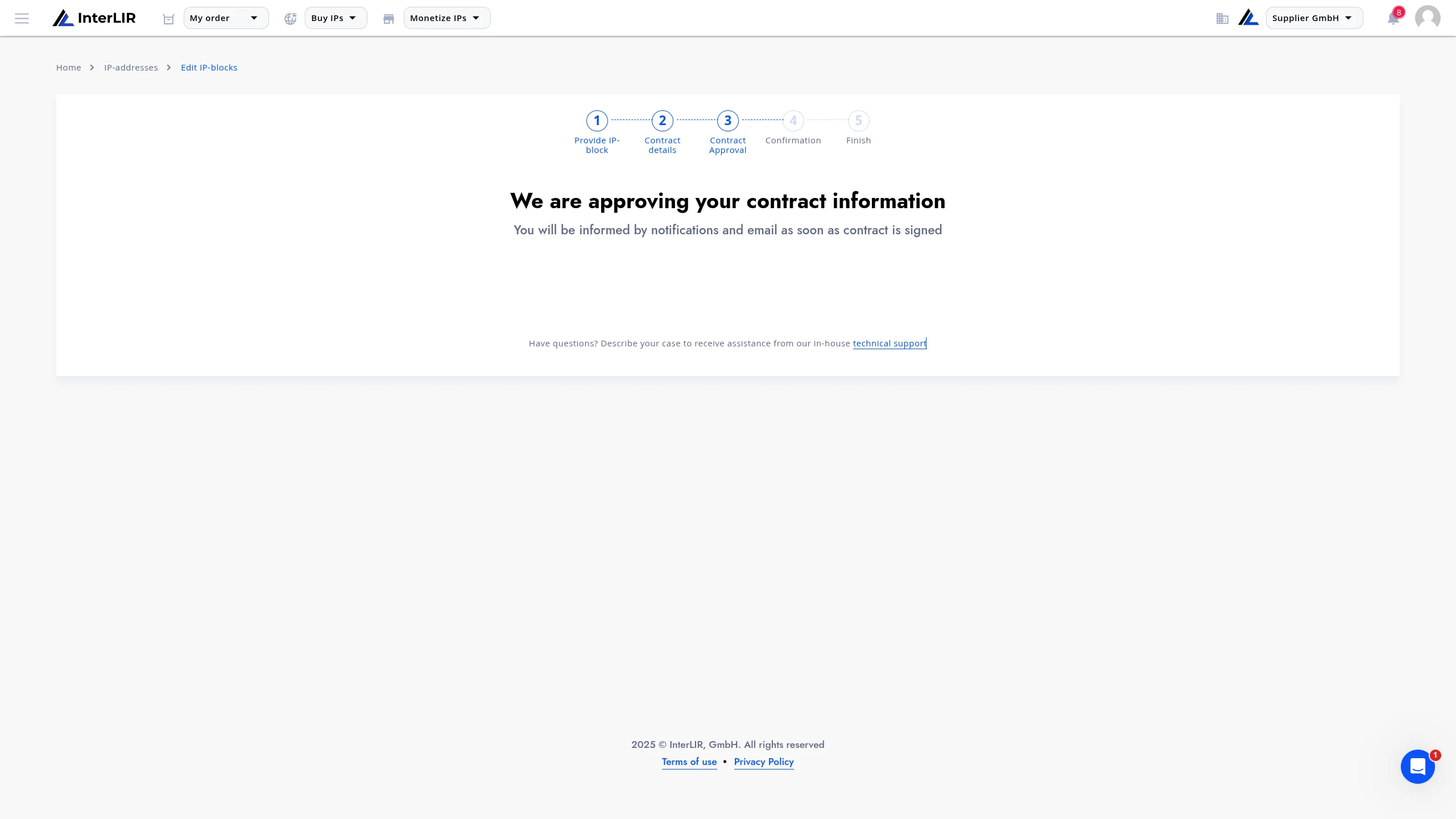
- Approved: You will receive a notification and can continue the process.
- Rejected: The manager will provide feedback and return the block to draft mode for corrections.
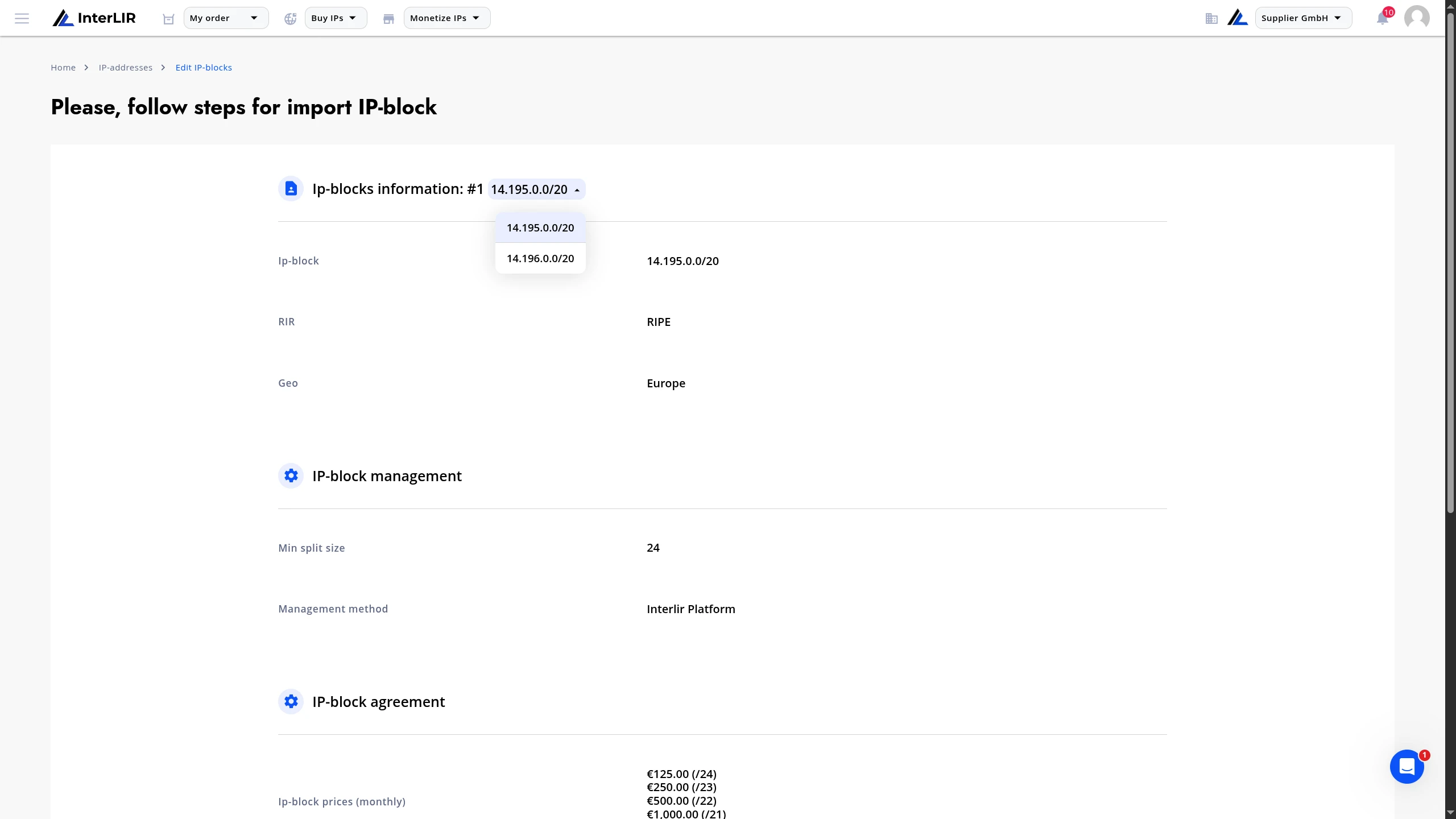
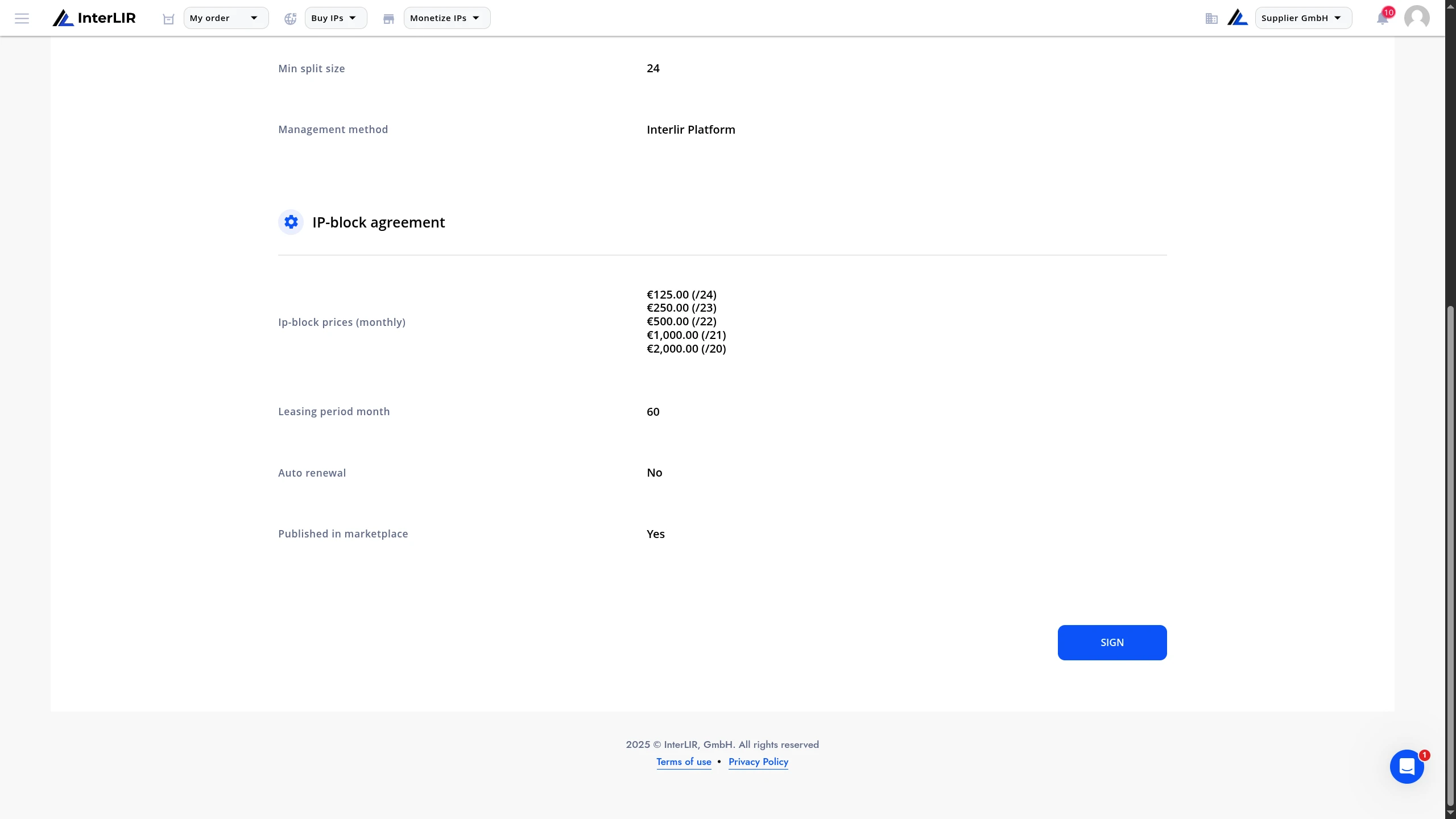
5. Review and Agreement
After approval:
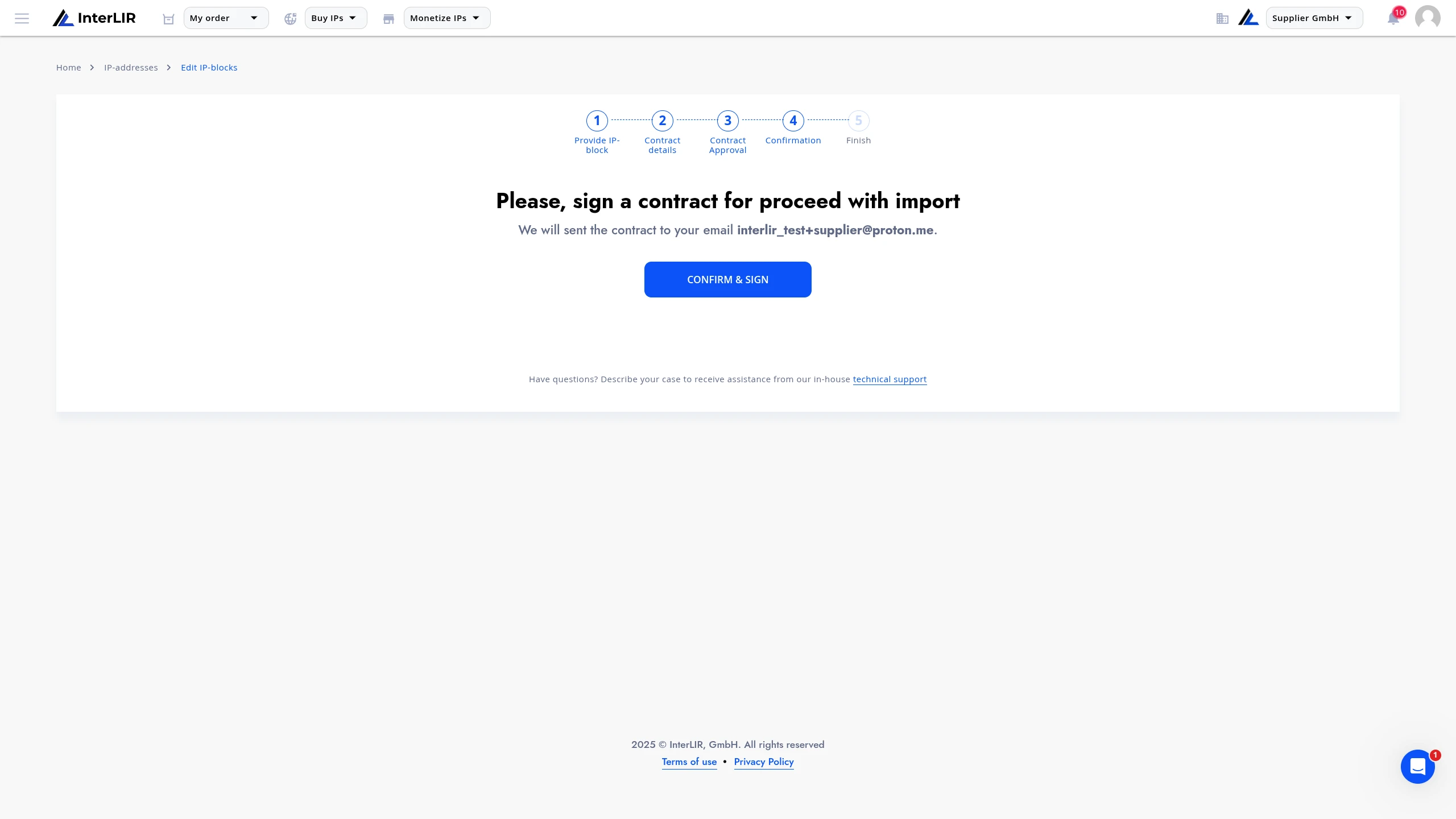
- You may review and update the previously entered parameters.
- Once ready, proceed to sign the required agreement.
Reviewing Multiple Blocks
When importing multiple blocks, use the tab selector at the top of the page to review the final settings of each individual block before proceeding.
6. Signing the Certificate
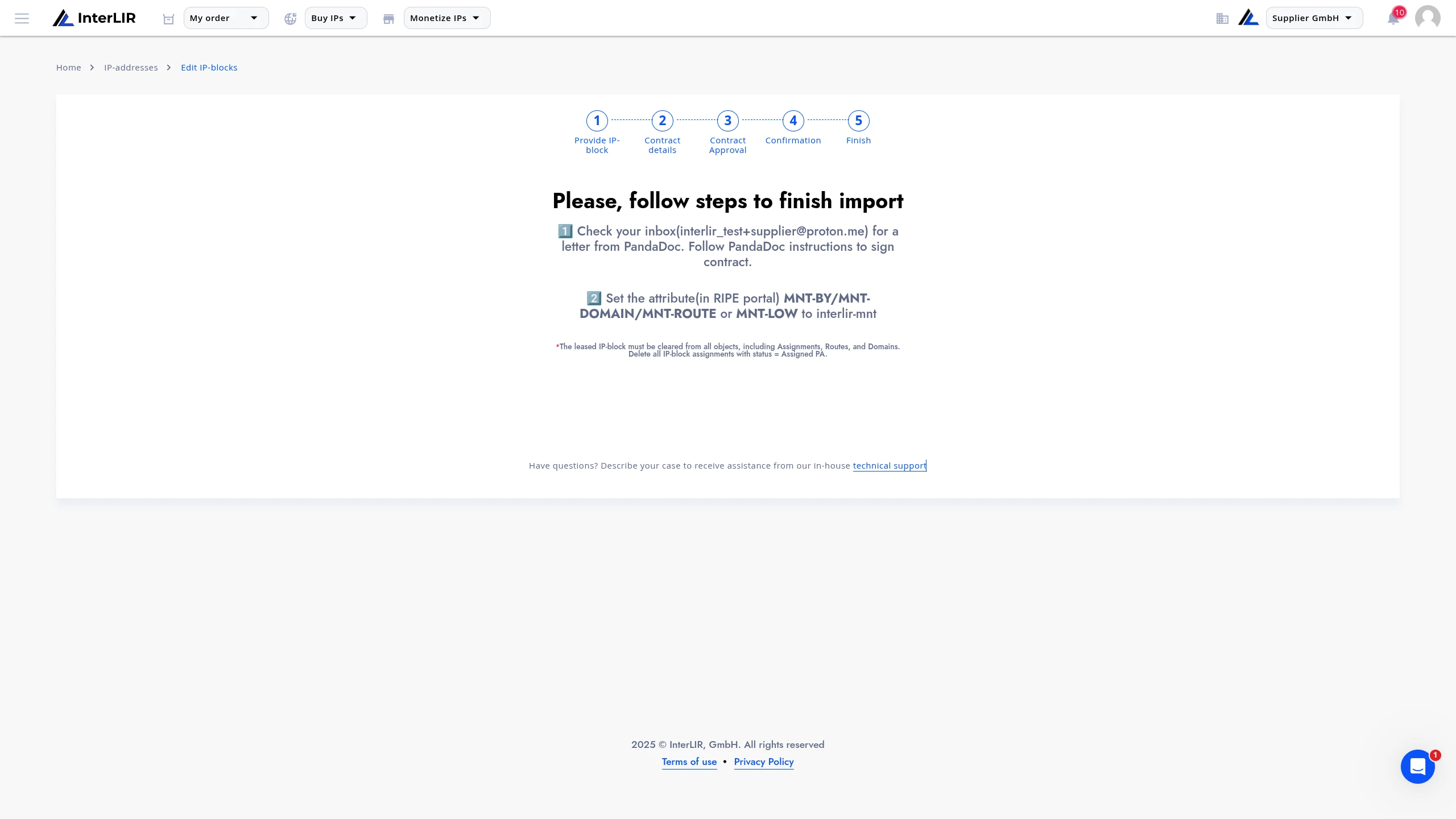
A Certificate of Authorisation will be sent to the Supplier's registered email via PandaDoc.
- Open the PandaDoc email
- Review and sign the agreement
- Submission of this document confirms your intent to lease the IP block
7. Completion
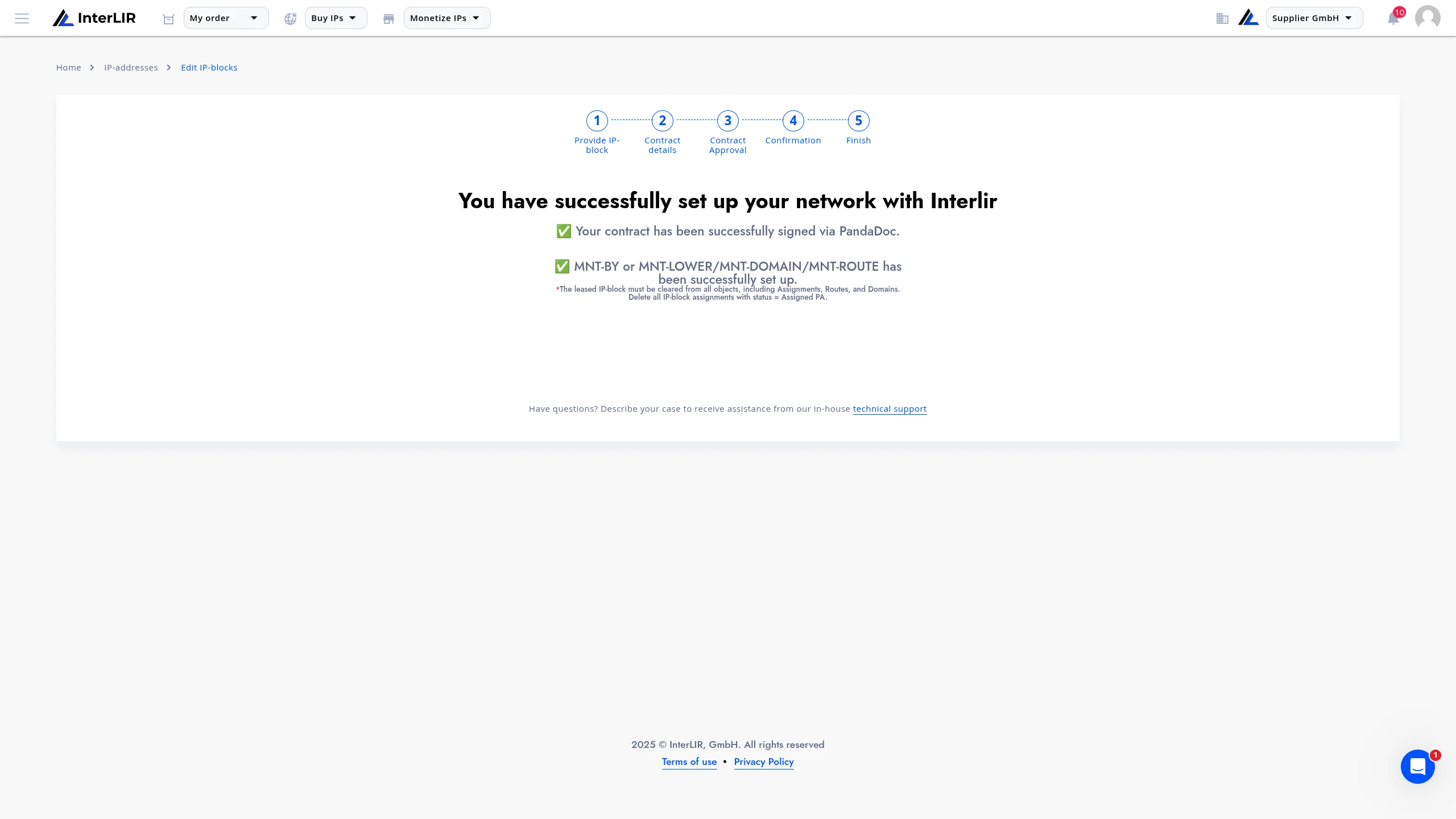
After signing the certificate:
- Assign MNT attributes if the block is managed through RIPE NCC. To set InterLIR as maintainer, set
mnt-domain,mnt-routeandmnt-lowerto"interlir-mnt" - The block receives the Avail status and becomes available for client rental on the platform.
- Once import is complete, the block’s Allocation Type (derived from the RIR registry at import) is shown to clients on the marketplace in the IP Block Status column, alongside your pricing and RIR. See Allocation Type in the glossary for details and how it differs from Usage Type.
Multiple Blocks Finalization
When importing multiple blocks, the Avail status will only be assigned after all required conditions for each block are met.
For example, RIPE blocks require assigning maintainers (MNTs) individually to each block.
This process ensures proper configuration, validation, and contract signing, preparing your IP-Block for active listing and leasing on InterLIR.
See also
- Allocation Type (glossary)
- How to Make an Order (marketplace, including IP Block Status)
- Stripe Onboarding
- How to Make a Payout Request
- How to Reserve IP Block