How to Change Your Account Email
Overview
This guide explains how to change the email address associated with your InterLIR account.
To successfully update your email, you must have:
- Two-Factor Authentication (2FA) enabled on your account
See: How to manage Two-Factor Authentication - Access to your current email address (you will receive a verification code)
- Access to the new email address (you will confirm the update there as well)
Steps to Change Your Account Email
1. Open Account Settings
- Log in to your InterLIR account.
- Click your profile icon in the top-right corner.
- Select My account.
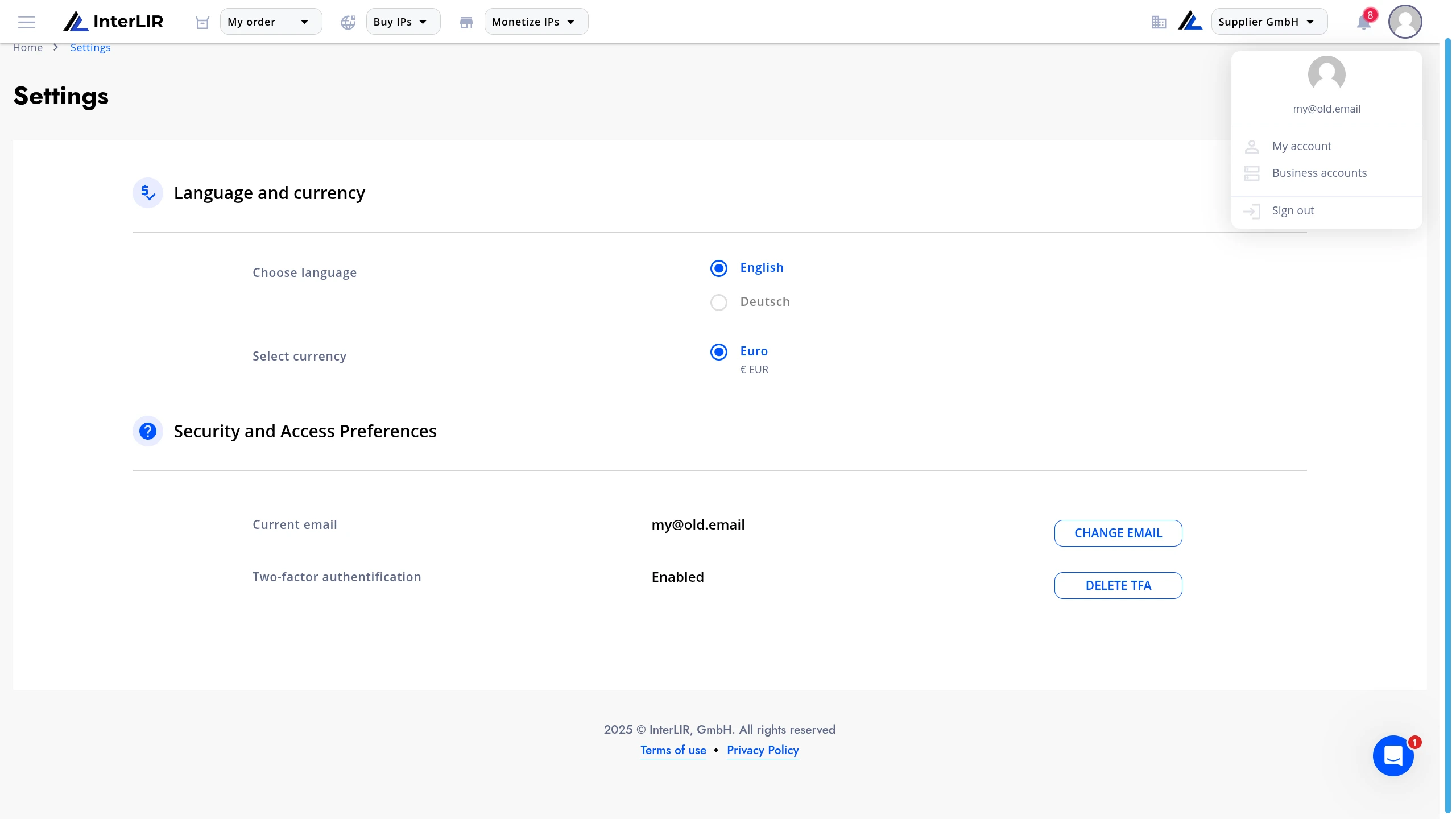
In the Security and Access Preferences section, click CHANGE EMAIL.
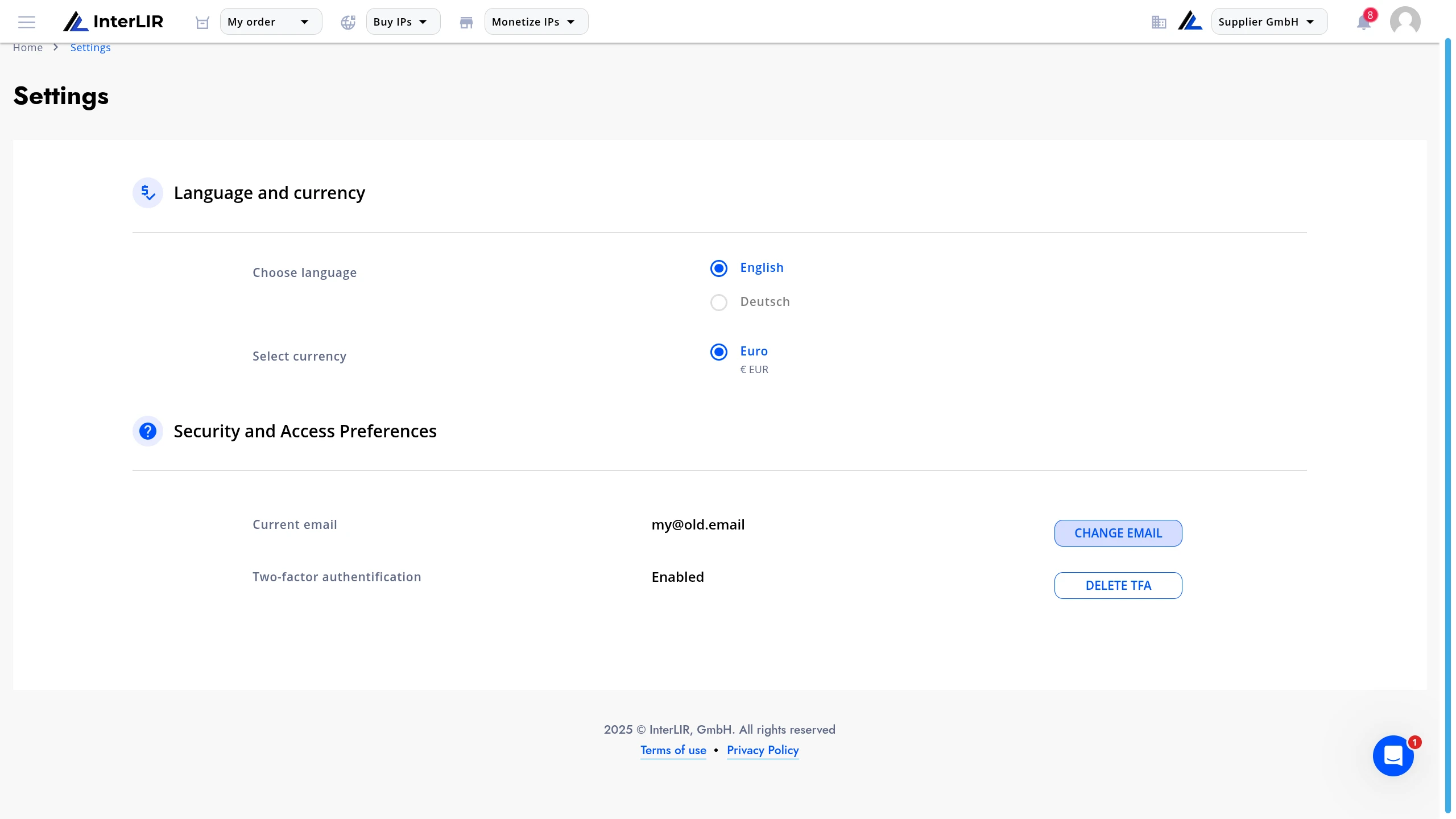
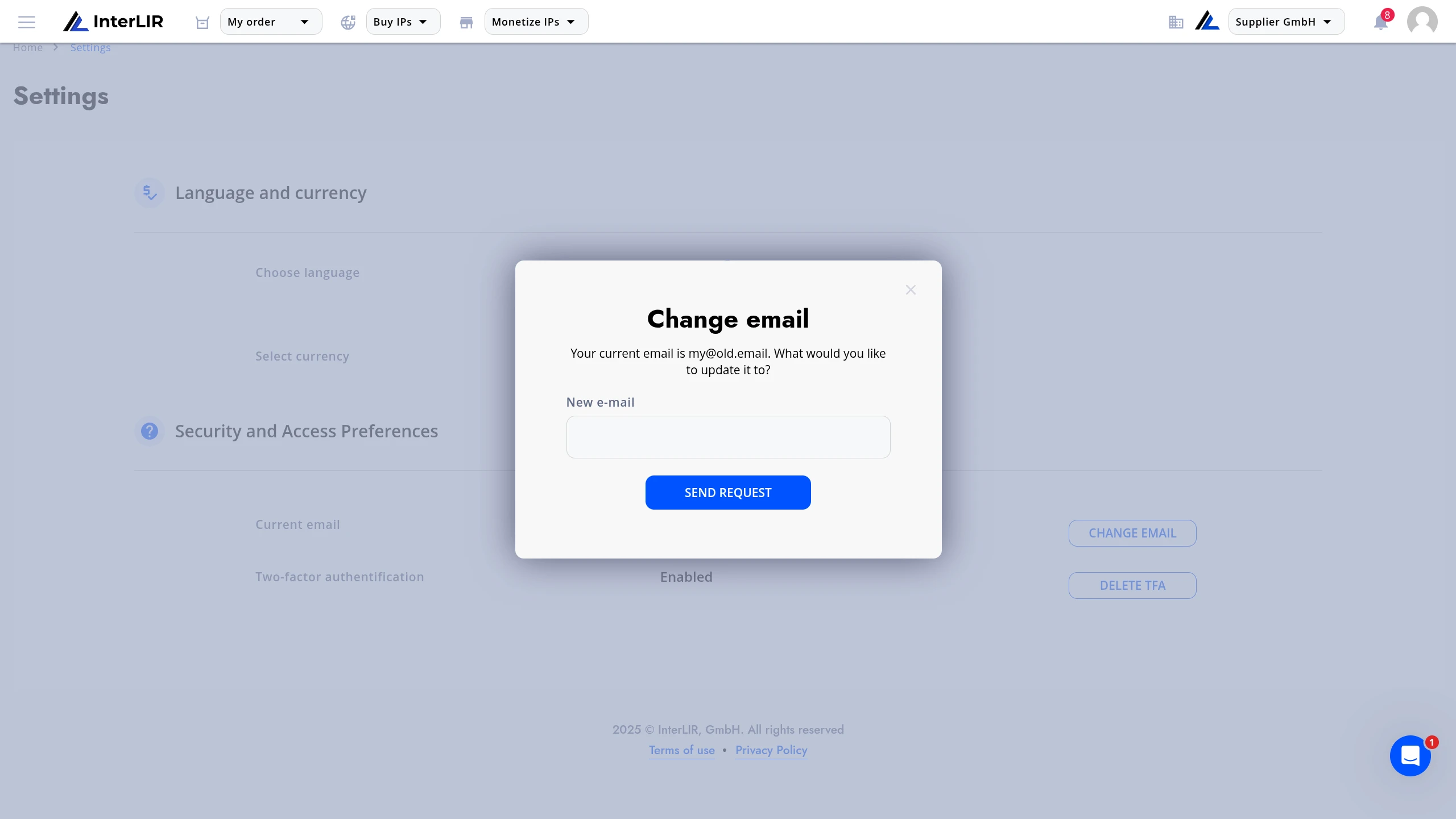
2. Enter the New Email Address
A modal window will appear.
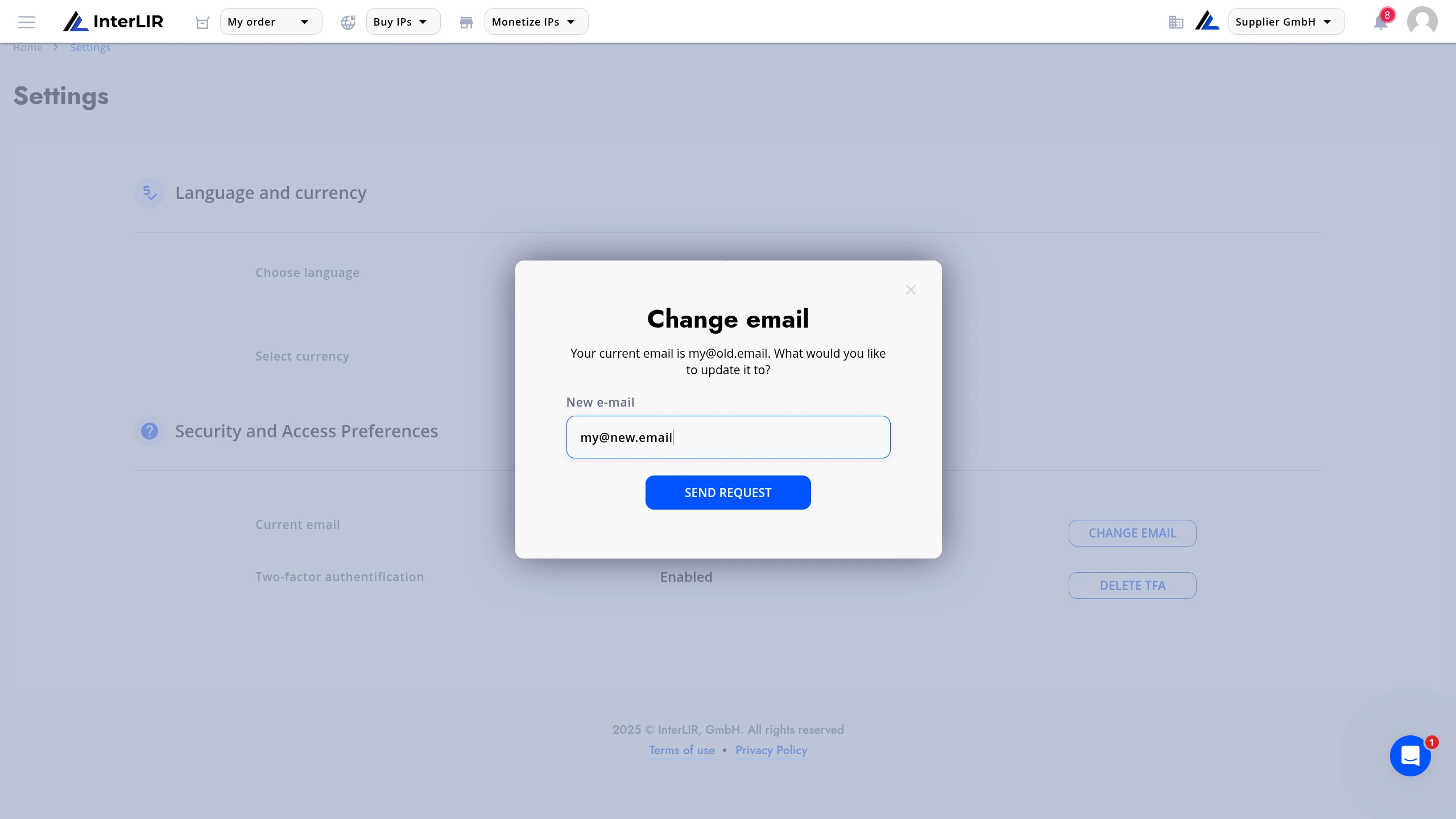
- Enter your new email address.
- Click SEND REQUEST.
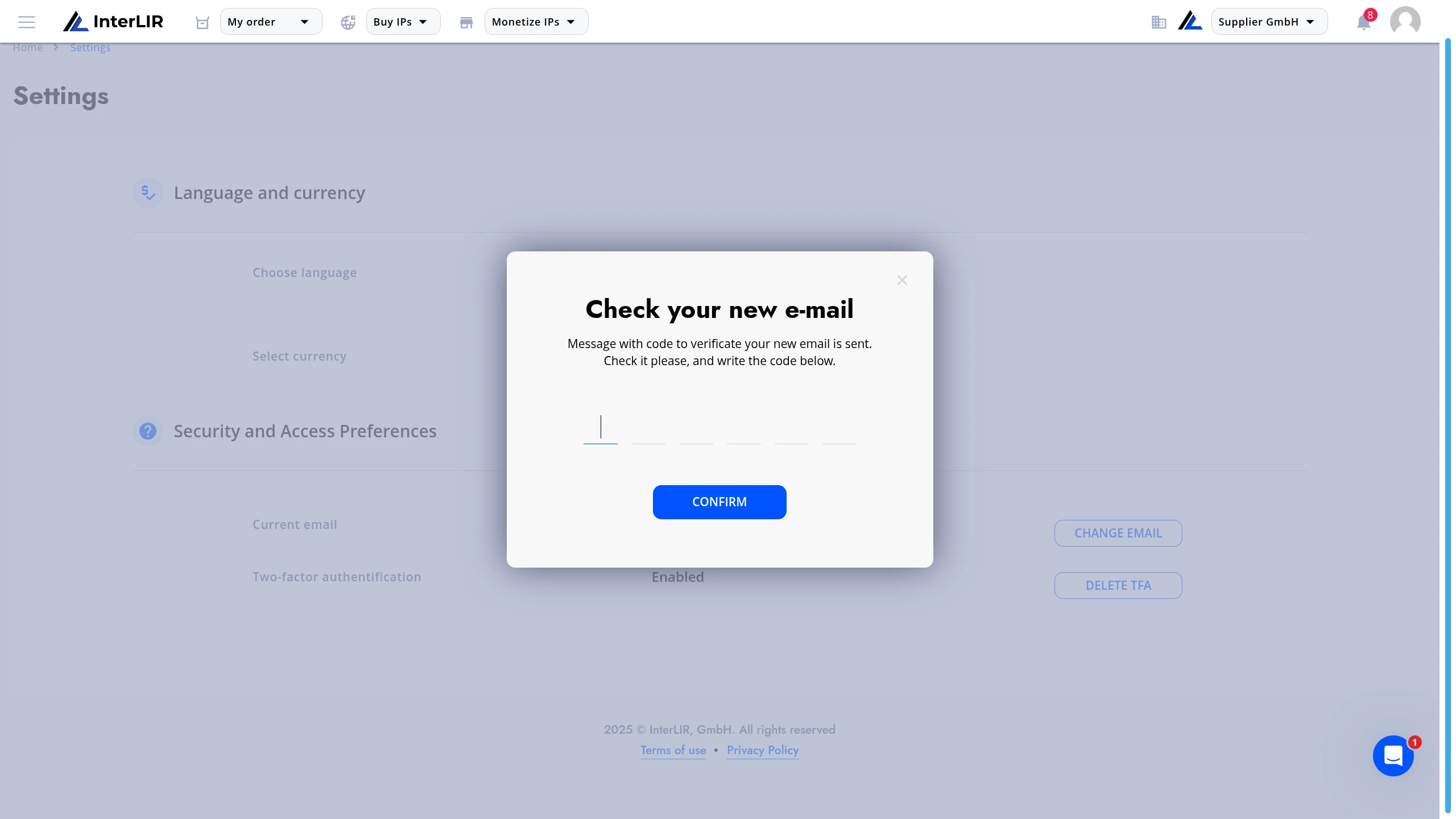
3. Confirm the Email Verification Code (New Email)
A code will be sent to your new email address.
- Open your new inbox.
- Copy the 6-digit verification code.
- Enter it in the confirmation window.
- Click CONFIRM.
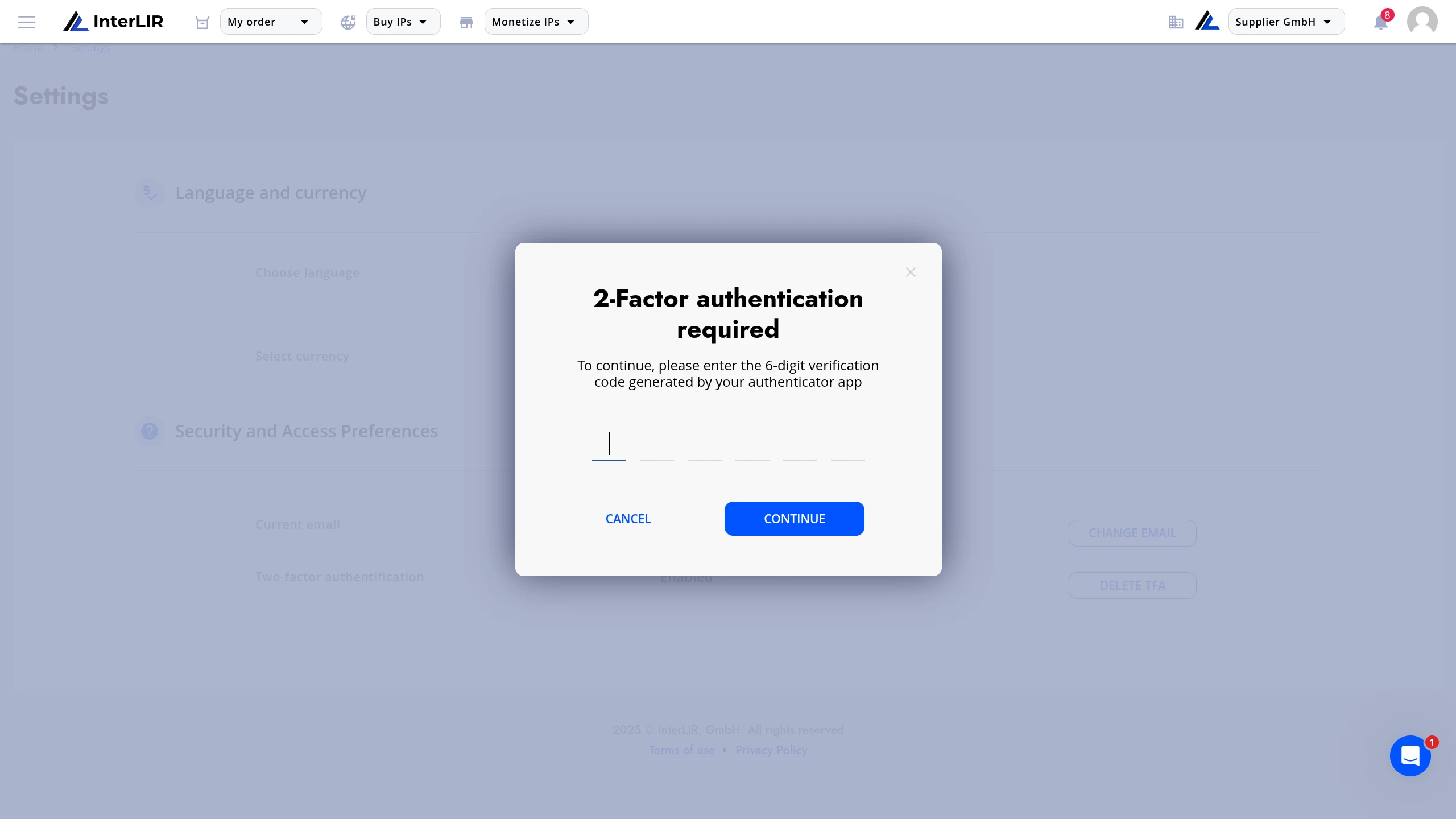
4. Verify the Change with 2FA
Because email is a critical security parameter, the system requires confirmation via Two-Factor Authentication.
- Open your authenticator app.
- Enter the 6-digit TFA code.
- Click CONTINUE.
5. Email Successfully Updated
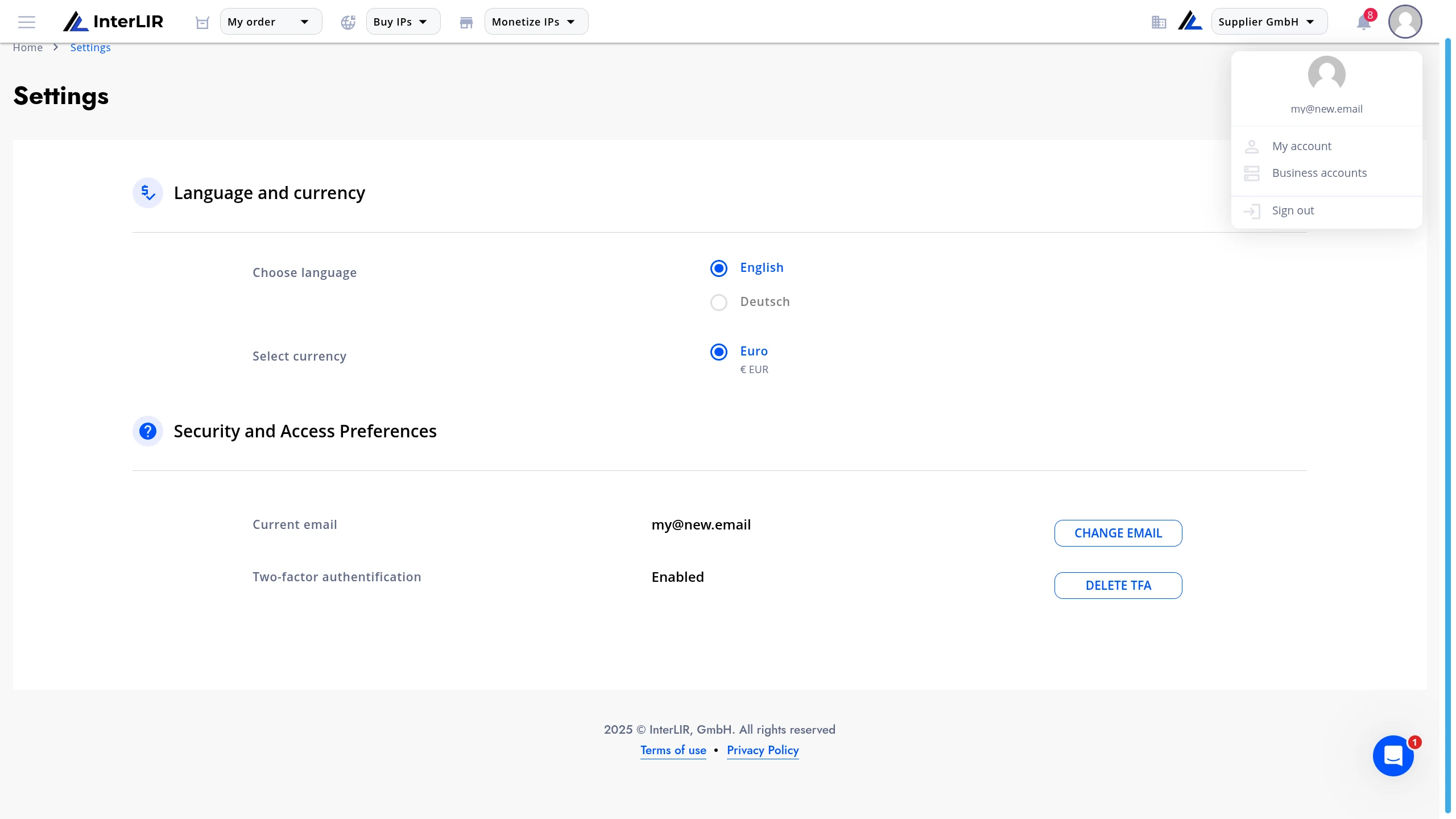
After successful verification, the new email will appear in your account settings.
You can now use the new email address to log in.
Troubleshooting
-
Did not receive verification code?
Check spam/junk folders in both old and new email inboxes. -
2FA is disabled?
Follow the guide to enable it first:
How to manage Two-Factor Authentication