Importing a Business Account
Users can follow these steps to create a Business Account. Read the Business Account glossary entry for eligibility (registered business or legal entity only), acceptable proof documents, and file quality requirements before you start.
1. Accessing the Business Account Creation Page
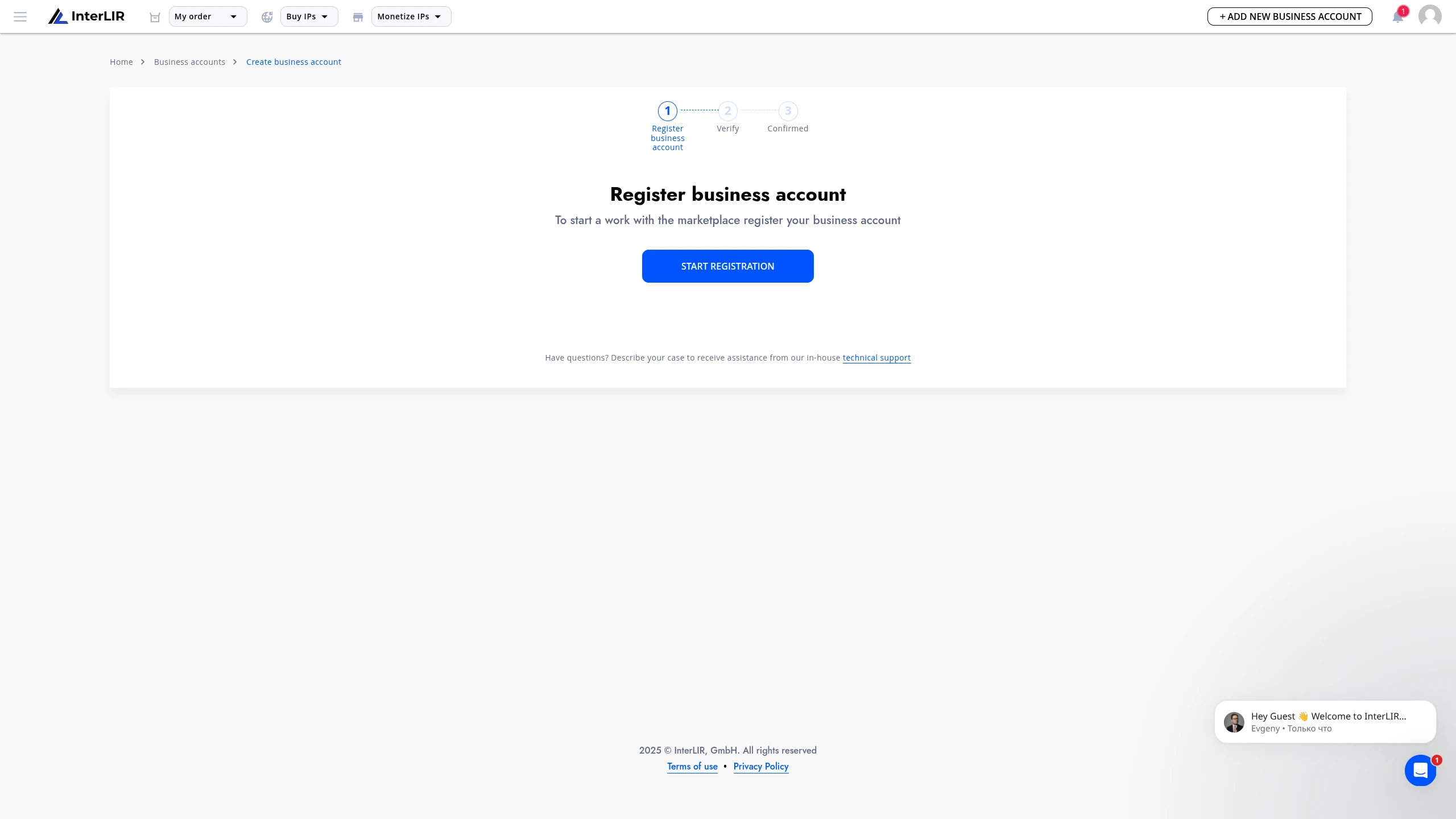
The user navigates to the page for creating a Business Account.
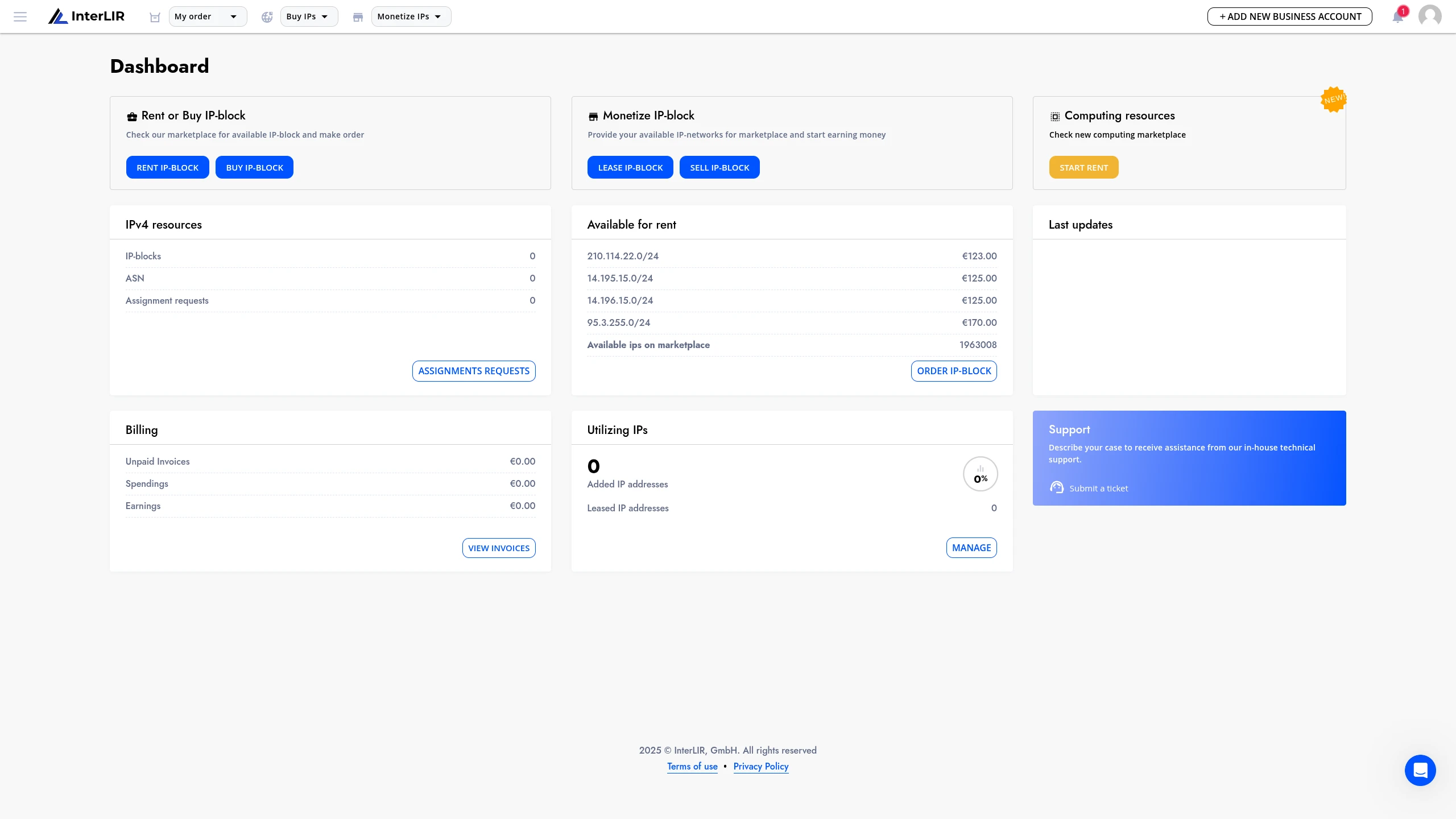
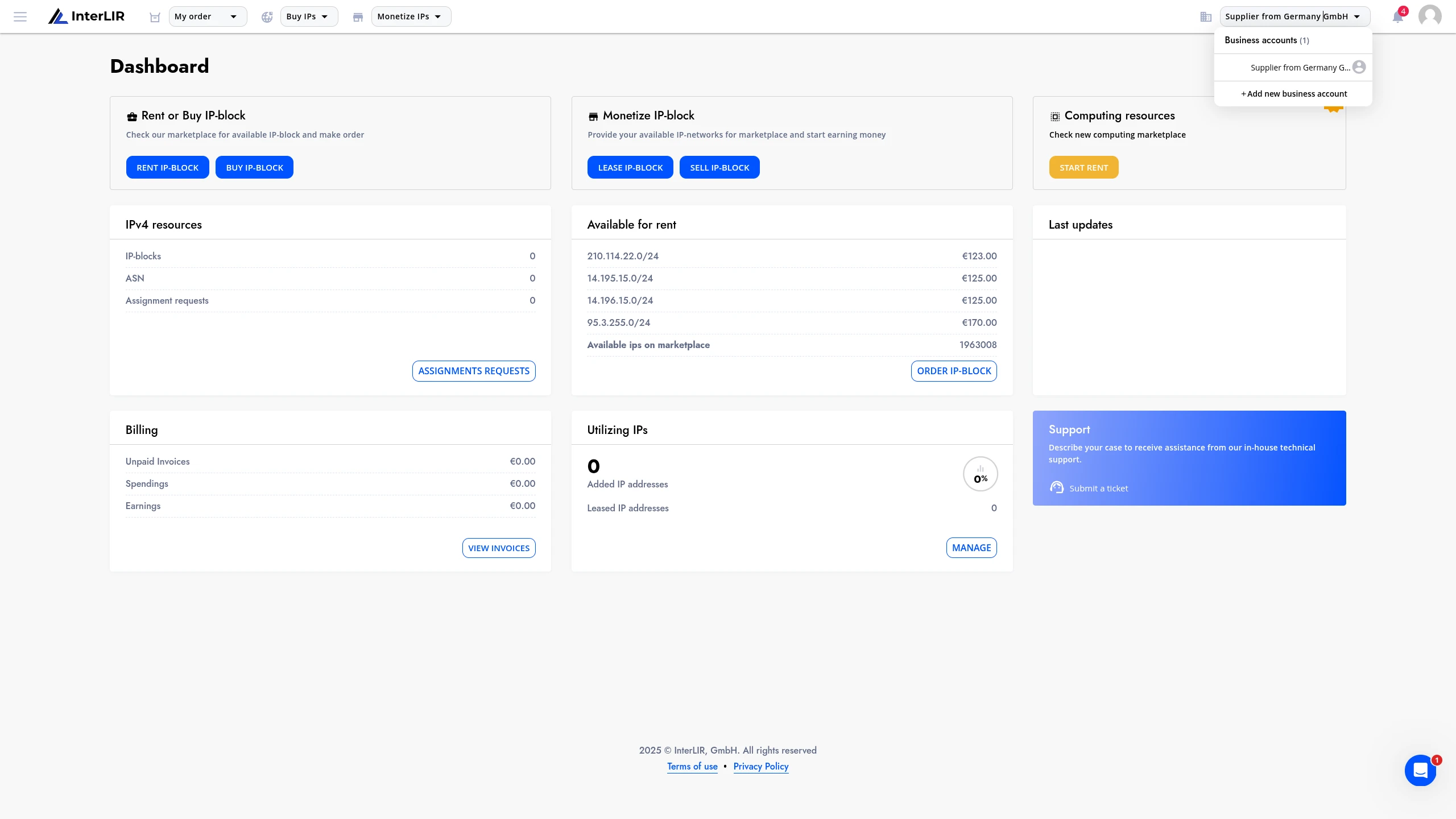
You can click on the Add new business account button in the upper panel, on the right, or click on the Business Account selector and click on this button there if you already have a business account on the platform.
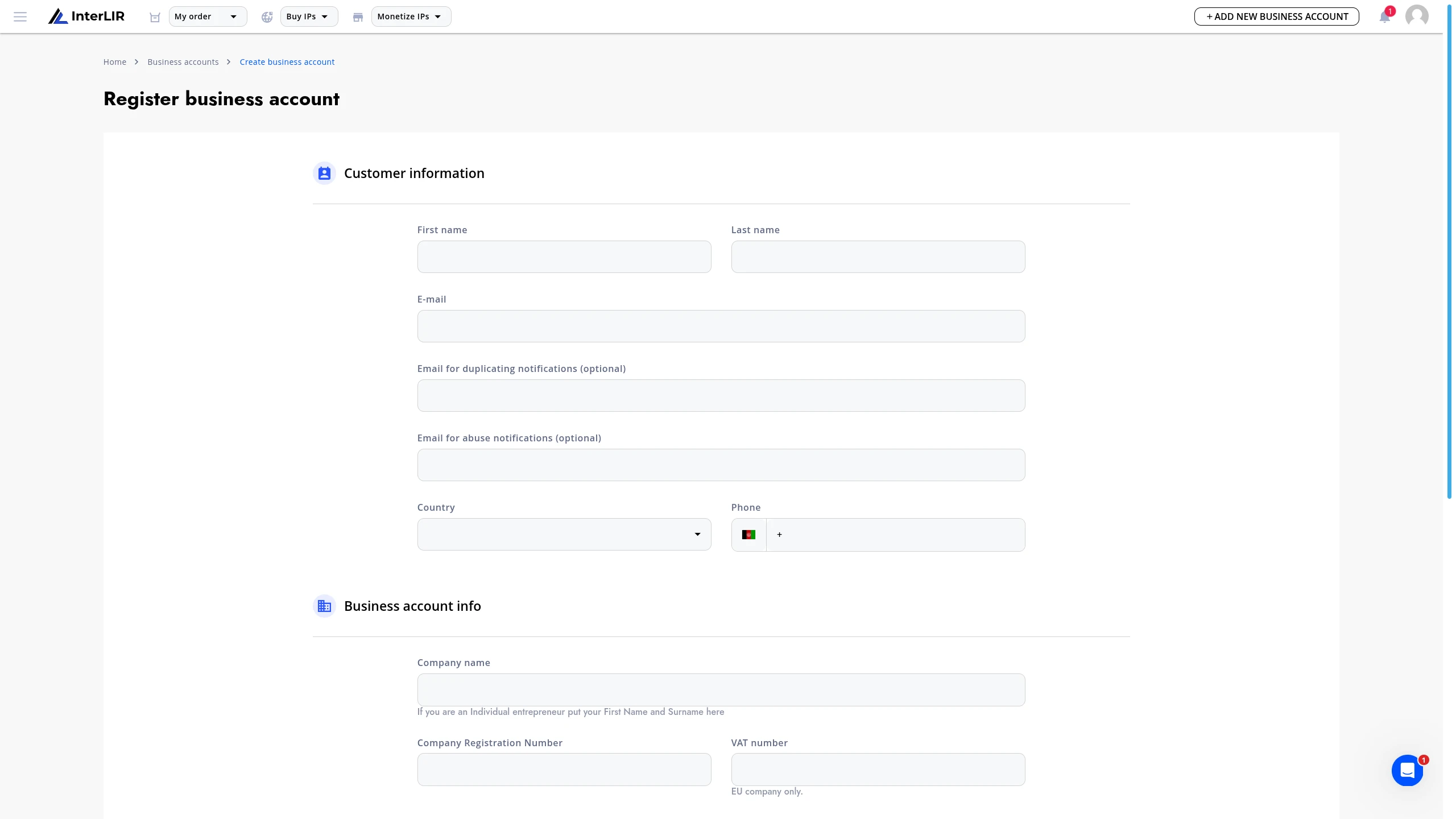
2. Entering Customer Information
The user provides the following details:
- First Name
- Last Name
- Email for Duplicating Notifications (optional)
- Email for Abuse Notifications (optional)
- Country
- Phone
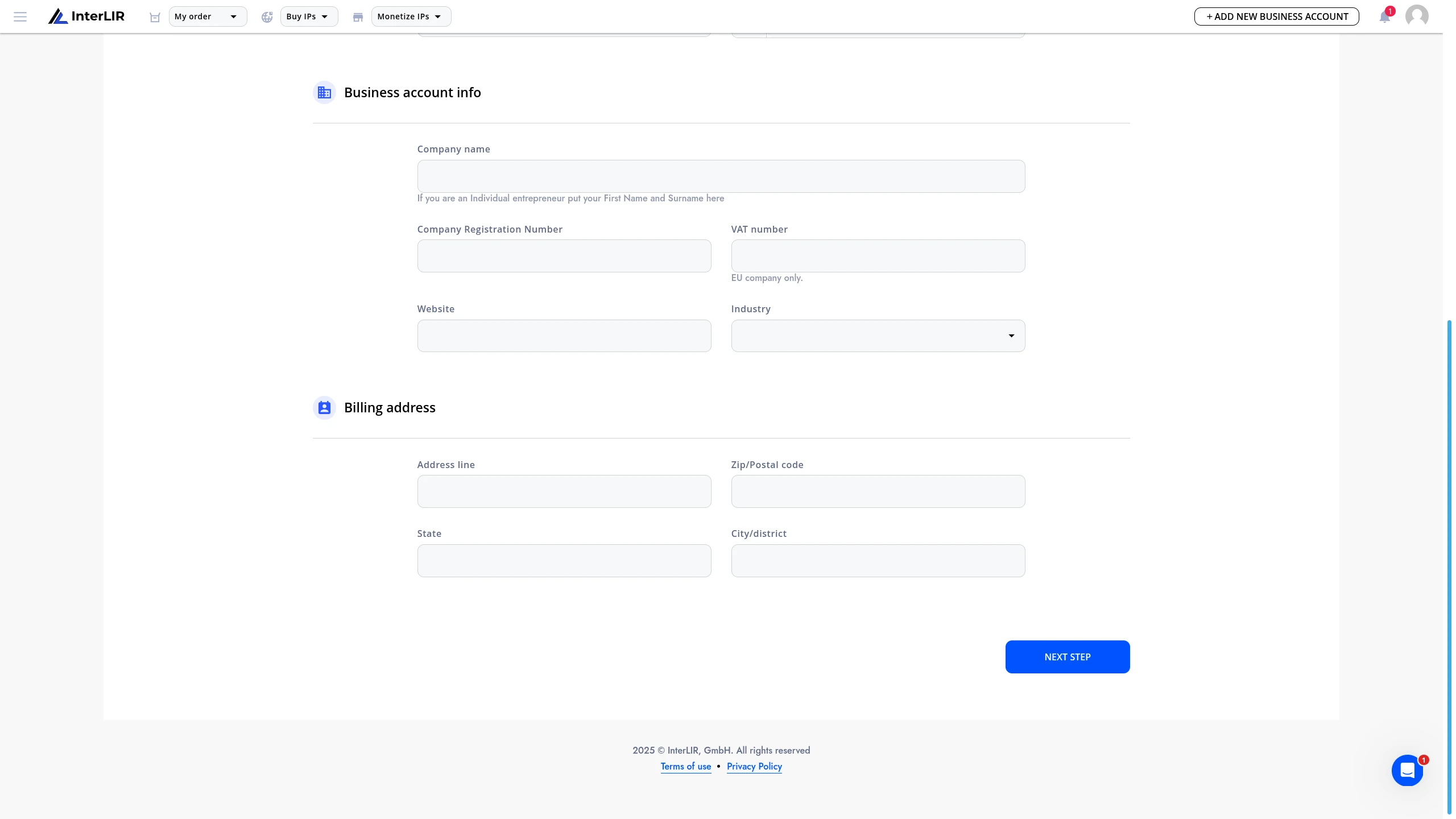
3. Entering Business Account Information
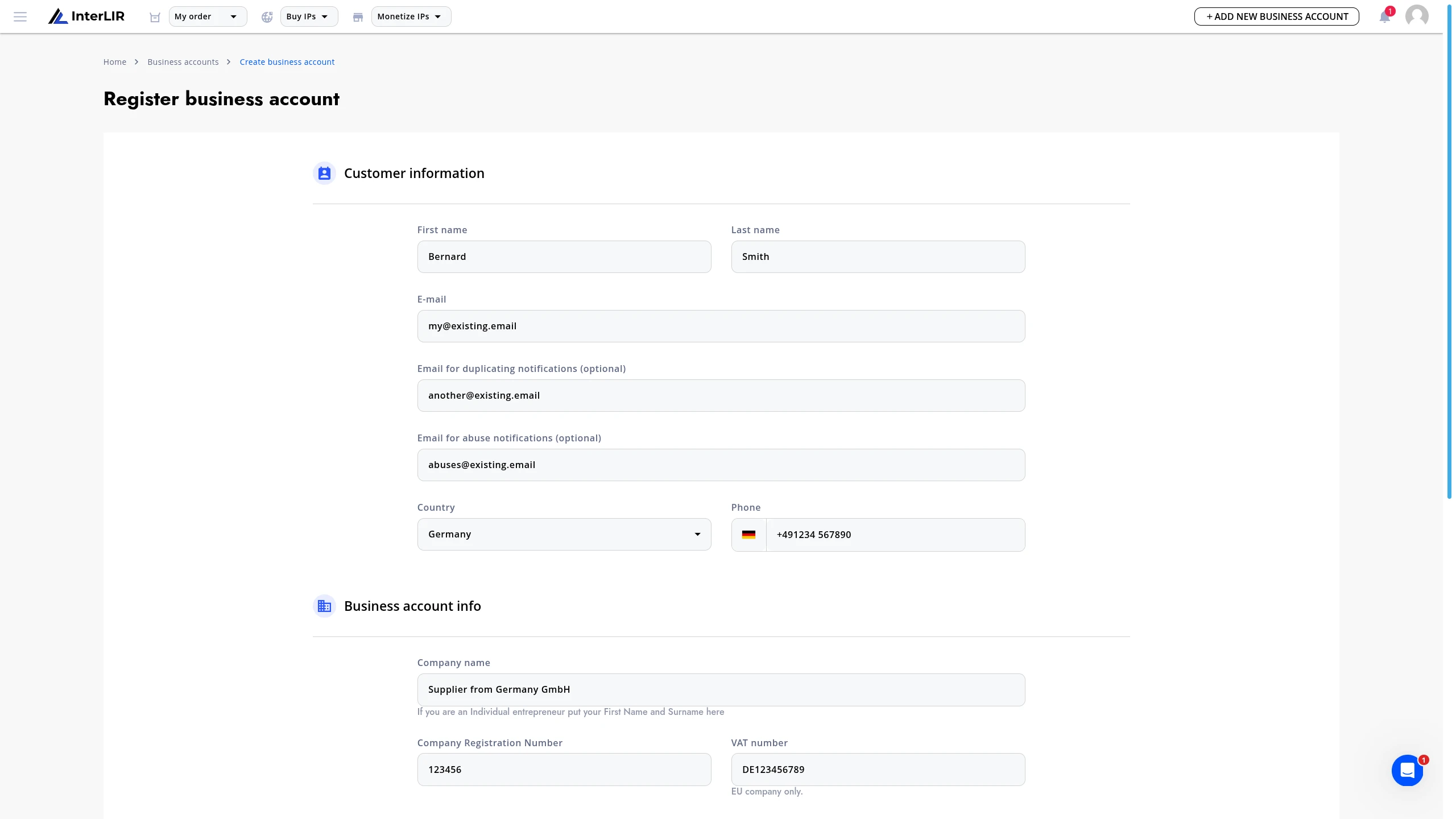
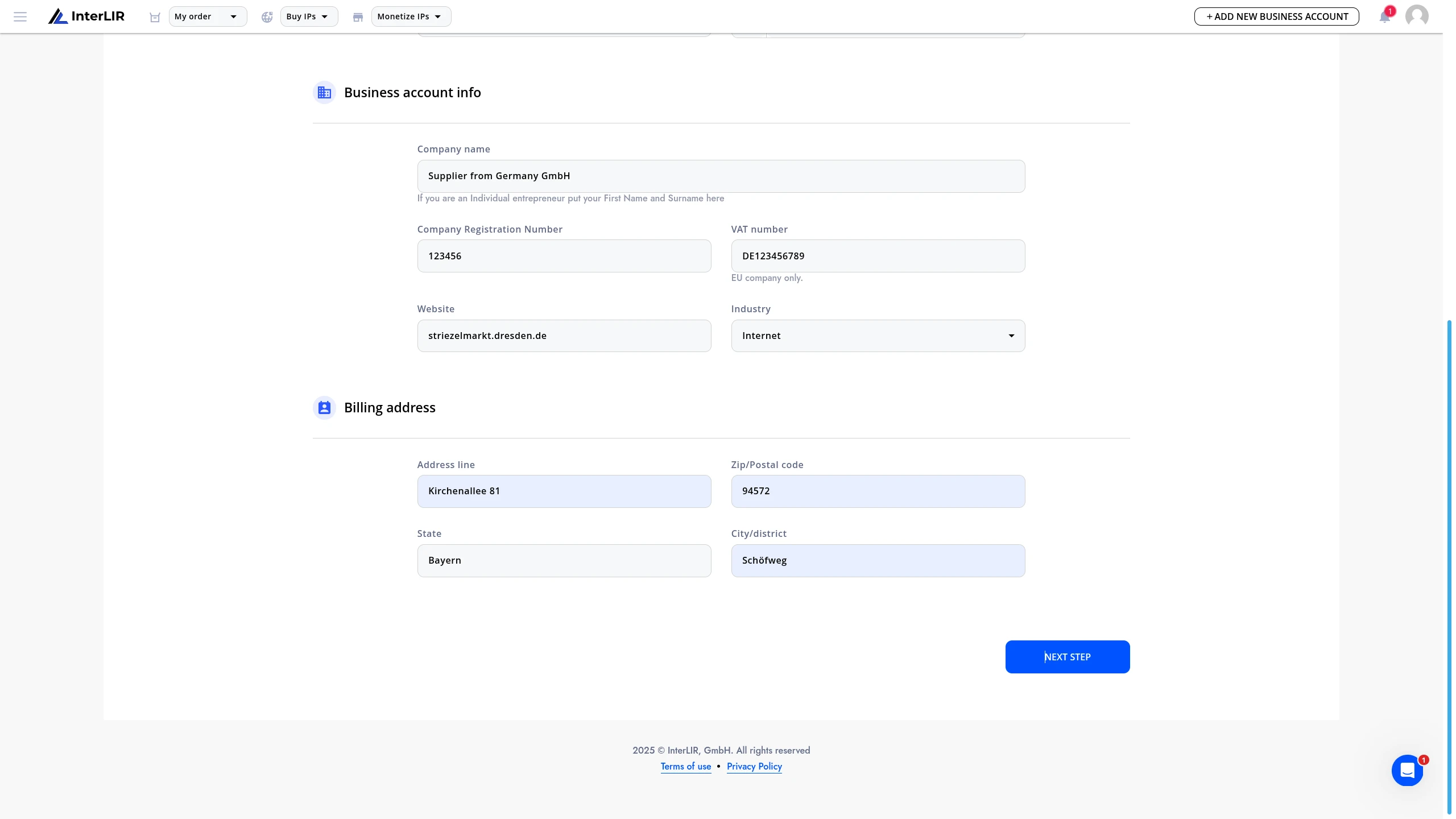
The user enters the following business details:
- Company Name
- Company Registration Number
- VAT Number (mandatory field for organizations from the EU)
- Website (optional)
- Industry
4. Providing Billing Address
The user specifies the billing address, including:
- Address Line
- Zip Code
- State
- City
5. Uploading Documents
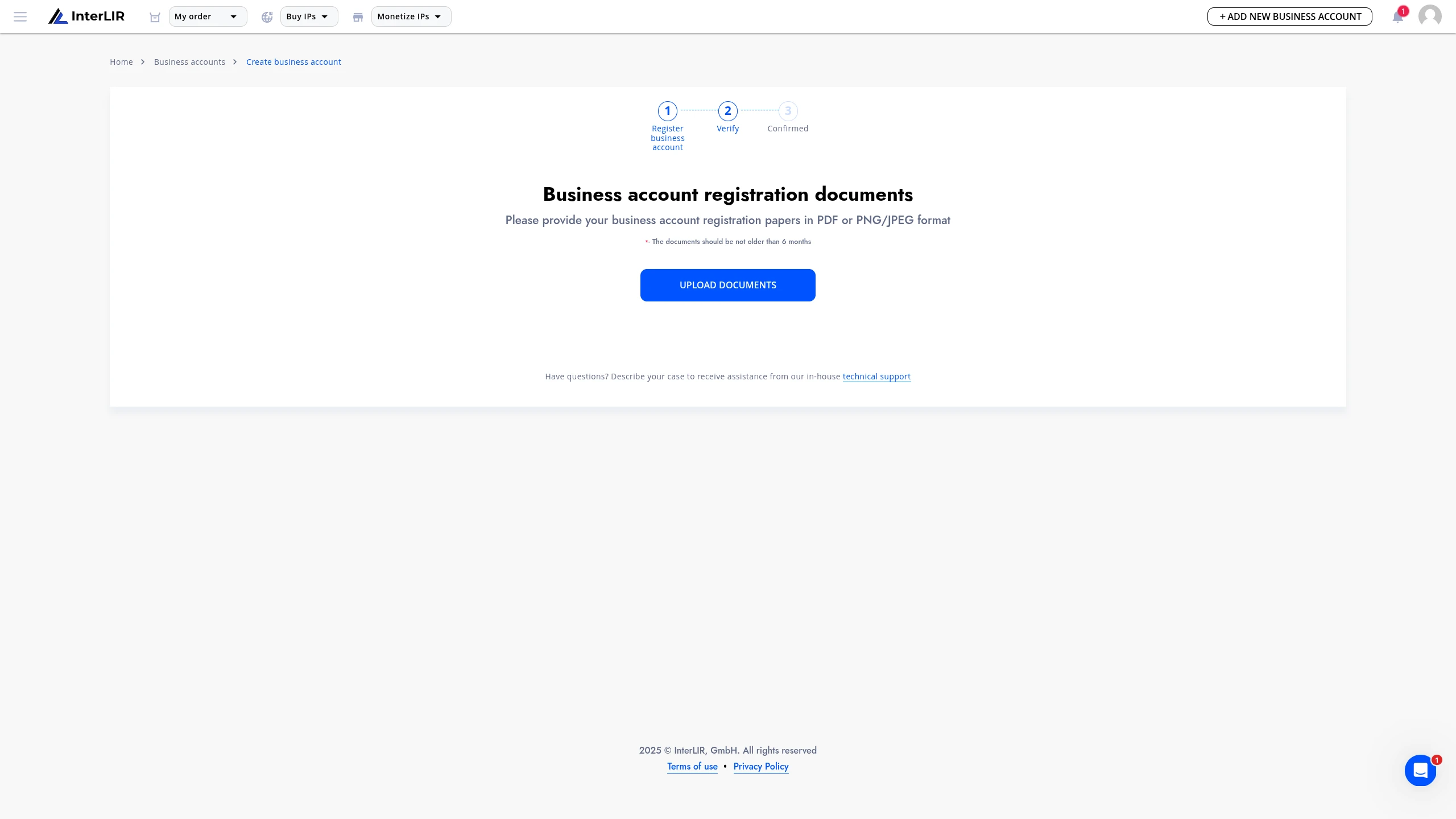
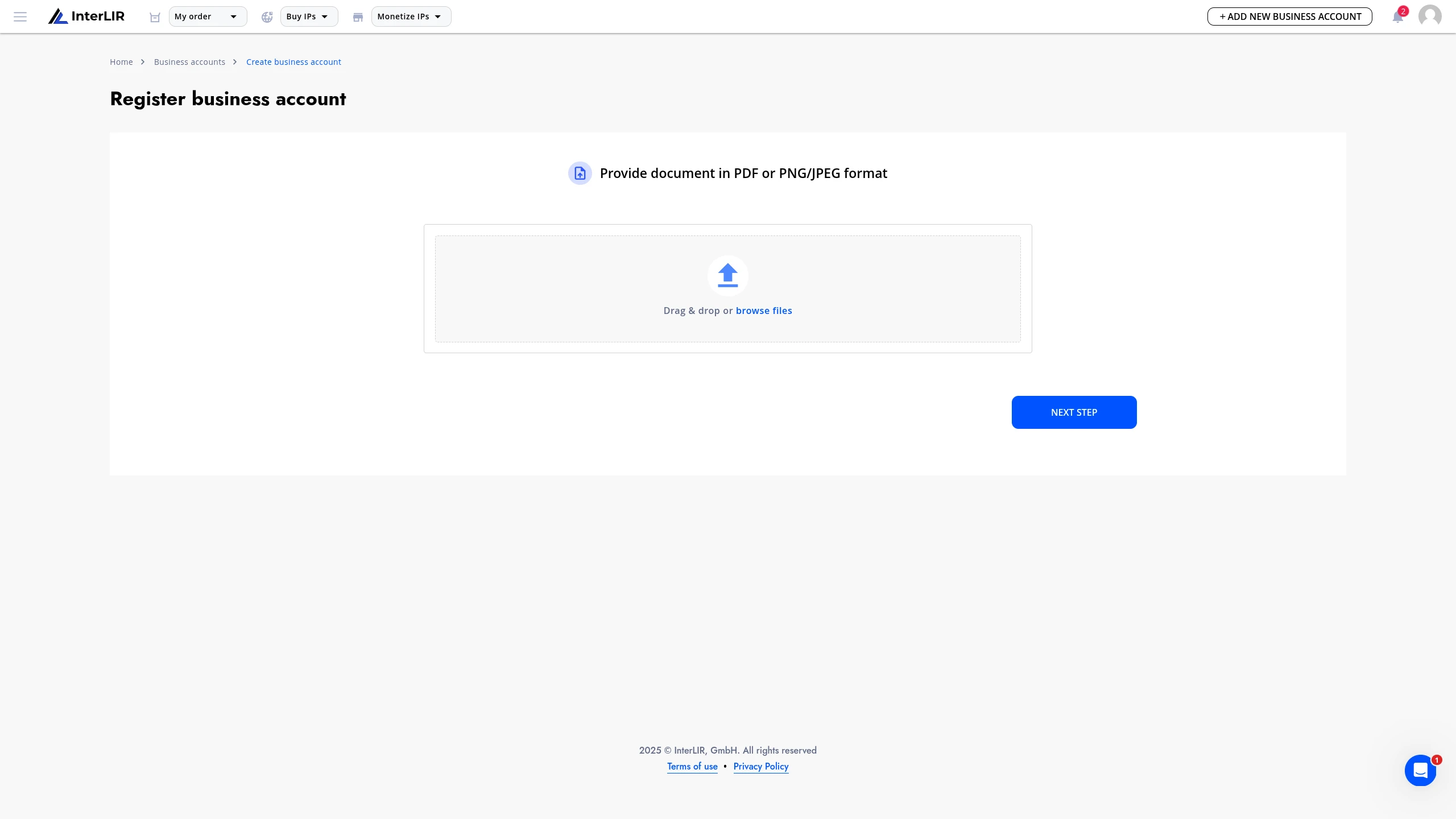
If all required fields are completed correctly, the user proceeds to the document upload step.
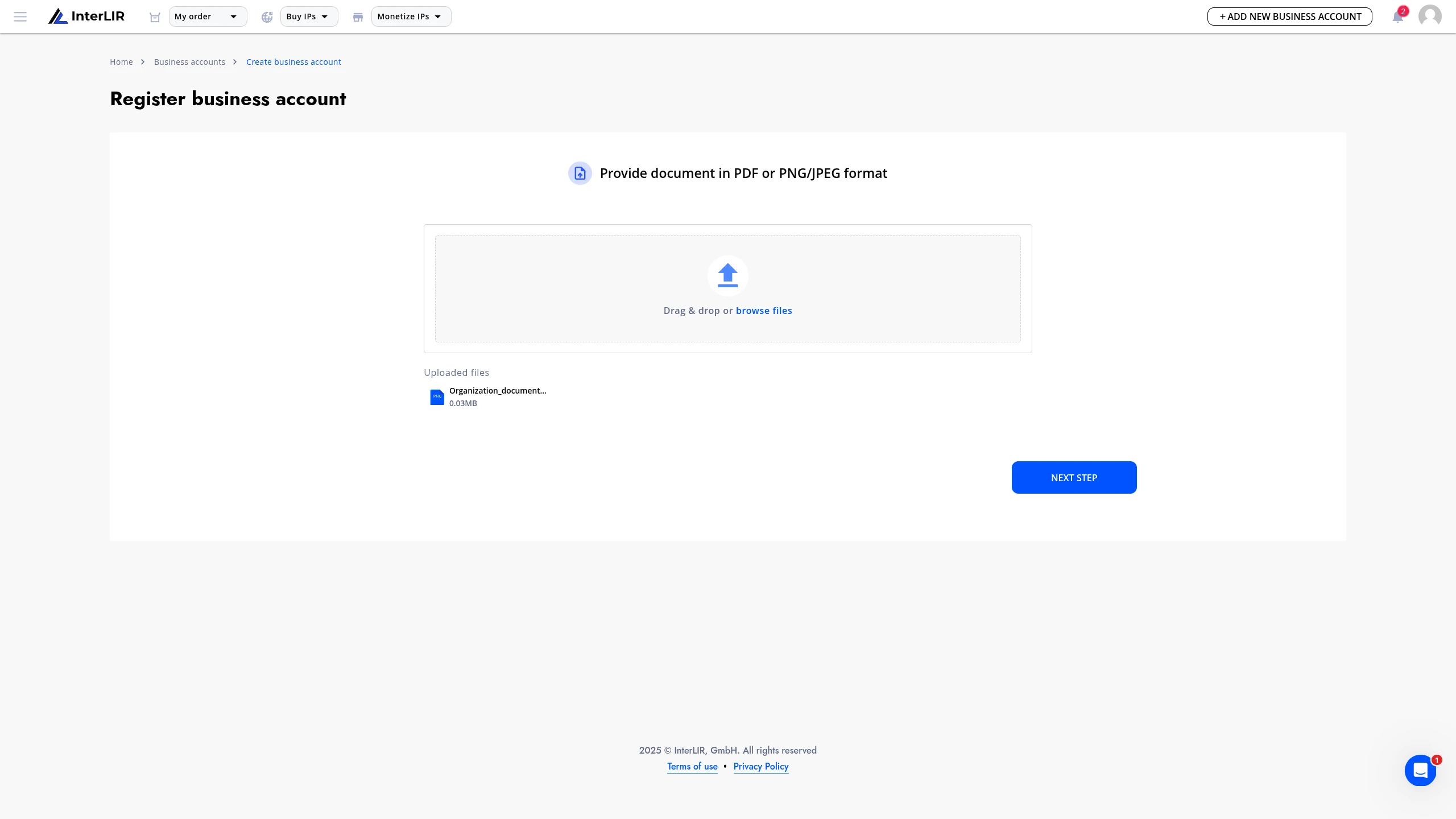
What to upload: InterLIR does not onboard private individuals who are not operating through a registered business or legal entity. Your files must document the business or organization you are adding to the portal and your authority to represent it. Suitable documents typically include company registration extracts or certificates, sole proprietor / individual entrepreneur (IE) or equivalent business registration certificates, or other official records that prove the organization exists under the rules of your country.
Quality: Provide high-quality scans or photos—sharp, well-lit, fully legible, with all relevant pages and details visible. Blurry, partial, or unreadable submissions may be rejected or cause delays.
- The user uploads documents in the required format.
- If the documents are acceptable, the user submits a request for Business Account creation.
6. Manager Review
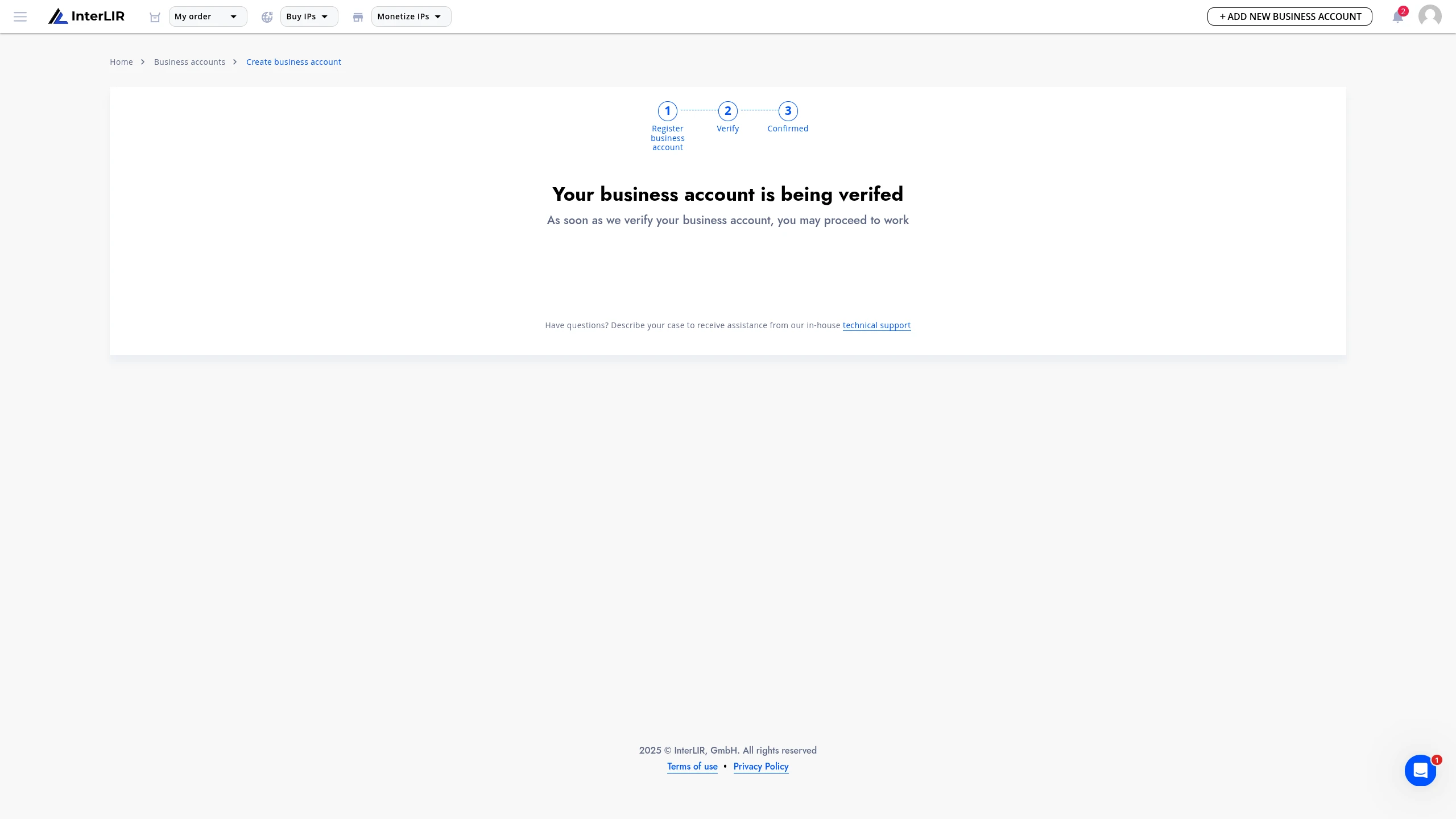
An InterLIR Manager receives a notification about the new Business Account creation request.
- The manager reviews the request.
- If everything is in order, the request is approved.
- If there are issues, the request is rejected, and the manager asks the user to make corrections.
Completion:
Once the user receives approval for the Business Account creation, the process is complete.
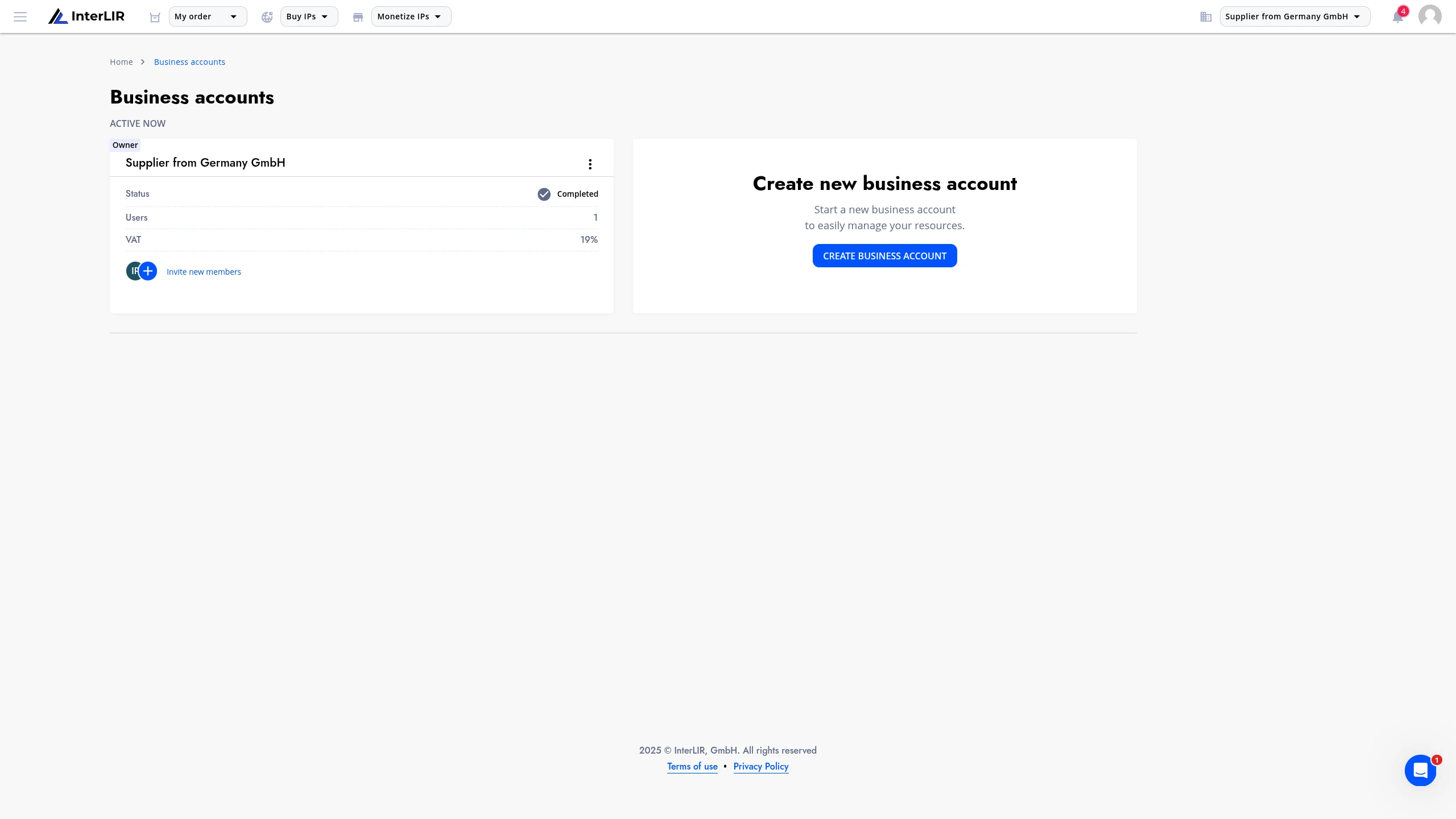
It is possible to have multiple business accounts on the platform, so that the import procedure can be repeated for another organization.
What's next
- For suppliers: proceed with Stripe Onboarding and then Import an IP-Block.
- For customers: go to How to Make an Order.
- Secure your InterLIR account: How to Manage TFA