How to Download an Invoices Archive
Customers and Suppliers can download many invoice PDFs at once from the Invoices page. Download archive builds an invoices archive: one PDF per invoice, limited to the rows that match the tab, search, and filters currently applied on the page.
The archive is prepared in the background. When it is ready, the platform sends an email with a download link. The link stays valid for 7 days.
One invoice PDF is available from the row menu: How to Pay an Invoice. A spreadsheet of the same table is Download CSV: How to Generate Reports.
Before you start
1. Open the Invoices page
Go to Billing → Invoices:
🔗 https://portal.interlir.com/invoices
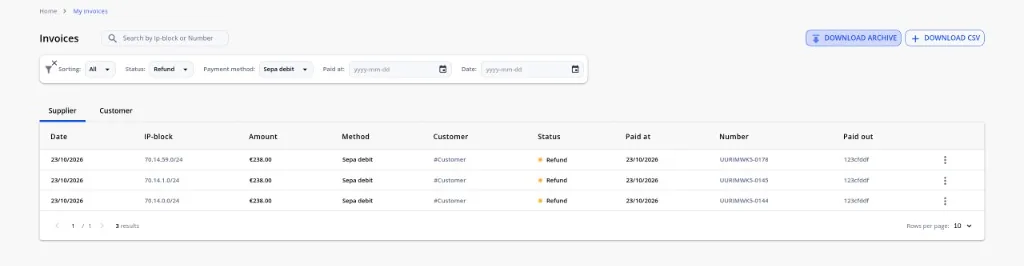
The page title is Invoices (breadcrumb Home → My invoices). Download archive is in the top-right corner, next to Download CSV.
2. Choose the invoices to include
The archive follows the table. It includes the invoices that match the active tab, the search box, and the filters at the moment you click Download archive.
- Open the Customer or Supplier tab.
- Use Search by Ip-block or Number when you need a specific block or invoice number.
- Set the filters you need — for example Sorting, Status, Payment method, Paid at, and Date.
Change or clear a filter to change the set of invoices. When only the tab is selected, the archive includes the invoices of that tab.
3. Start the archive
Click Download archive.
The platform starts preparing the archive. Each matching invoice is stored as its own PDF. The download link arrives by email when generation finishes.
4. Download the archive from the email
When the archive is ready, an email is sent to your account address.
The message says that the archive has been generated and states:
- how many invoices are included;
- that each invoice is a separate PDF;
- that the contents follow the filters applied in the invoices table;
- the date and time in UTC until which the link works.
Click Download archive in the email to save the file.
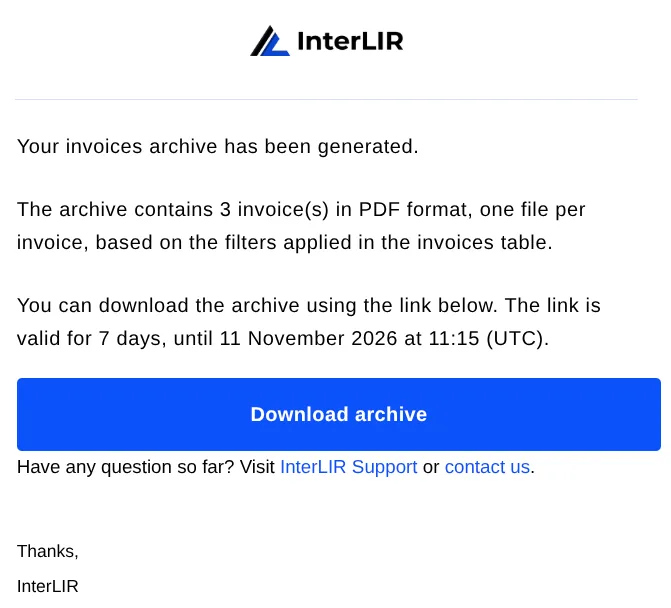
The link is valid for 7 days. After it expires, click Download archive on the Invoices page again to request a new one.
🛈 Note: If the email does not arrive, check the spam folder and make sure
interlir.comis allowed by your mail filters. The same address is used for other portal messages.
Other ways to export invoices
On the Invoices page:
- Download CSV saves a spreadsheet of the visible rows immediately. See How to Generate Reports.
- Download pdf in a row’s context menu (⋮) saves one invoice. See How to Pay an Invoice.
On the Reports page, Invoices PDF is a financial report for a period you choose. See How to Generate Reports.
See also
- Invoices archive (glossary)
- Invoice (glossary)
- How to Pay an Invoice
- How to Generate Reports